This is one of those things that is so simple and basic BUT if overlooked it can create a lot of mess, frustration and confusion. Depending on what your custom page is designed to do, you likely have a submit button on it. If your button is then using a Patch statement to update existing or create new records, clicking the button multiple times will fire that statement each time. Ugh! That could be ugly! In this post a very quick change to some of your formulas will help prevent that. Let’s take a look at how to prevent users from making multiple submissions from custom pages.
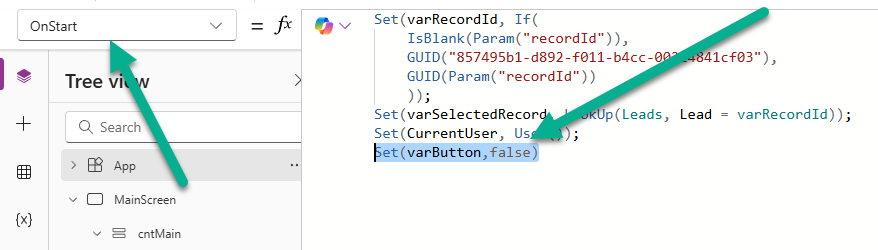
The first place you want to add some logic is on your OnStart formula at the App level. We are going to create a variable named button and set the value as false.
Set(varButton,false)
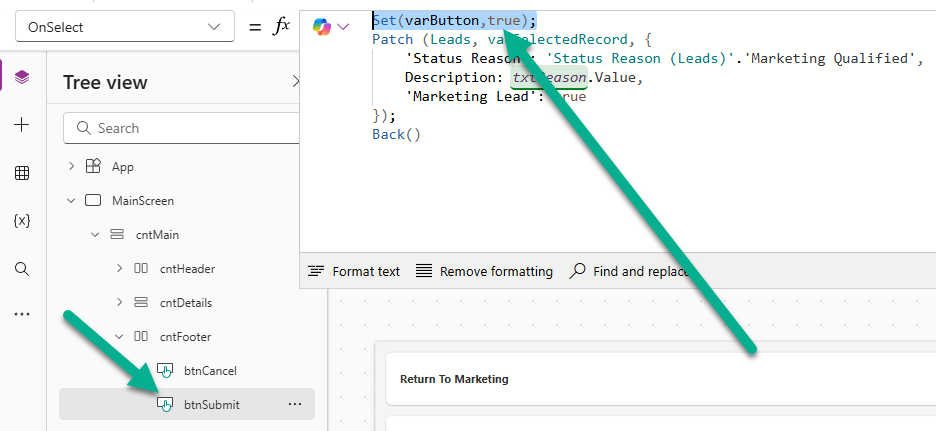
Then on the button where you have your Patch statement, we will add in the opposite to set the button variable to True. So when the app is opened, the varButton value is false, then when the submit button is pressed, the varButton value is true.
Set(varButton,true);
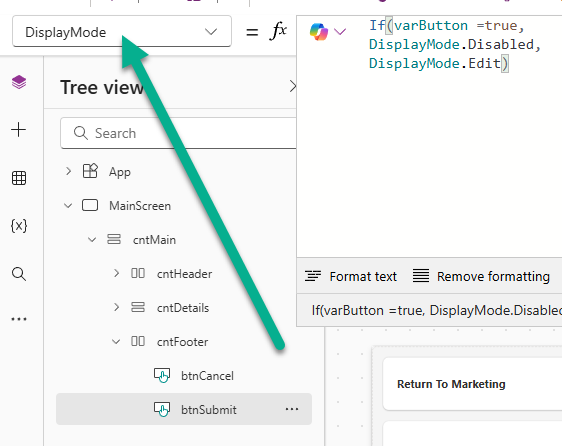
Now we can use that variable to determine if the button should be editable (can be clicked) or disabled (locked and greyed out and cannot be clicked). For this, go to the DisplayMode of the same button where you just added the line to set varButton to true. This states that if the varButton value is true, the button is disabled, otherwise it is in edit mode and can be pressed.
If(varButton =true,
DisplayMode.Disabled,
DisplayMode.Edit)
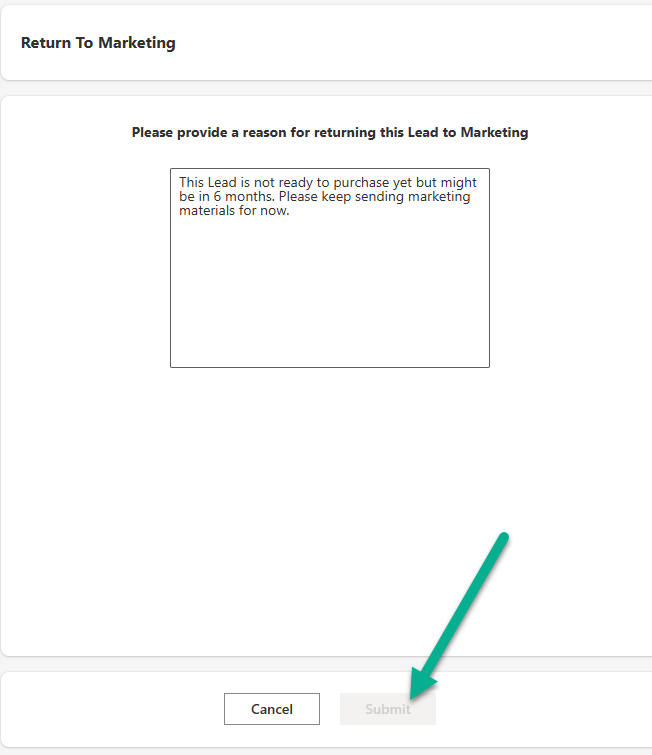
Now when a user is interacting with the custom page and presses the submit button, it will be locked and cannot be pressed again. Depending on what the Patch is doing, or the speed of someone’s internet access, it can take a moment before the custom page closes. This way the user knows something is happening and cannot just keep pressing the Submit button. Happy days!





Leave a Reply