
*** NOTE: ALL INFORMATION IS ACCURATE AT DATE OF PUBLISHING ***
If you’ve been around long enough and created Events when they were only considered Outbound Events, you may have used the Event Template option. The ability to create a ‘dummy’ event that someone else could come along and use to create a new Event from. So this means you can add defaults for users so they don’t have to be set every single time. BUT in Realtime, it’s just not there, no option to either create a template or create an event from that template. I hadn’t put much thought in to using Event templates until I was asked about it on a call, so I started digging in to see if it was possible to still use them. Good news is, there is a way. Bad news, or something for consideration, Microsoft can always change things in the future so we might get the option out of the box, so this way could be redundant in the future (as with all things custom!).
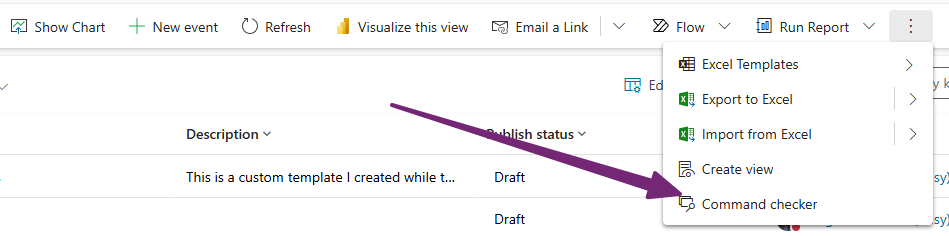
First, lets look at why we can’t access the buttons for templates any more. There is a way to check the command bar (the ribbon) for the Event main view area that you can learn more about here from this blog by Inogic.
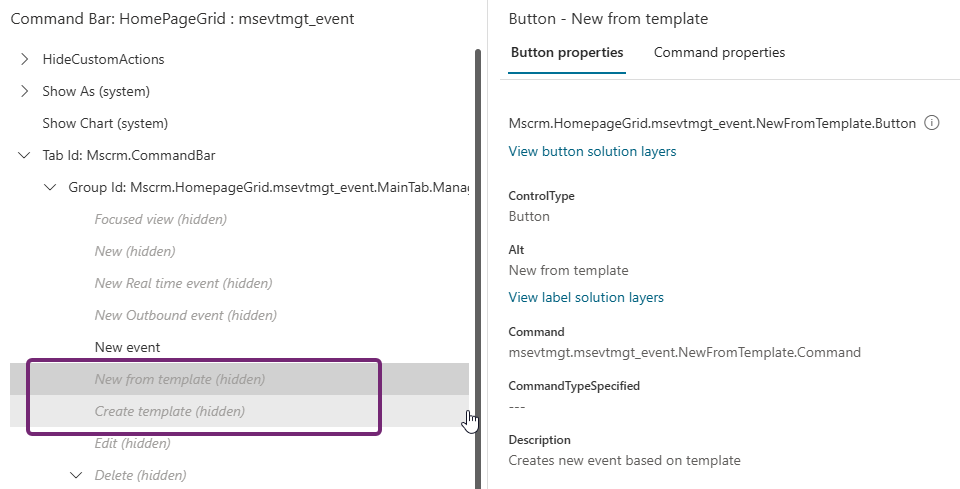
The buttons can all be seen so we can find the New from template and Create template buttons. They are both hidden… which we already knew 😕
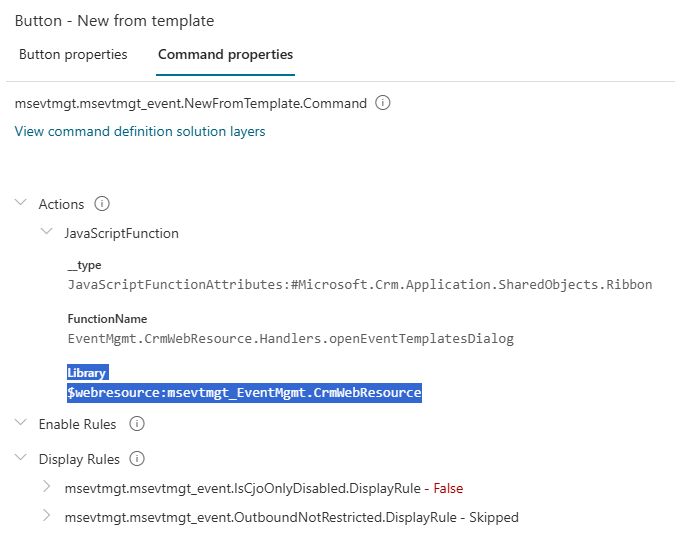
I can then look at the Command properties that has a bunch of rules to determine when it should show, which we have no control over and cannot change. What we can do is look at the JavaScript function and see what web resource script is being used. Each button uses the same web resource, but a different function name for each one. Let’s see if we can add new buttons instead.
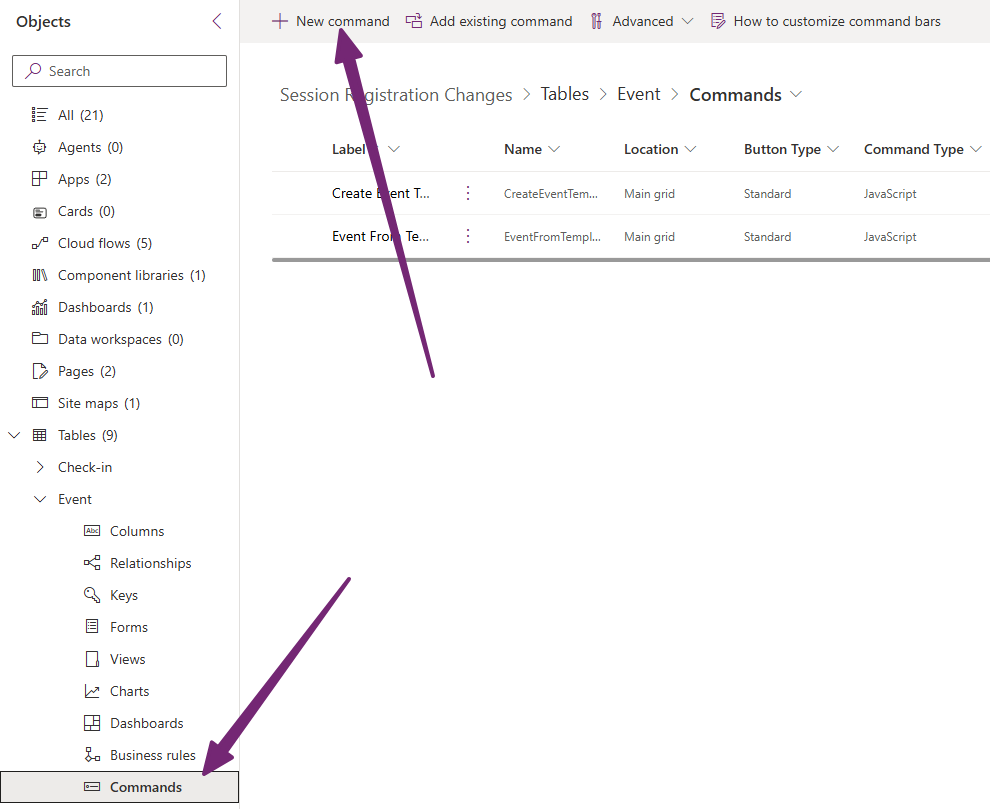
There are two ways we can add a new command (new button). One is from the Event table directly, going to the Commands section and then New command. This adds it to the Event table no matter what Model-driven App is being used.
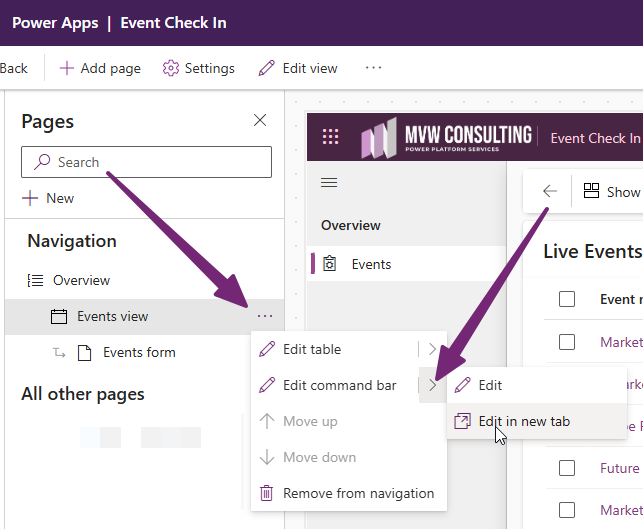
The other way is to go in to a Model-driven App (my example uses a custom MDA I have), then go to the Events table, click on Events view, then edit command bar (either edit or edit in new tab).
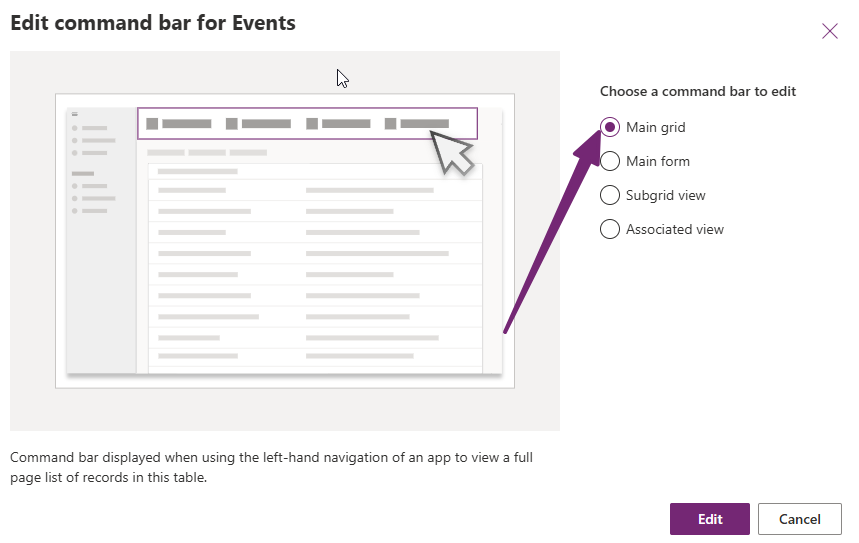
When you are prompted with this screen, click on Main grid. We will add the new buttons to the command bar when we are reviewing a list of Events rather then when on an individual event.
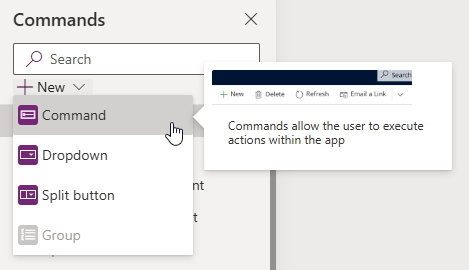
Once in the area to edit the command, click on New, then Command.
Add two buttons. You can use a web resource (tons already exist or you can create a new one) to determine what icon to use, and set the label you want to use. Set the Action as Run JavaScript, then add the msevtmgt_EventMgmt.CrmWebResource web resource that already exists in your system.
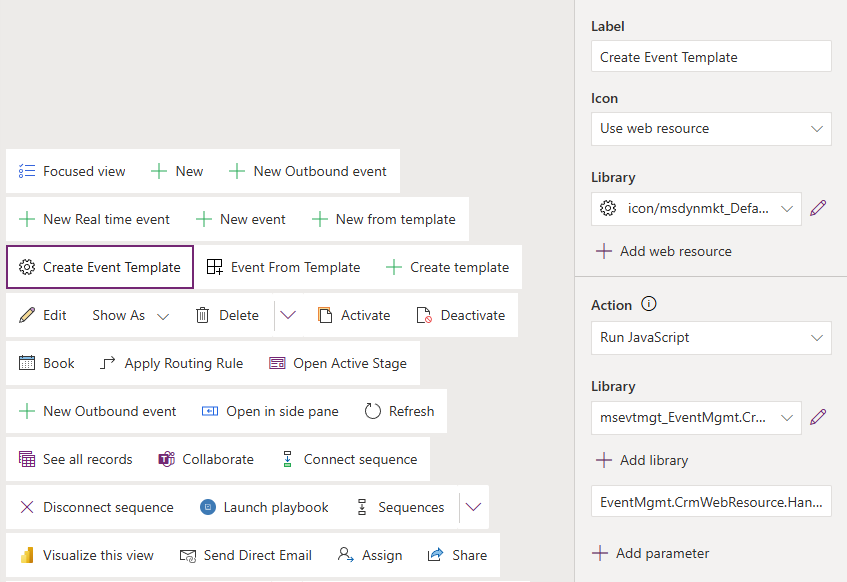
For the Function, these are the two different functions to add for each button:
- Create template function: EventMgmt.CrmWebResource.Handlers.createEventTemplate
- New from template function: EventMgmt.CrmWebResource.Handlers.openEventTemplatesDialog
Save and publish the changes you’ve made. Now you should see the new buttons when you go to the list of Events in Customer Insights – Journeys.

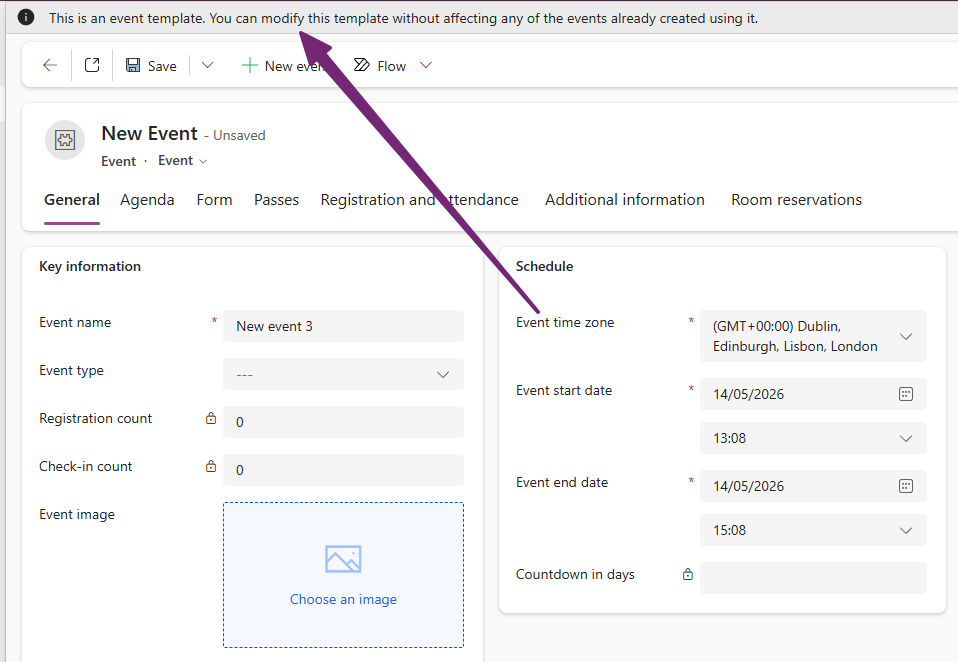
Clicking on the Create Event Template will open up to create a new Event, but you will notice a banner along the top telling you it’s an event template. There is a field called ‘Is template’ that will be set to Yes automatically for you, no need to do anything else but add in all of the values you want to use for the template.
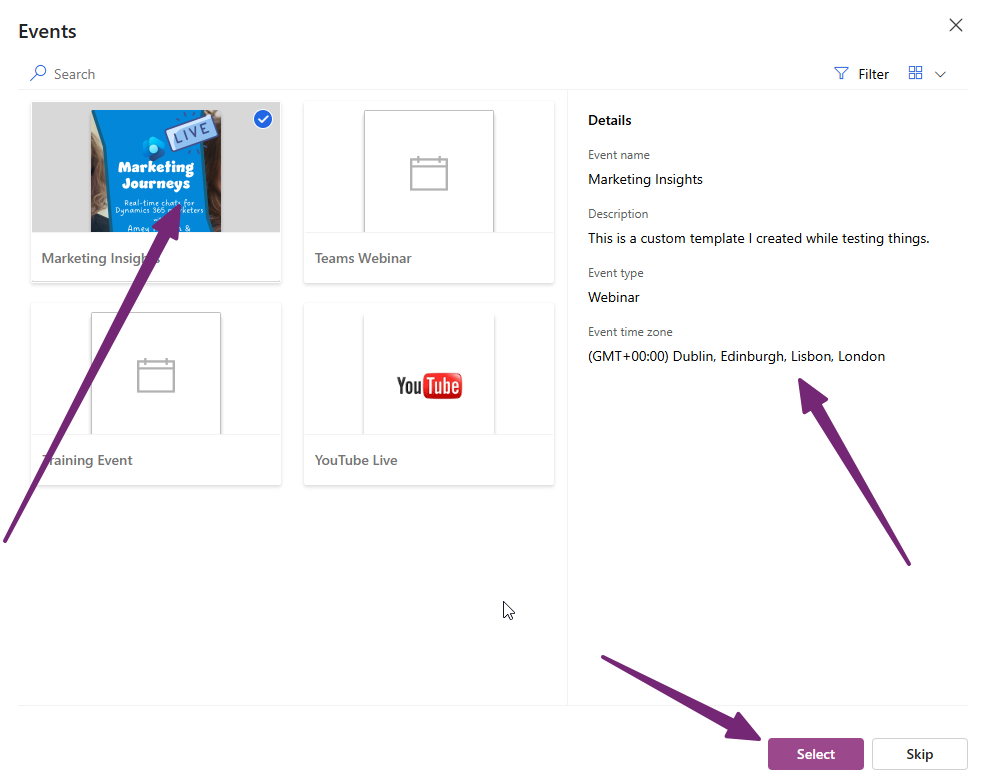
Then if I click on Event From Template, this control will open up, and I can pick the template I want to use.
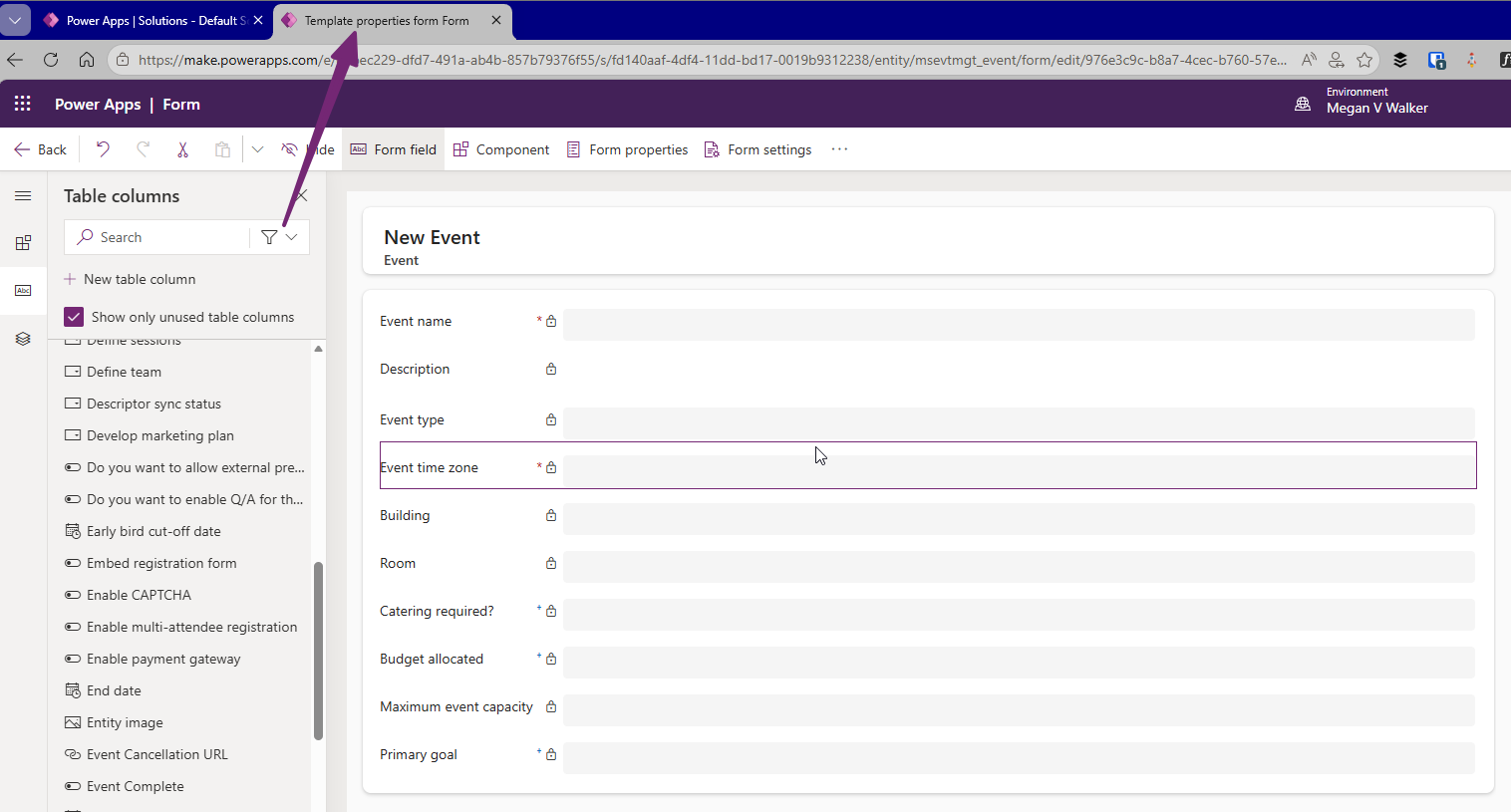
For the control above, if you want to add in or change the values that are shown for the details of the template, edit the Event form named ‘Template properties form.
I hope this helps! Would be great if this is available out of the box again at some point, but for now, it’s all there, just hidden away. Adding those buttons means users can still take advantage of the functionality. If Microsoft add it again in the future, the custom buttons can just be hidden to avoid confusion.
Check out the latest post:
Use Custom Event Registration Questions To Branch Your Journeys In Customer Insights
This is just 1 of 603 articles. You can browse through all of them by going to the main blog page, or navigate through different categories to find more content you are interested in.
Well written guide!
But my clients ask more for a ‘Copy this event’ functionality like it is available for emails, forms and journeys.
We have developed an own solution two years ago, but this should be really an out of the box feature.
Hi Stephan, there is a Save As function on an Event that indeed makes a copy of the event already. The only thing with this is that it also copies all of the sessions, speakers and speaker engagement records which can cause confusion when those automated emails go out!