
*** NOTE: ALL INFORMATION IS ACCURATE AT DATE OF PUBLISHING ***
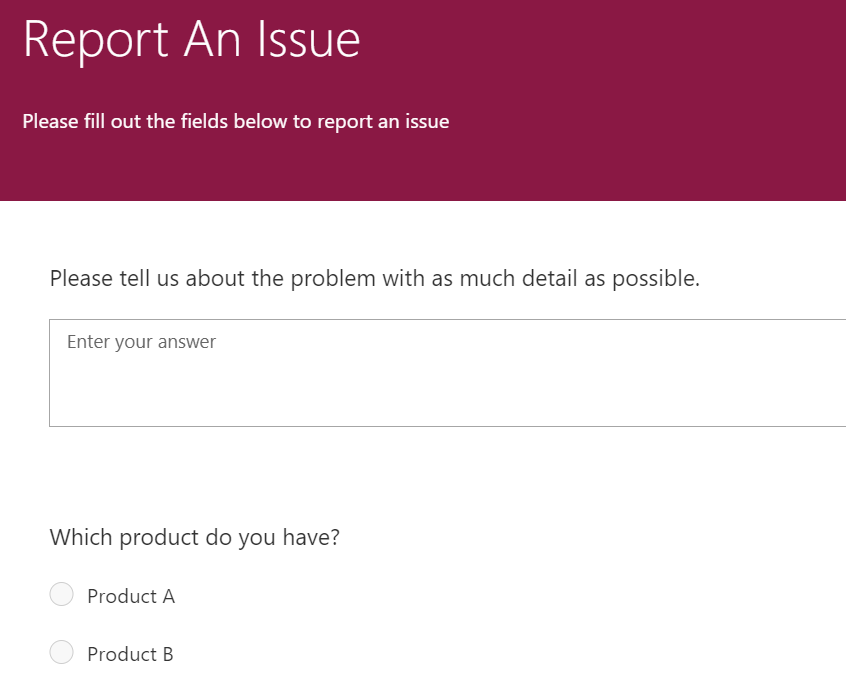
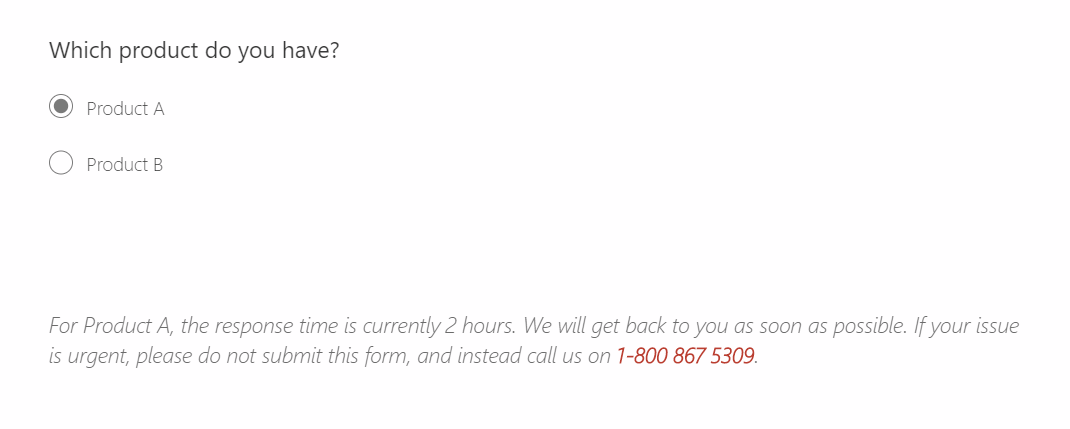
If you have a survey in Forms Pro there might be occasion where you would like to have different text or instructions displayed to the respondents depending on how they answer specific questions. We have a way we can do this by using a Choice question and Branching Rules to determine what gets displayed. First let’s start with a basic survey, designed for customers of an organisation to report an issue. We have two simple questions. Depending on which product they have, we want to show different text about the current SLA’s being met.
We can add in two new questions, one called Product A and one called Product B. Use the Choice question, but delete the two options that get added automatically. You can use the sub title area to add in the instructions or direction you would like to provide for that specific option.
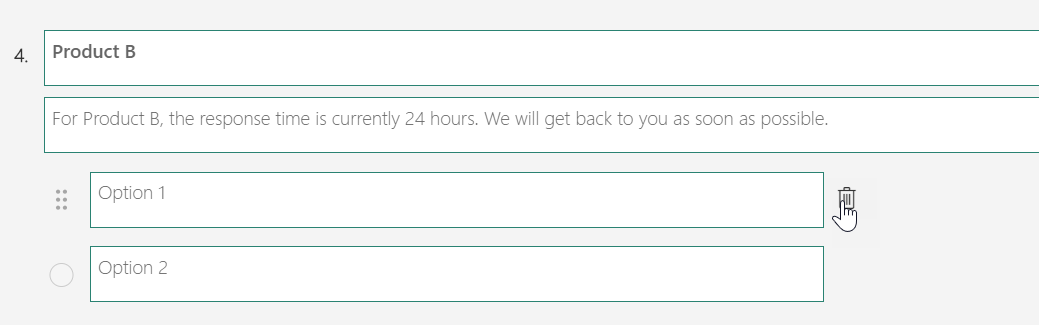
Make sure you change the visibility of the question and turn off the field so the question will not show by default.

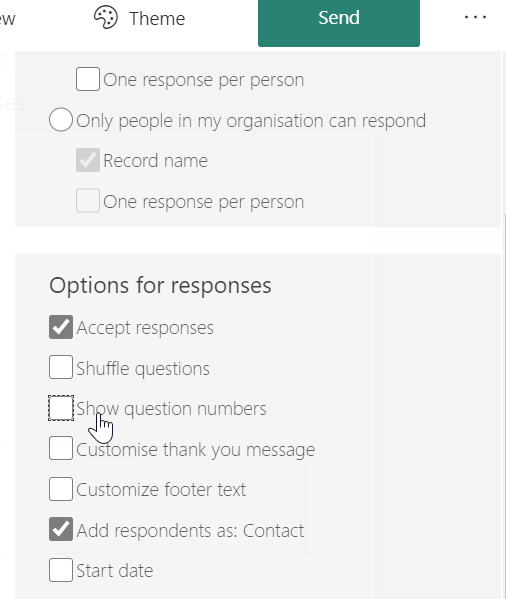
In the settings area of the survey, de-select the option to Show question numbers.
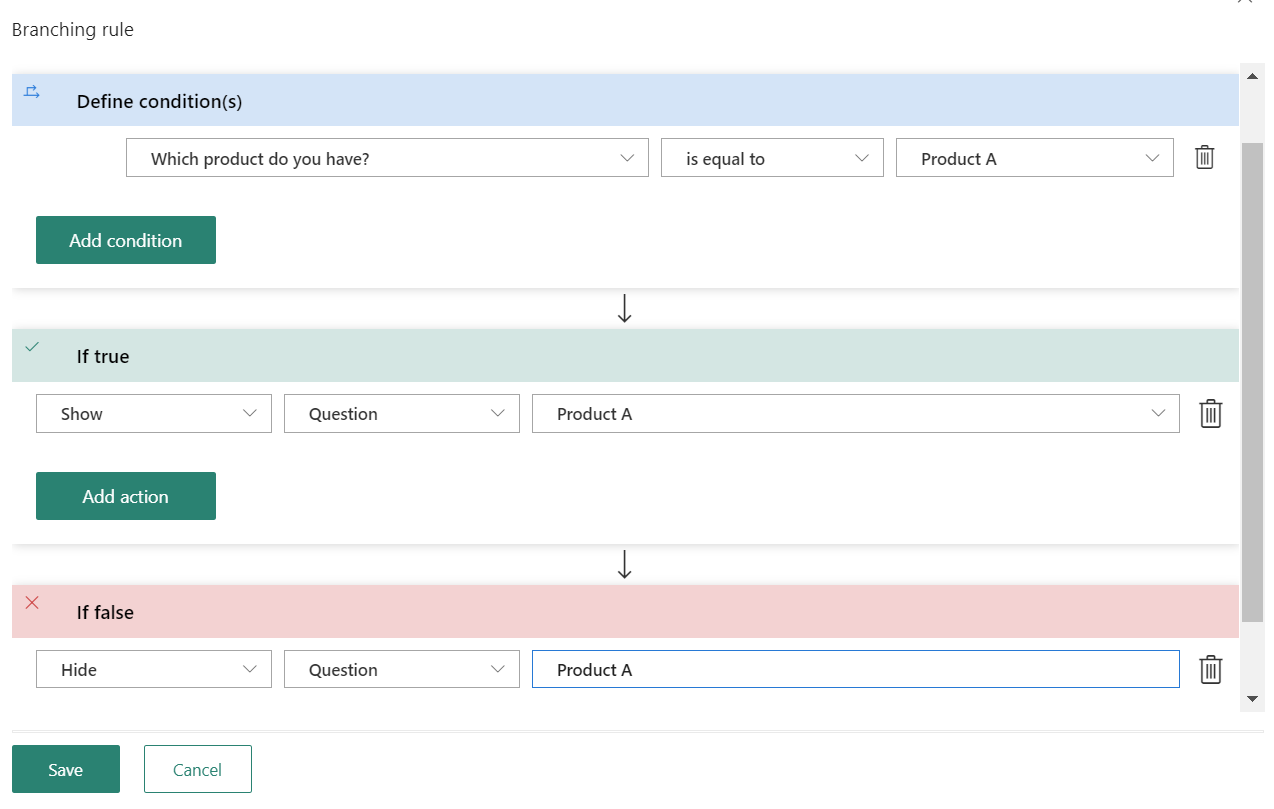
Now we need to add two branching rules. First, we define the condition by setting the Which product do you have question being equal to Product A. We then Show the question for Product A if true, and Hide the question if false. Then we do another branching rule for the same question, but if it is equal to Product B. Then do our show and hide logic for the Product B question.
Now if someone picks Product B, we see the ‘question’ we named Product B. Because there are no choices, we simply see the text, and can continue on to submit the survey.

We can also change the font on the question text to white.
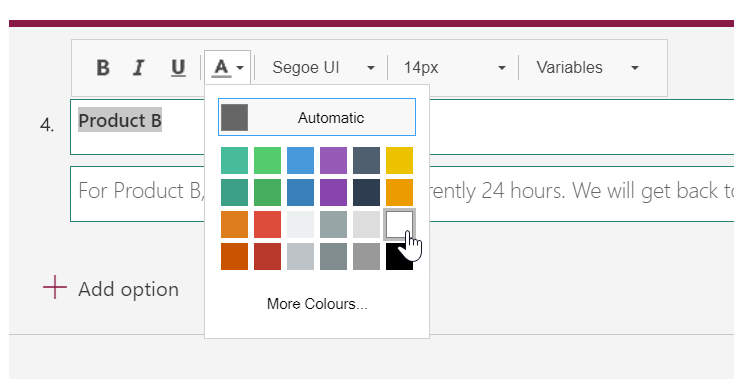
Which then just leaves us with the sub title of the question. So perhaps not intended as functionality for Forms Pro, but a work around that gives the ability to provide descriptive text or directions to the person completing the survey.
Check out the latest post:
Setting Up reCAPTCHA v2 For Your Realtime Marketing Forms
This is just 1 of 571 articles. You can browse through all of them by going to the main blog page, or navigate through different categories to find more content you are interested in. You can also subscribe and get new blog posts emailed to you directly.