Capturing UTM parameters when someone submits a form sounds like it should be simple, right? Having spent years working with Dynamics 365 Customer Insights - Journeys, I know that’s not always the case! What should be straightforward can quickly involve custom JavaScript, hidden fields and all sorts of workarounds. So, discovering how easily HubSpot can capture standard and even custom UTM parameters through form submissions was a very pleasant surprise. But what what is already captured out of the box versus needing to do any custom set up to get info? I decided to put it to the test!
Setting Up UTM Tracking in HubSpot
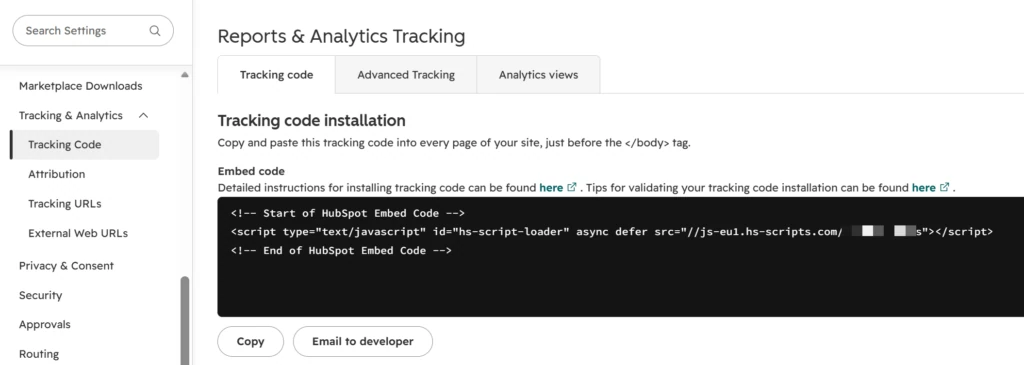
First, your site must have the tracking code installed, and a cookie manager of some kind to be compliant. We want to make sure that all site visits are captured even before someone fills out a form. Don’t worry if someone doesn’t accept them, the approach I’m outlining will still populate UTM parameters, but it won’t necessarily give you the full story of a customers journey through your site.
Creating Contact Properties for UTM Parameters
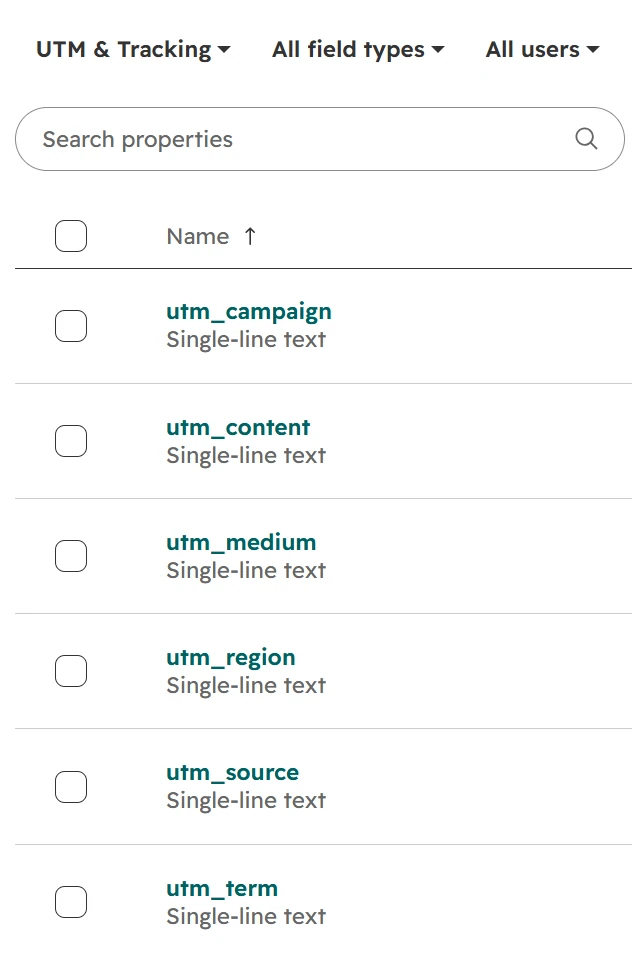
Next, add some new properties to the Contact object. You’ll need one for each of the standard utms (source, campaign, medium, content and tag) and one for each custom utm you might want to track. What is really cool, when adding these to your form, any parameters in the url that match EXACTLY to your property names will be populated magically (yeah, I know, not really magic 🪄🔮✨) in to those hidden fields and stored as values on the Contact.
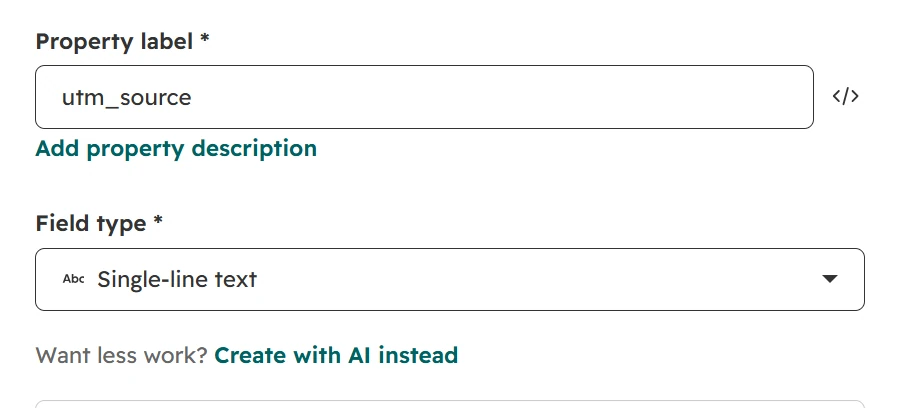
When you add them, consider adding them to a group so you can find them easily later.
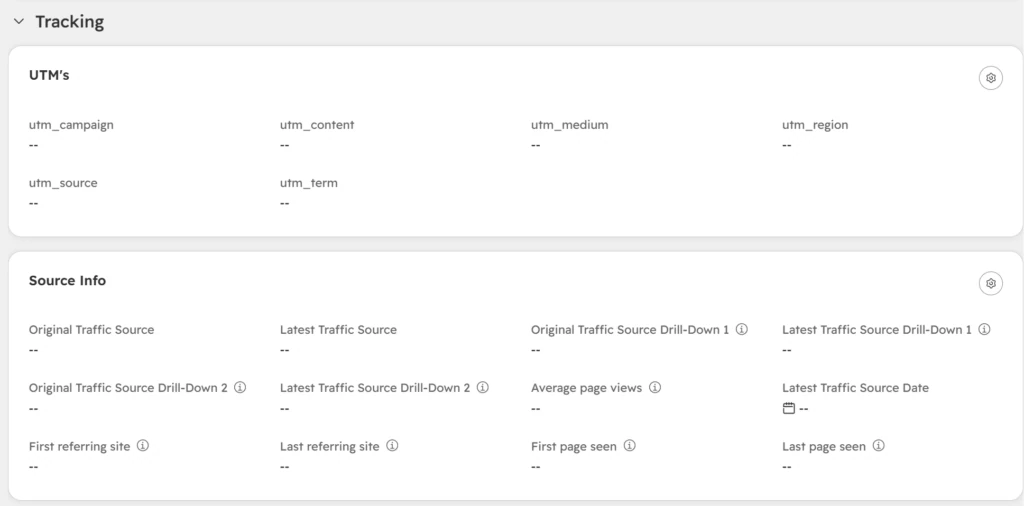
The fields can then be added for visibility in a card. Notice the standard source related properties displayed below the custom UTM properties.
Adding Hidden UTM Fields to HubSpot Forms
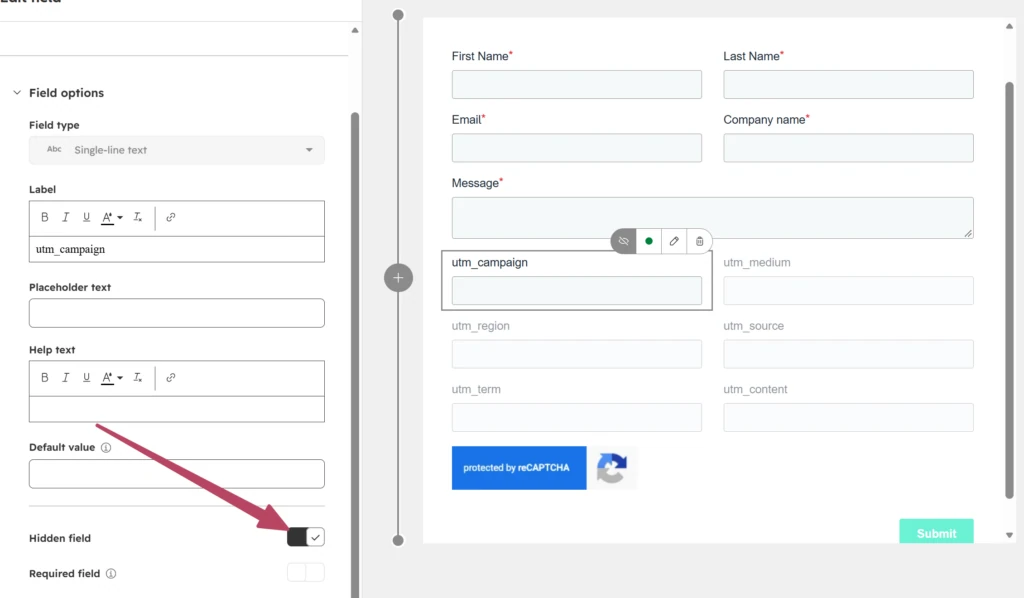
Now we need to add those UTM properties as hidden fields on to any form we are using on the website. Add your fields then scroll to the bottom of the field options for each one and hide it.
Testing HubSpot UTM Tracking: Five Scenarios
Now let’s look at some scenarios to see what happens when someone visits the website and submits a form. I set up a test website with a few pages and a couple of forms which have the hidden UTM properties added.
Test 1. Contact A: Direct visit, no UTMs
Goal: Establish what HubSpot captures when someone visits directly without any campaign parameters.
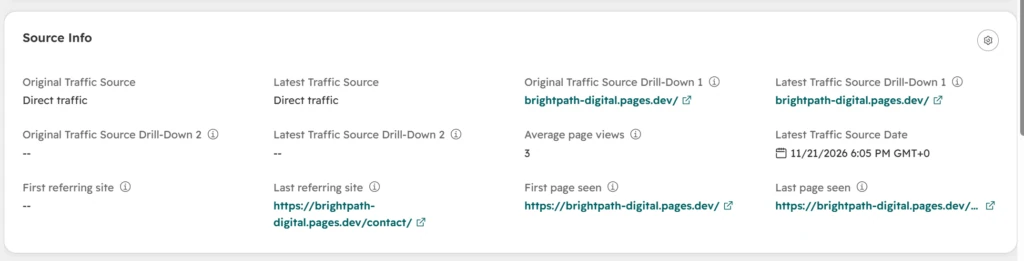
I opened up the home page of my set, then clicked on the link to go to the Contact page, then completed the Contact form. All of the UTM parameters were empty which was expected. BUT, what is really cool is the amount of value that is captured related to the original traffic source with the landing page and referring info. This is really impressive!
Test 2. Contact A: Returns through LinkedIn
Goal: See what happens when an existing contact returns through a campaign and submits another form.
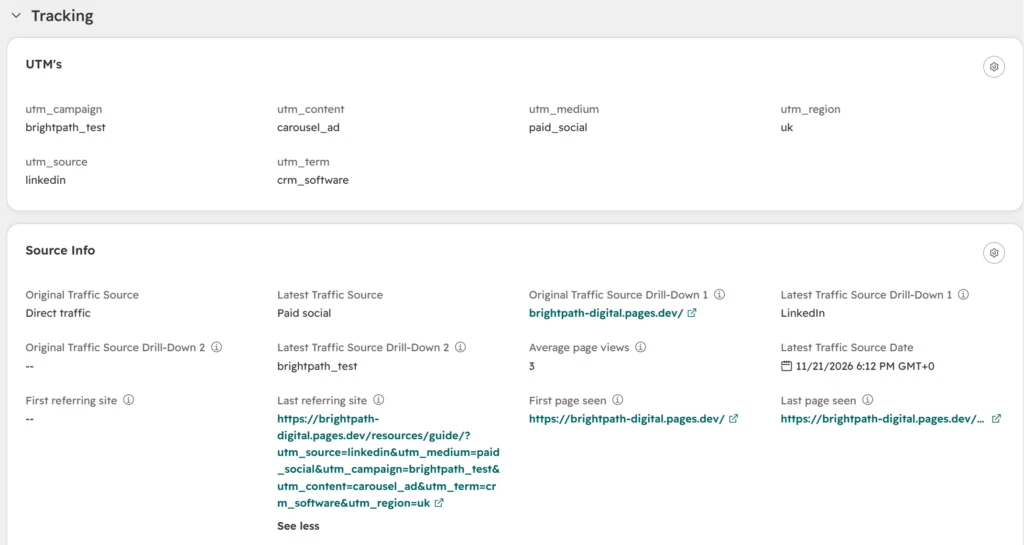
I then opened up the same browser a second time but to a landing page for gated content and appended the following parameters to the end of the URL then submitted the form on the page:
utm_source=linkedin&utm_medium=paid_social&utm_campaign=brightpath_test&utm_content=carousel_ad&utm_term=crm_software&utm_region=ukAnd what a beautiful site! Look at all the UTM values filled out, this is brilliant, and without having to write any additional scripts. Just a note on this… each time someone fills out a form and there were parameters in the url AND hidden form fields, these will be populated. So, what you will end up with is the latest set of UTM’s. You could create a second set of fields for the originalutmcampaign, originalutmmedium etc, and run a workflow that sets them the first time then leaves them alone. That way you always know the original values, then the current values will be updated with each form submission. Notice in the source info that the original values remain the same, but the latest info has been updated accordingly.
Test 3. Contact B: Campaign visit without submission
Goal: Determine whether HubSpot remembers an anonymous visitor’s original campaign when they eventually become a contact.
Now on this one we have a new visitor landing on the website with some parameters in the URL. Then they visit the services page, the contact page, but don’t submit a form. Then they close the browser. So no Contact created, but cookies added to the browser.
utm_source=google&utm_medium=cpc&utm_campaign=crm_guide&utm_content=search_ad_01&utm_term=hubspot_consulting&utm_region=usTest 4. Contact B: Returns directly and converts
Goal: Find out whether HubSpot associates the previous anonymous Google campaign with a contact created later.
On this one, I opened the same browser profile for Contact B that was used in the previous test, and went directly to the home page without any UTM parameters. Then went to the Contact page and submitted the form. I wanted to see what would happen on the second visit and what would be added to the new Contact record created in HubSpot in terms of any tracking info.
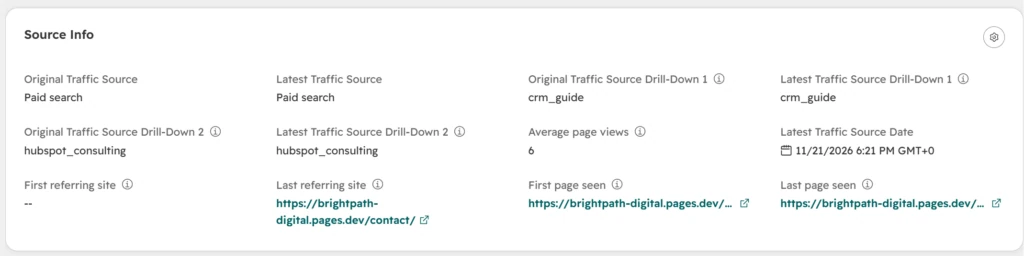
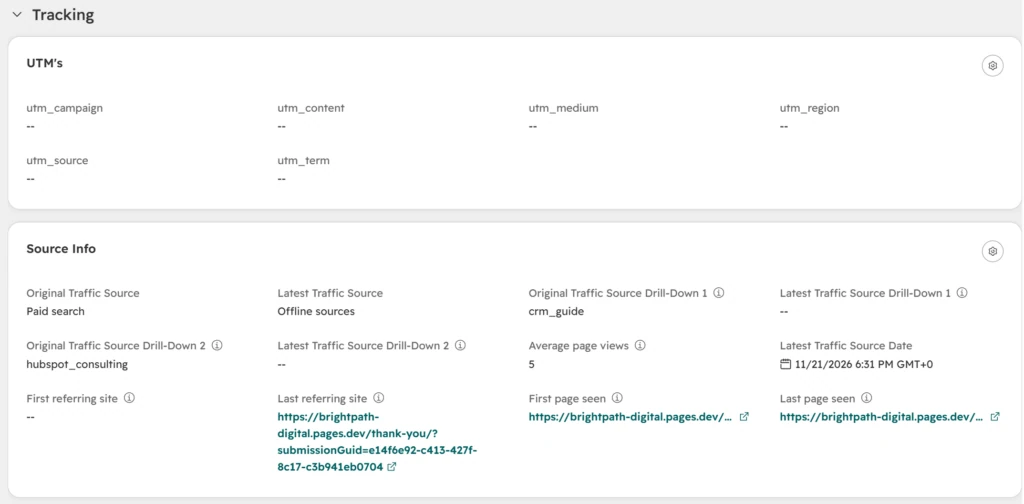
As expected, all of the UTM values were empty BUT the UTM values from the first visit have been used to populate some of the original traffic values and the first page seen was from the original visit. So although our custom UTM properties are empty, the values from the very first visit are still used to provide us with valuable data.
Test 5. Contact B: New campaign, navigation before conversion
Goal: Test whether campaign information survives navigation between pages before a form submission.
OK our last test, same Contact again, but this time we want to see whether HubSpot updates its native latest attribution, and whether the six custom UTM properties populate despite the parameters no longer appearing in the form page URL. The new parameters used were:
utm_source=newsletter&utm_medium=email&utm_campaign=november_update&utm_content=hero_cta&utm_term=marketing_automation&utm_region=emeaFor this test, we got updated source information, but lost all of the UTM parameters as soon as the visitor moved from the first page they landed on. That’s not a HubSpot limitation, it’s what happens with all sites, the parameters are dropped as soon as the next page is visited. More on this in a future post!
Start Capturing UTM Parameters
So, if you’ve not done it already, it’s definitely work adding in those custom properties for your UTM parameters, and even as suggested, adding in original values to capture the first time, then keep updating the current ones with each form submission. The information can help in building your segments, using in workflows and making sure your Contacts get sent on the right next campaign journey. Hope you found this useful!
Discussion
Loading comments…
Join the discussion
Have a question or something to add? I'd love to hear from you. All comments are reviewed before appearing on the site.