
I’ve worked with Microsoft Teams Webinars for quite a few years, mostly thanks to the Webinars I did with Amey Holden while working with Customer Insights – Journeys. That integration had its pain points, and walking through the app integration in Entra was a hair pulling experience, especially as it changed a number of times before it worked as expected. So, I figured I would take a look to see how the integration with HubSpot worked, and if it was as much of a pain. Also, does all of the data you would want, need or expect to see in HubSpot actually show up from the webinars. Let’s take a look!
Install the Microsoft Teams App in HubSpot
First we need to click on the Marketplace icon, go to the HubSpot market place and search for Microsoft. Click on the Microsoft Teams app.
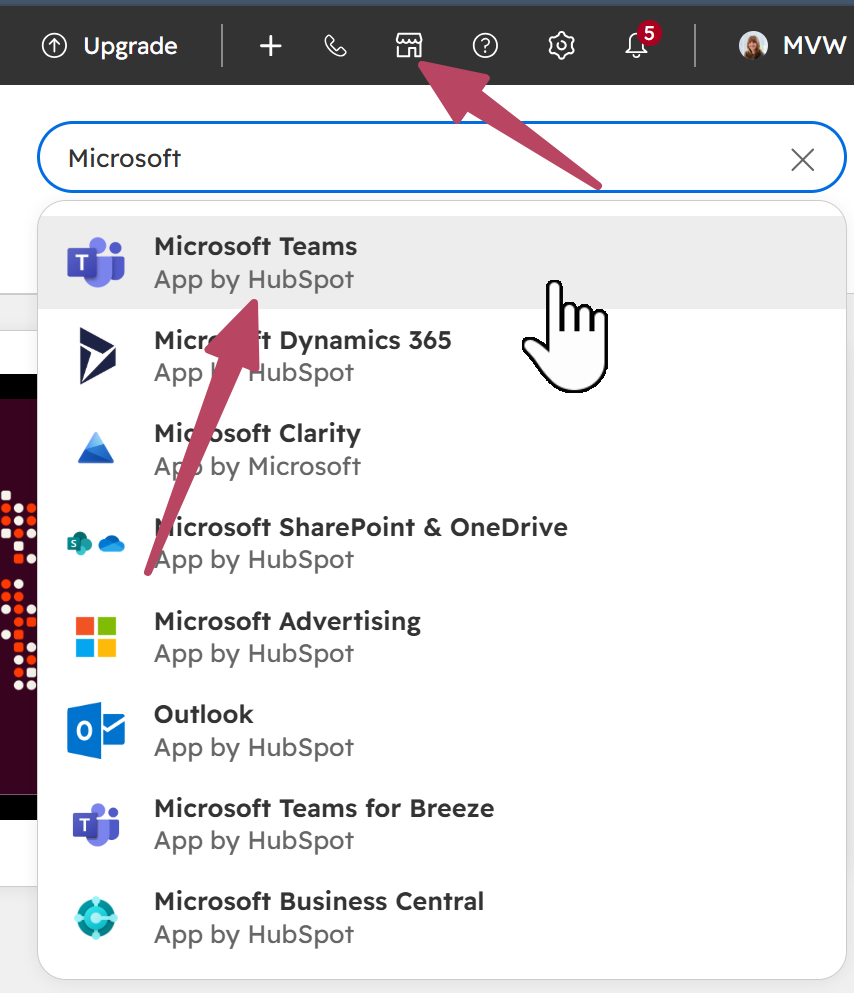
Then click on the install button.
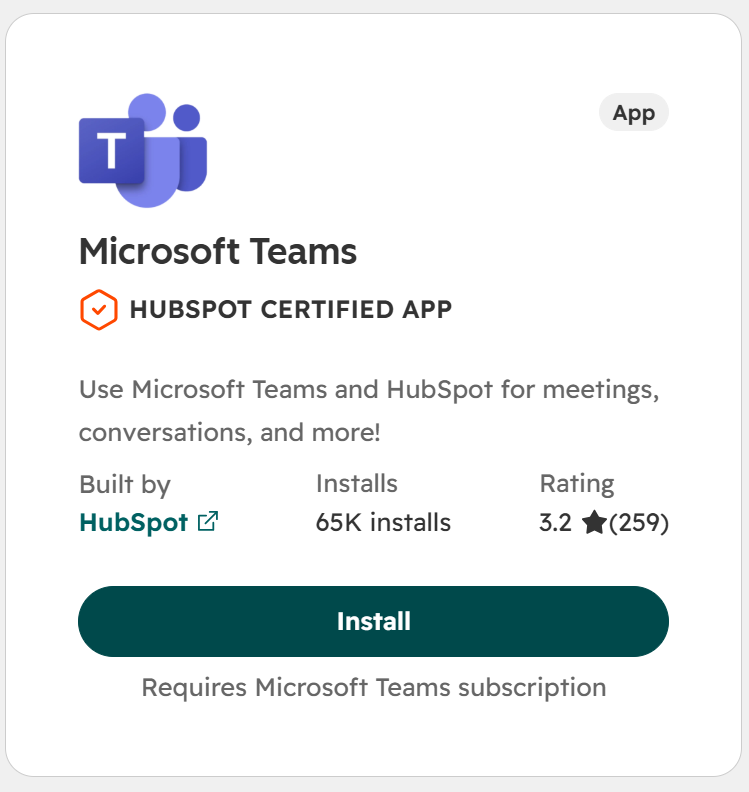
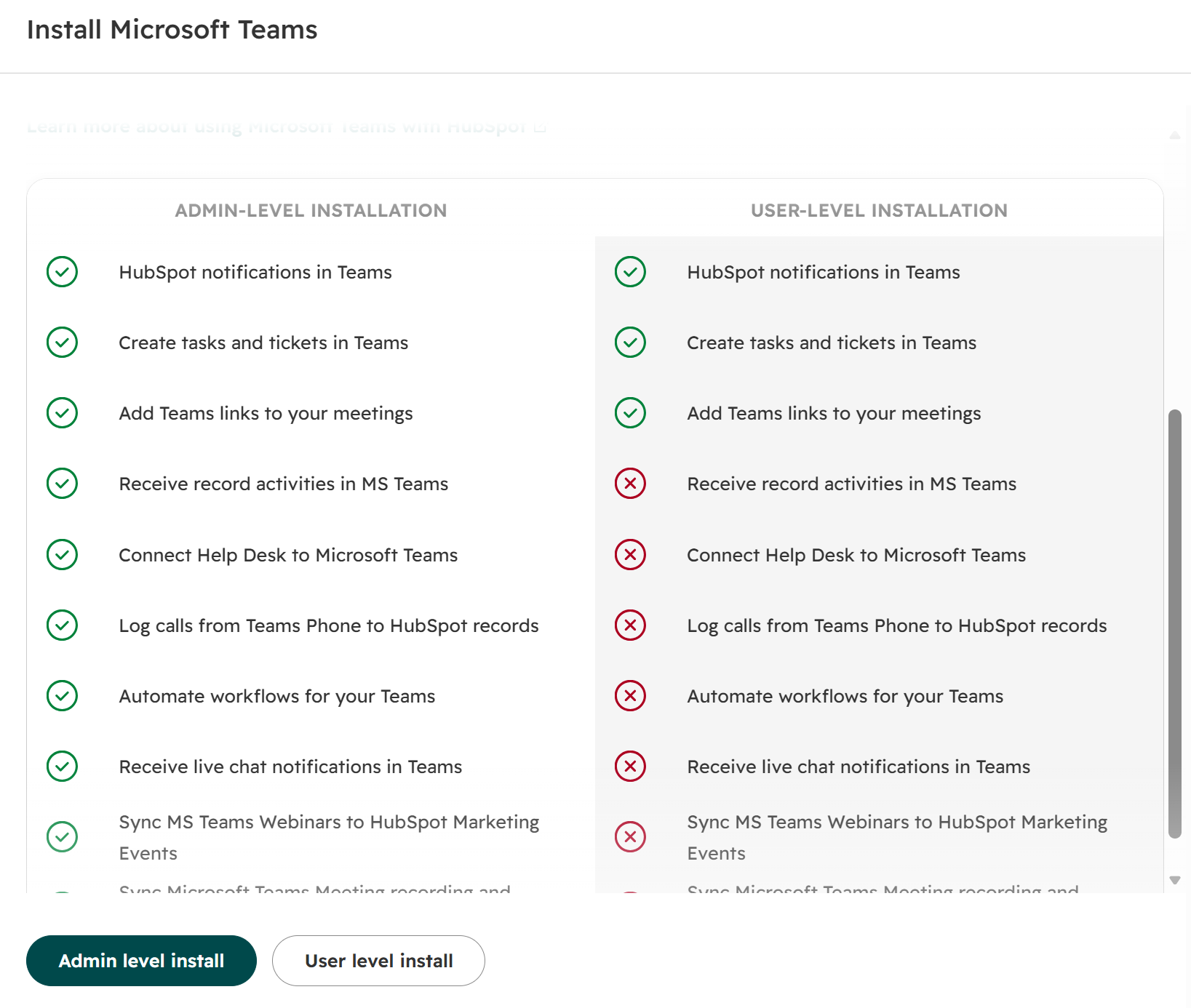
This shows all of the various access levels and functionality that is available for each. Notice that sync of your Teams Webinars to HubSpot Marketing Events is only available by installing at admin level so click that option to continue.
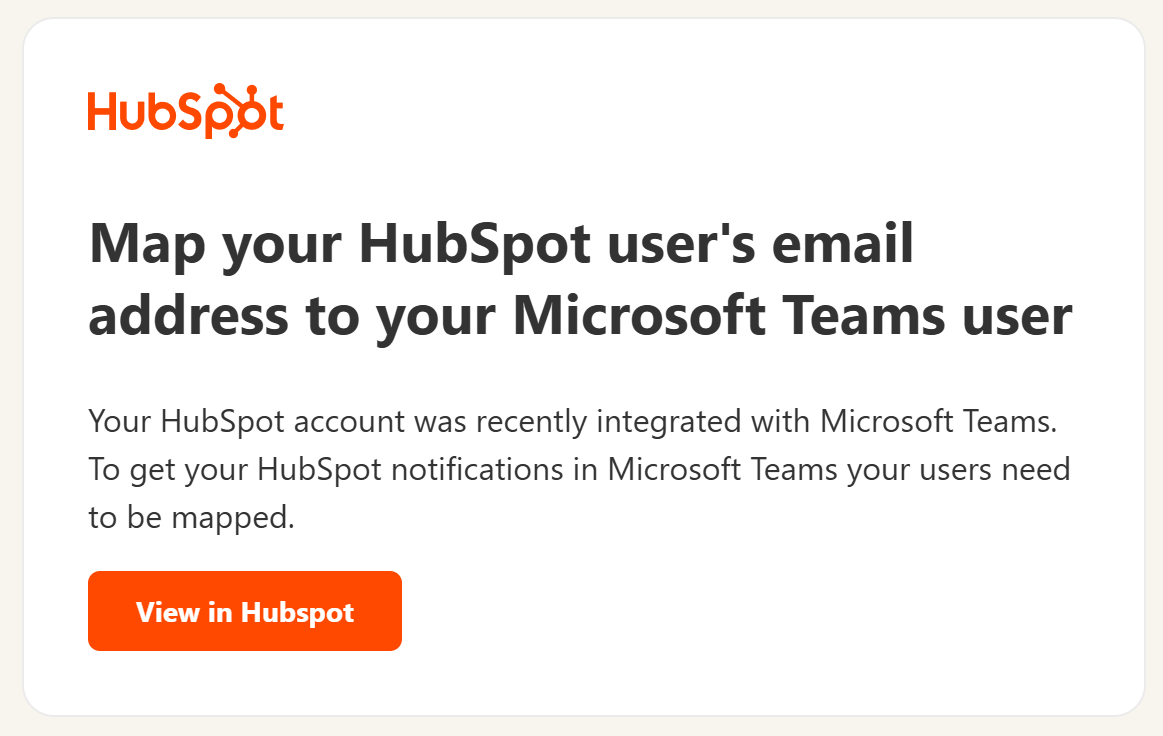
We then get an email notification to map our users email address to the Teams user which is pretty straightforward for users to do.
Set Up Webinar Permissions in PowerShell
The Microsoft Teams app is not just about webinars, so there are settings for lots of parts of the integration. We want the Webinars section and then the Global Settings for the next part of the set up. Click on the Permissions Guide button from the Webinars Permissions section.
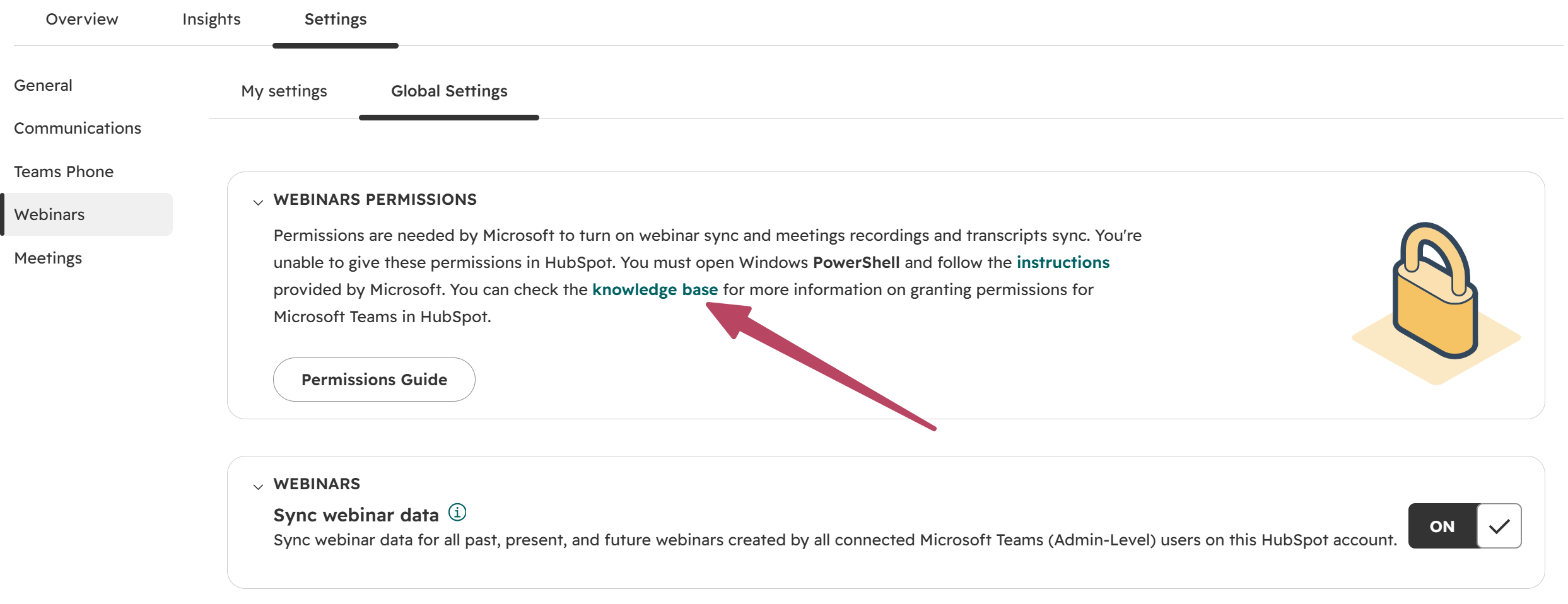
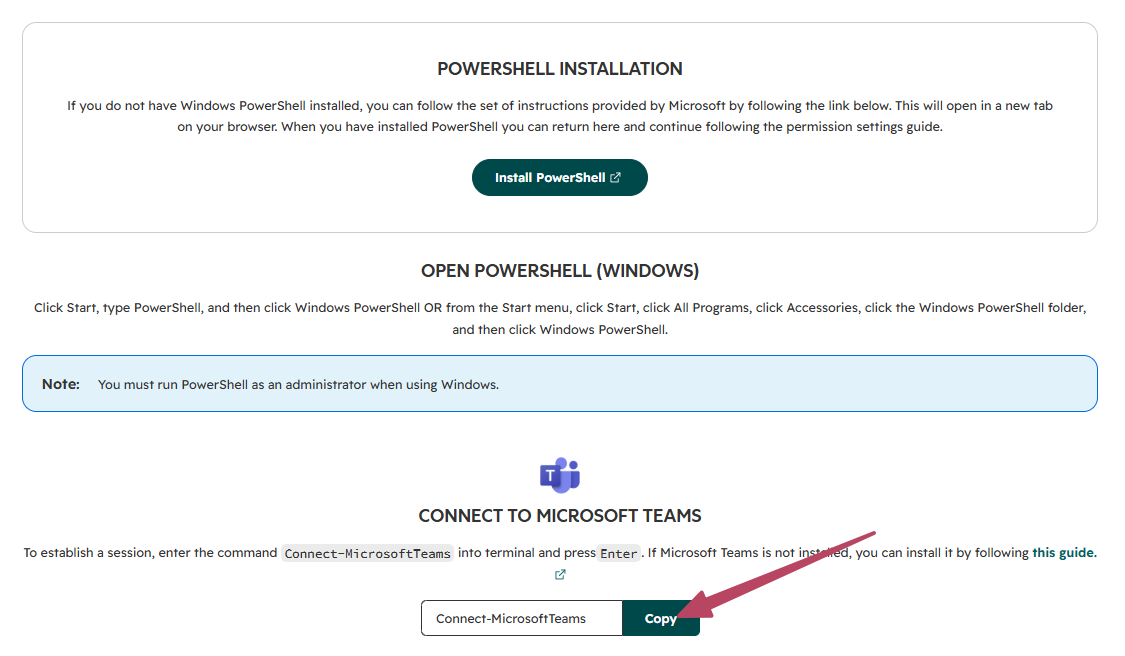
Now you need to get comfortable with PowerShell, or find someone who is. 😊 Likely it is already on your computer, in which case you can find it, then be sure to right click or click on the option from the start menu to run as an administrator (if using Windows). Once PowerShell is open, use Connect-MicrosoftTeams as your command.
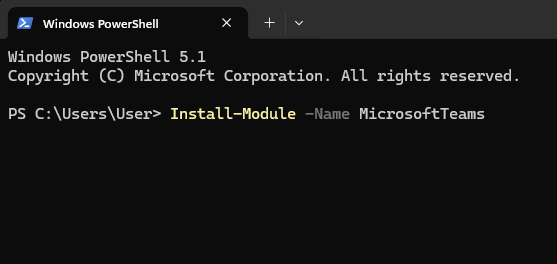
Now, if you get a bunch of errors in red, it’s likely you have never installed the Microsoft Teams module on your machine which you must do first. To do that, you can run the following command and walk through the steps. Then, run the Connect-MicrosoftTeams command again.
Install-Module -Name MicrosoftTeams
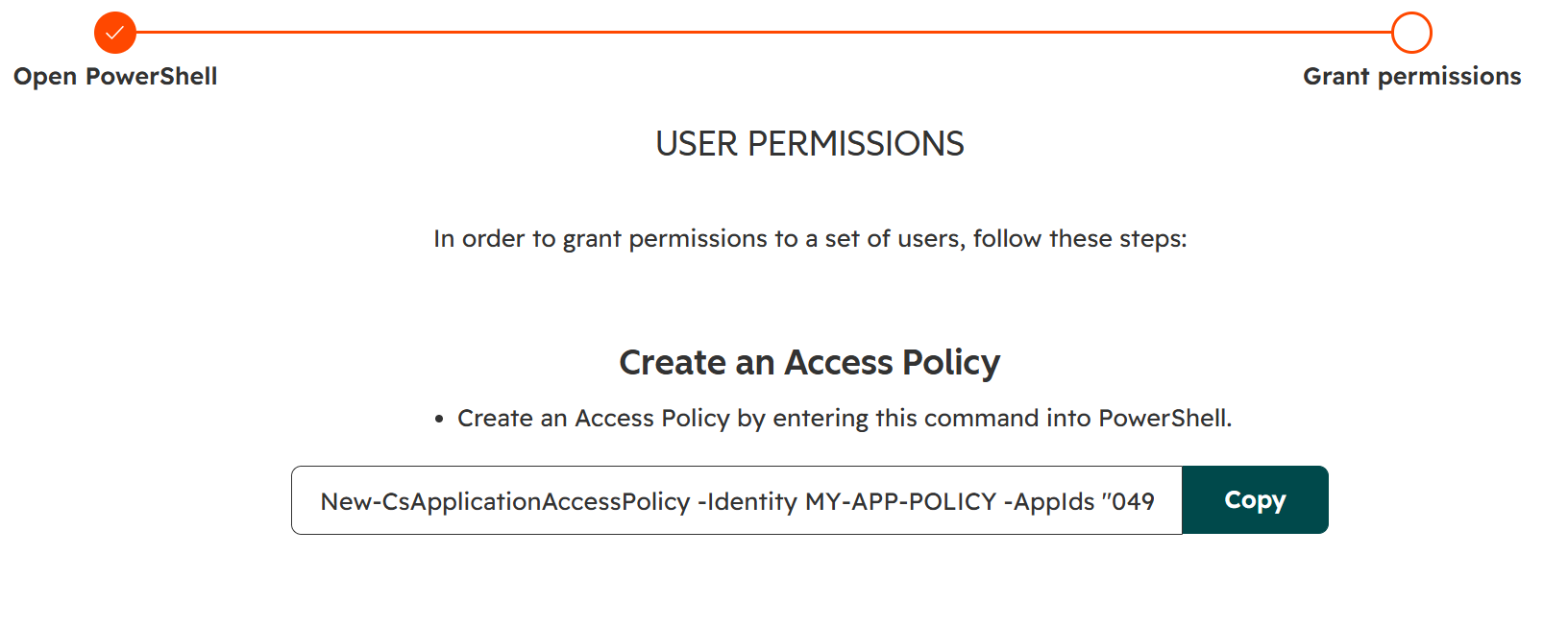
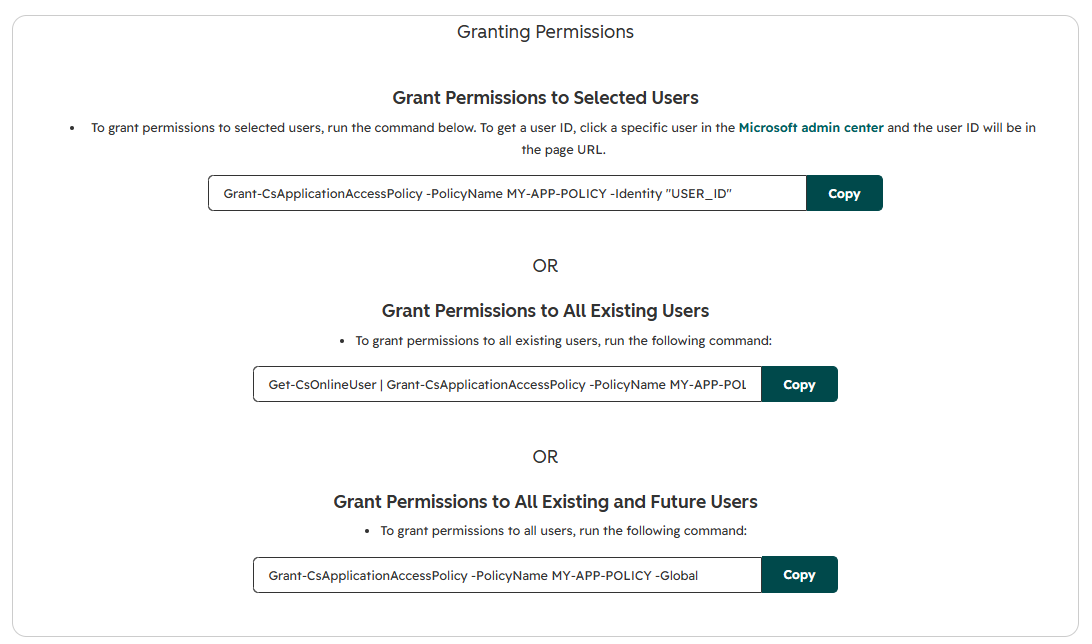
The next steps will give you a command to copy to create an access policy for Microsoft Teams which allows you to get the webinar information along with who registered and attended.
Finally, you need to grant permissions to users to give them access to that policy. There are three options so use the one that makes the most sense for your organisations requirements and complete the commands in PowerShell.
Sync Microsoft Teams Webinars to HubSpot
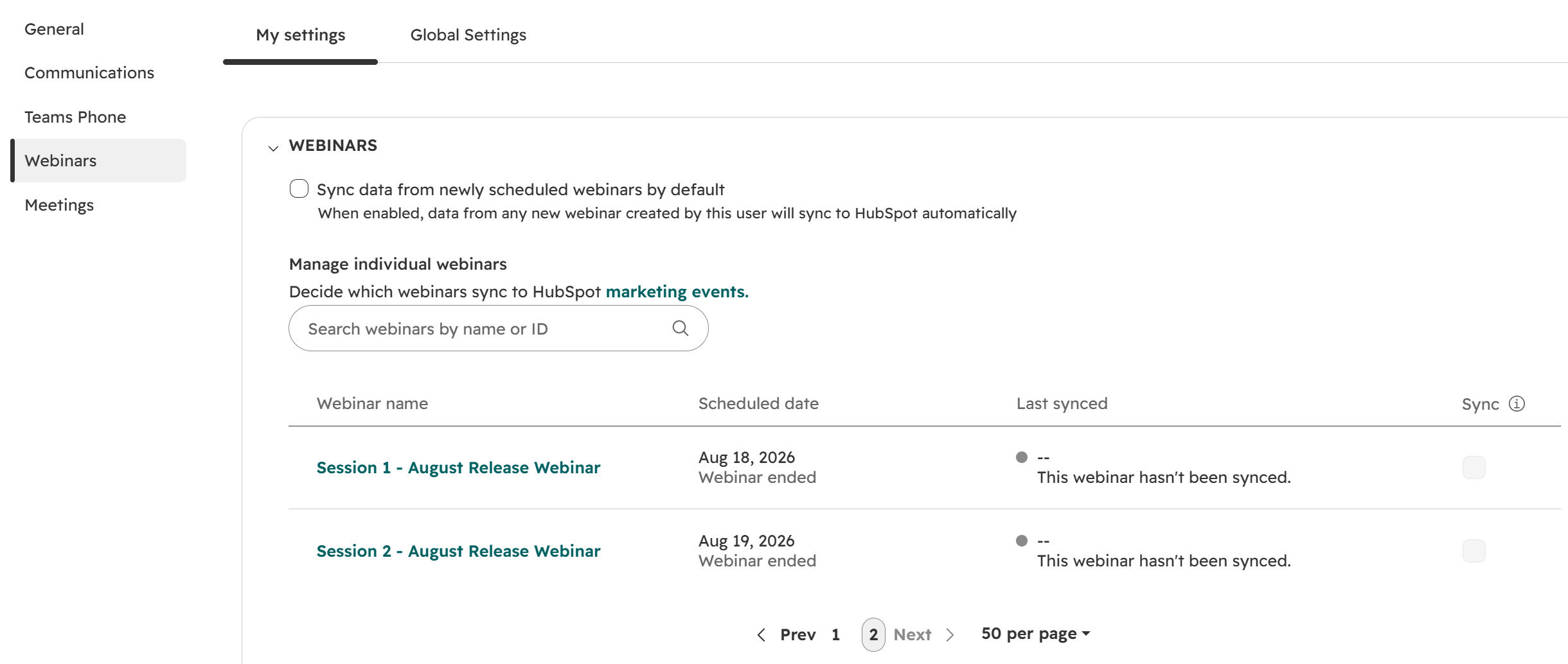
Once you’ve done that, you can then opt to have newly scheduled webinars to sync in to HubSpot automatically, and also review a list of previous Teams webinars from a list. The historic ones will not sync by default so you can pick and choose which ones to bring in to HubSpot. Similar with other functionality, if the email address on the registration/check in exists on a Contact already, it will be linked. If not, a new Contact will be created.
View Webinar Registrations and Attendance
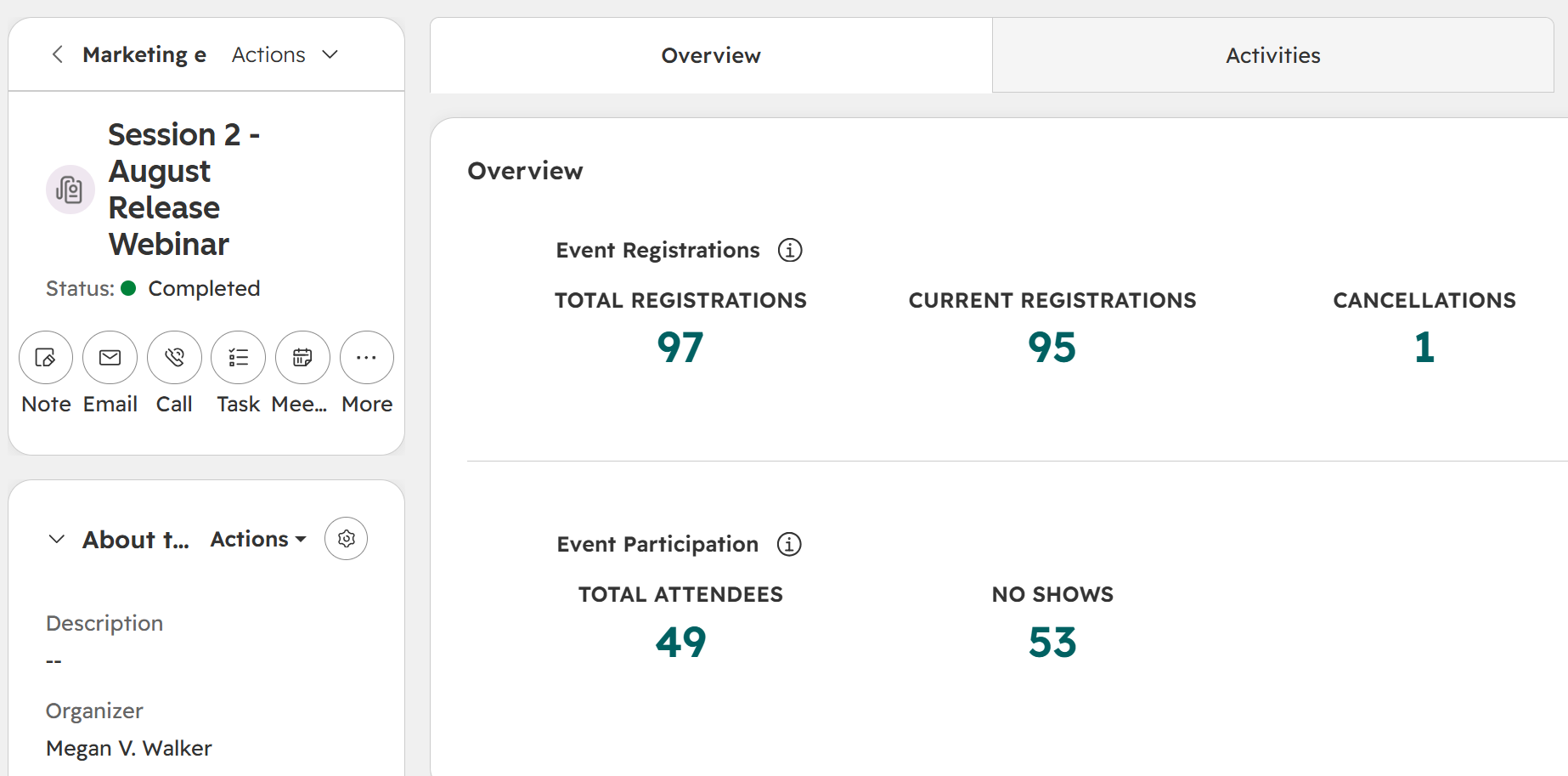
Here we can see the information that comes across by accessing the event from the marketing events area. Total registrations, current registrations, cancellations, then the number that actually attend vs the no shows.
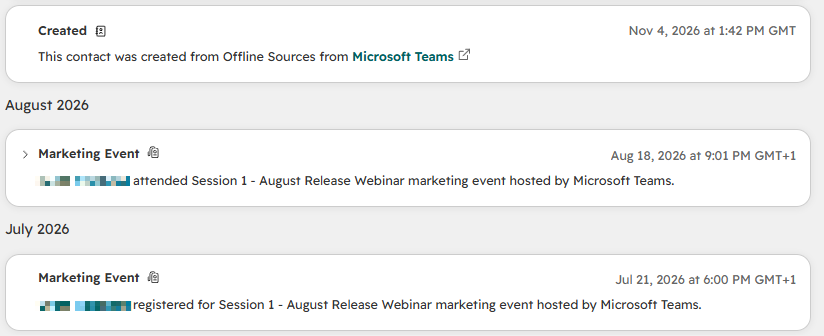
The registrations and check ins will come through and show up as marketing events on a Contact’s timeline which is very helpful!
Register Attendees Using a HubSpot Form
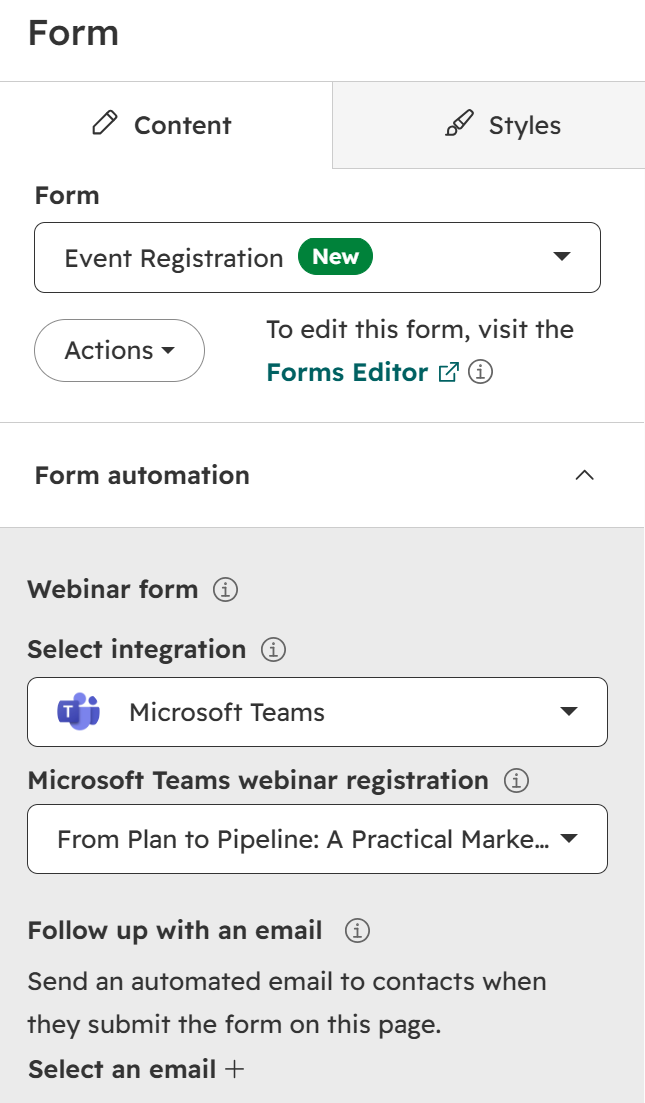
Although you can still share the landing page you get when you create a webinar event in Microsoft Teams, even better would be to create your own landing page, then add a form component. This can then be linked via the Microsoft Teams integration, and then select which webinar you want submissions to generate a registration for. One important point on this, HubSpot’s integration with Microsoft Teams webinars only supports three required fields for webinar registration: First name, Last name, and Email. If you make any other field required for registration, the webinar registration will fail.
Use Webinar Activity in Lead Scoring
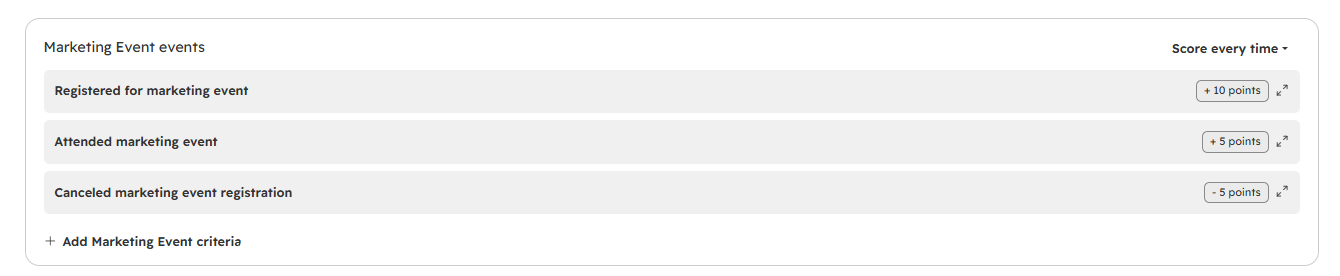
We can also use use the marketing events in Lead Scoring, allocation points if they register, then increasing if attended, or decreasing if they cancel.
Limitations of the Teams Webinar Integration
A couple of things to note, especially if you’ve used Customer Insights – Journeys previously. There is no way to set up an ‘event’ with multiple sessions. So if you are planning a day with several speakers at different times, it’s a matter of creating a different webinar in Teams for each one. You could then create a landing page linking to them all, but it’s not the best experience for those registering. Also, there is no way to get the insights on chat, questions or emoji responses that happen within a live event.
Something else I feel is missing that would improve the integration, the ability to conduct all of your webinar emails from HubSpot. If the unique Join In Teams link was passed as part of the integration, that would mean all communication could be send with beautiful branded emails out of HubSpot… but that’s not an option right now. Other than those points, pretty quick and seamless integration!




Leave a Reply