
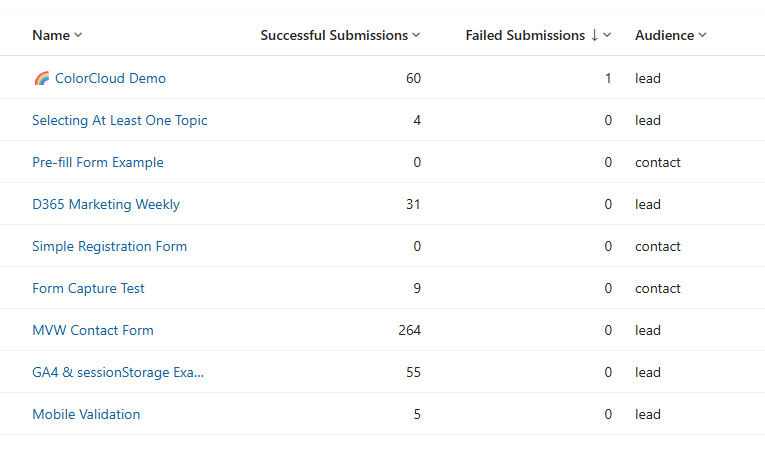
One of the things I like about the Realtime marketing forms is that all of the submissions are stored automatically, no need to turn them on or off. This means we can review if there are any failures along with the successful submissions. However, one thing I don’t like is that you need to go in to each form to see how many submissions there are or to know if there are any that failed. Fear not, this is one of the easiest things for your System Administrator to change using core functionality and a few roll up fields to show form submission counts. Let’s see how!
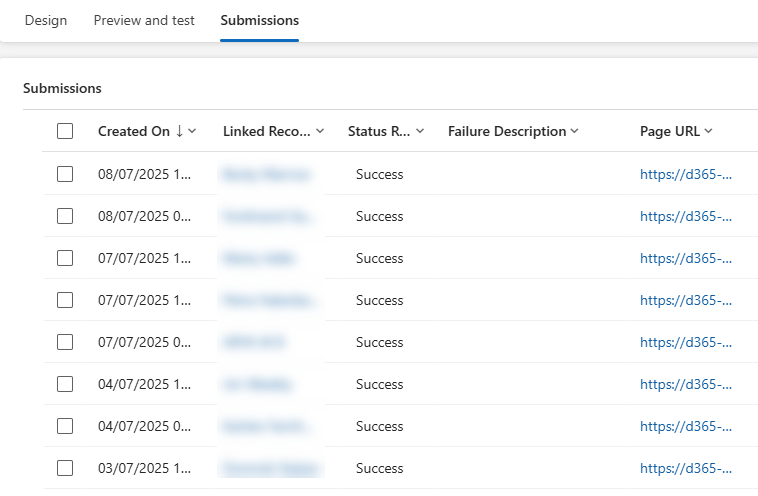
First, this is what I am referring to. Open up one of your Realtime marketing forms and you can see the submissions tab. By adding a few new fields on the Form table (msdynmkt_marketingform) we can look at a list of forms instead and see immediately where there might be submissions (successful or failed).
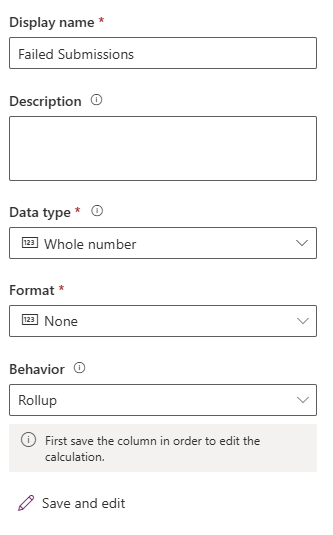
You’ll need two field fields (or whatever your requirements are), one for failed and one for successful submissions. Make them Whole number types with the behaviour of Rollup.
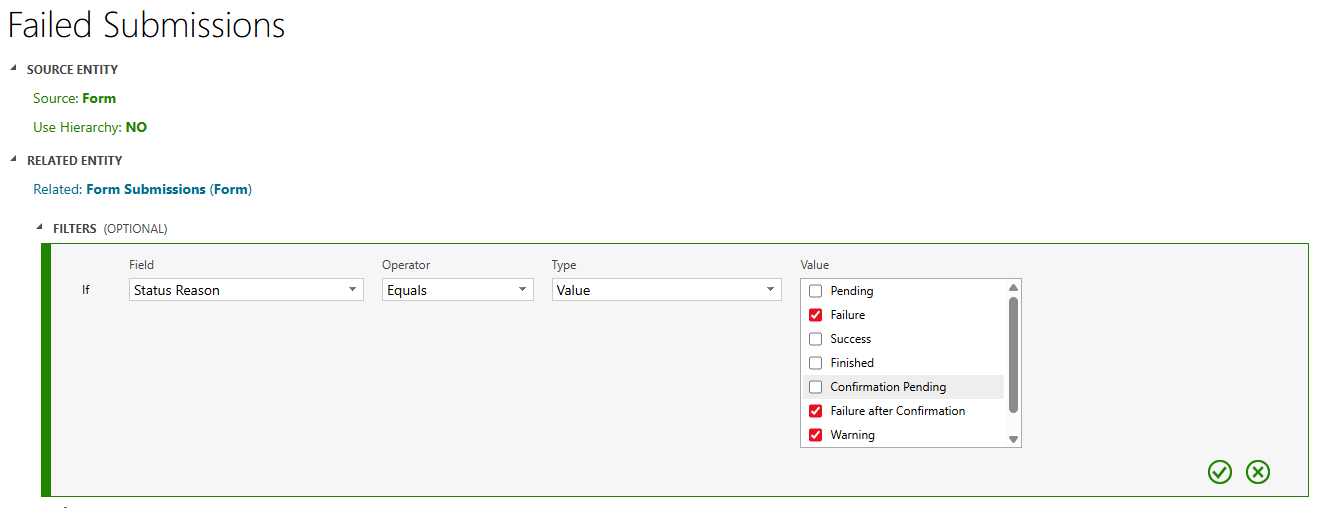
For the related entity choose Form Submissions, then set your filtering based on the Status Reason. For Failed, I have a few selected that I would view have some kind of issue. So Failure, Failure after Confirmation and Warning. Up to you what you want to use on yours.
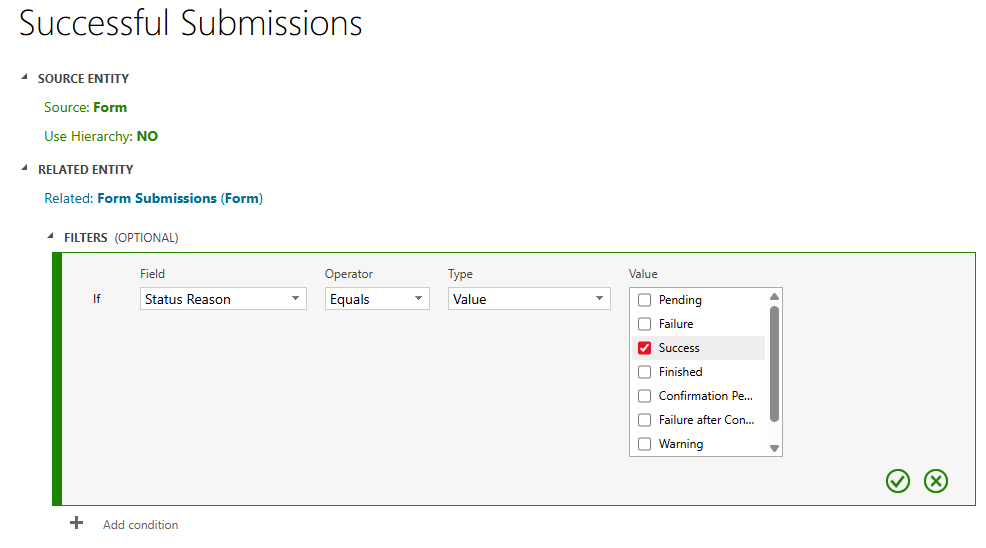
For the Successful Submissions that is pretty easy, and I just have the Status Reason of Success selected.
The last part is the aggregation function which should be Count of Form Submission.

Now you have the fields you can add them to a personal or system view of your forms and clearly see how many submissions you have. Hooray! Note that rollup fields update on a timed basis. You can check with your System Administrator on how often this is being updated for you, or review more information on how these fields work here.




Leave a Reply