
*** NOTE: ALL INFORMATION IS ACCURATE AT DATE OF PUBLISHING ***
If you offer multiple email topics or purposes, there’s bound to be some overlap. But promoting Purpose B to someone already subscribed to Purpose B? Not a great look. In this post, we’ll explore how to convert non-subscribers without awkwardly pitching to those already on the list using conditional content. Let’s take a look!
In your email template, add in a new section without adding any elements, so just leave it blank. Click on the icon that looks like multiple people to turn on conditional content.

On the right side panel, you will need to define the condition. Here we can add in a new condition name for Not Subscribed, and then use the condition based on segment membership. So Not Subscribed will be shown to anyone NOT in the D365 Marketing Weekly segment. That segment has logic to only pull in people who are Opted In to a specific Purpose, but of course you can have what ever logic you need for that segment.

Now in the section that was blank for the default, add in some kind of call to action to promote your other newsletter (purpose, topic etc). I ONLY want this to be shown to people not in the D365 Marketing Weekly segment, therefore, Not Subscribed.

Rather than keeping the default named Default, I can click on the three dots and rename it to Subscribed.

Now when people receive the email This is what someone sees when they are already subscribed.

And this is what someone that is NOT subscribed will see.

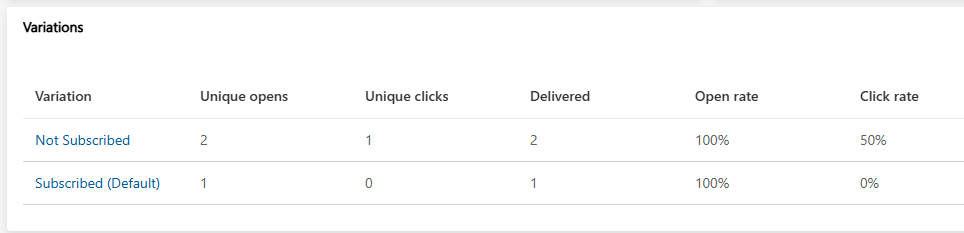
Event better, when looking at the email insights, the variations section will show which variant people have been sent along with a high level overview of opens, clicks etc per variation.
Check out the latest post:
Create and View Related Records from a Custom Page
Unsure about your Customer Insights set up?
Customer journeys are powerful, but only if the platform, data model, and compliance framework are aligned.
I work with teams using Customer Insights Journeys to make sure it is set up correctly, data is compliant, and journeys deliver without surprises.
This is just 1 of 567 articles. You can browse through all of them by going to the main blog page, or navigate through different categories to find more content you are interested in. You can also subscribe and get new blog posts emailed to you directly.
Hi Megan, does the text for not-subscribers need to be created separately?
Hi Qais, if you walk through the steps in the post you will see I added a section then made it conditional content. The default has NO TEXT. Then using a condition for people not in the segment I use for people subscribed, I am able to show the text about the newsletter. So the conditional content has two versions, one with NO TEXT and one with the SUBSCRIBE text.