
*** NOTE: ALL INFORMATION IS ACCURATE AT DATE OF PUBLISHING ***
There have been a few blog posts out over the past few months that focus on how to use the latest functionality related to providing a hierarchy overview to your users. We’ve had hierarchy logic for a long time in D365, but this approach is really cool because it can be created for not only self-referential (single table) but also multi-table hierarchies AND we don’t have to go through a bunch of configuration changes on tables to enable it. Tying this in with Customer Insights – Journeys, I thought it might be interesting to see how we can visualise Compliance Profiles, Purposes and Topics. This is useful to see how they all hang together, and can also help quickly identify any duplicate records, or those that aren’t linked correctly.
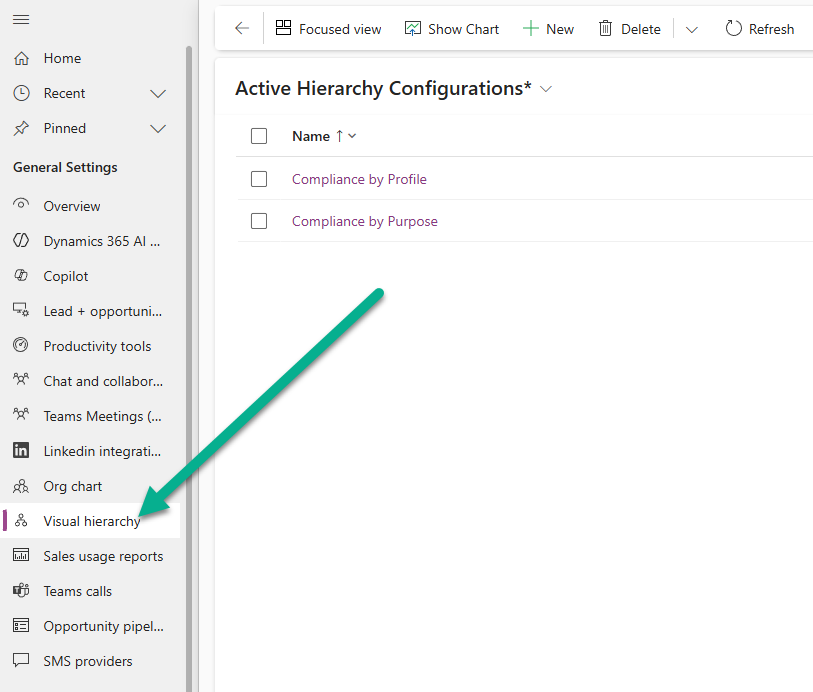
First, here are some links for you to check out. This one is the official documentation page from Microsoft. Then a post from Dian Taylor where she walks through the functionality and also with a great example showing Events and Event Registrations for a Contact. Finally, one from Jeroen Scheper showing an example of a full Account overview with linked Contacts, Opportunities, Cases and Work Orders. To get started and set up a new hierarchy configuration, you must go in to the Sales Hub model-driven app. Then change the navigation to the App settings area, then Visual hierarchy in the General Settings section.
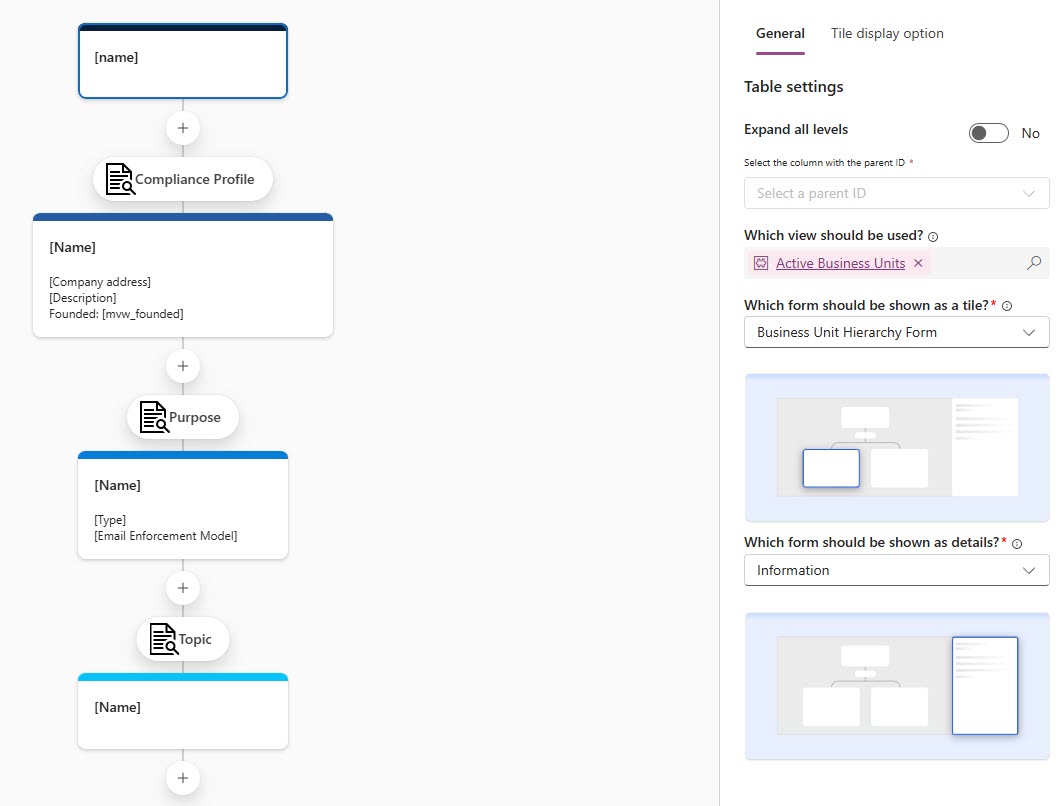
I won’t go in to it all in full detail (check out Dian or Jeroen’s post from the links above for more), but I am going to create two records. This first is Compliance by Profile. So for this, we start with the Business Unit table at the top. You can use different views and forms to determine what information shows up on the cards. I have a custom form where I am just showing the name of the BU.
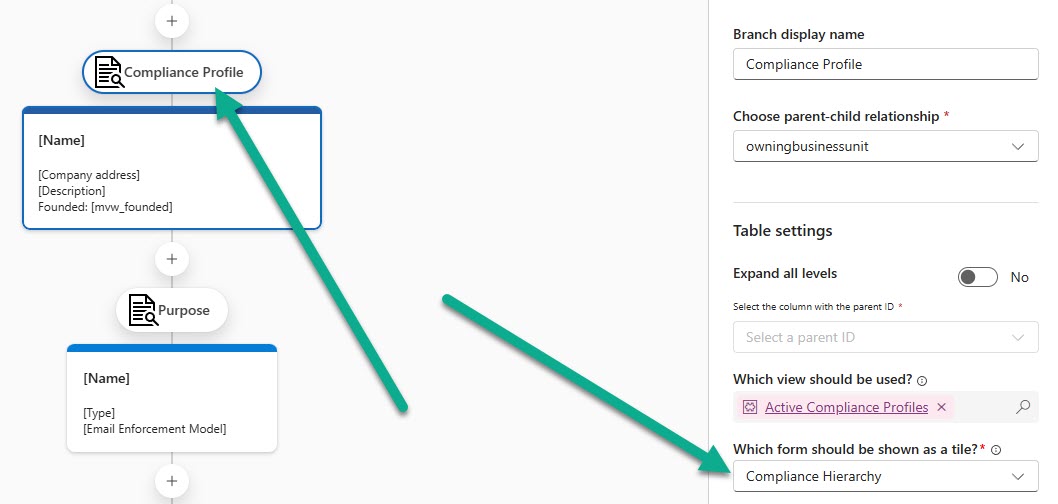
Next I am adding Compliance Profile (msdynmkt_compliancesettings4) and linking via owningbusinessunit. Again, I have a custom form I created that shows Name, Company Address, Description and a custom field I added.
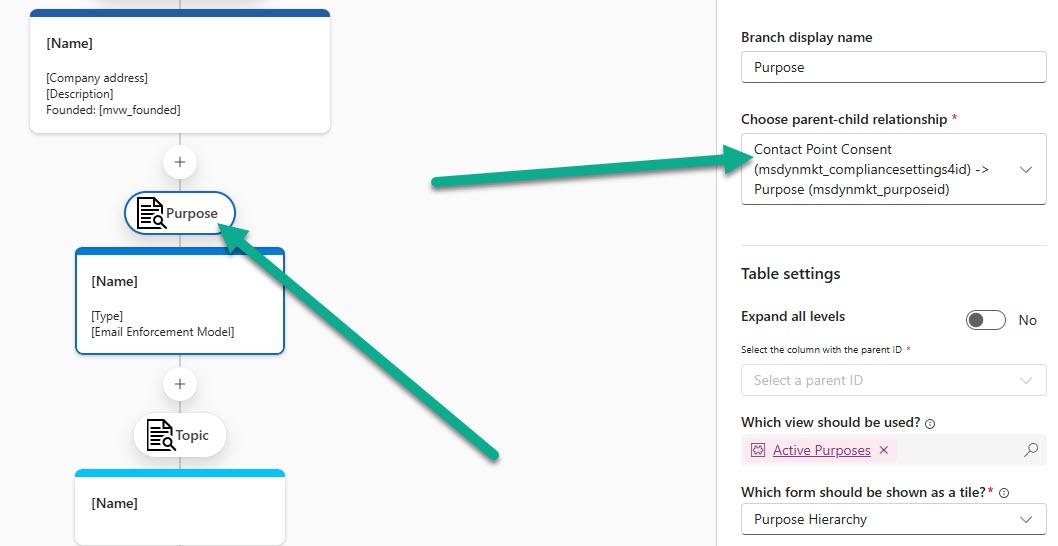
Next we can add in the Purpose table, with the relationship being from the compliancesettings4id to the purposeid. Again another custom form which shows the Name, Type and Email Enforcement Model.
Finally, if you are using them, you can add in the Topic table. The link is via the purpose id field, and my custom form just shows the Name of the Topic.
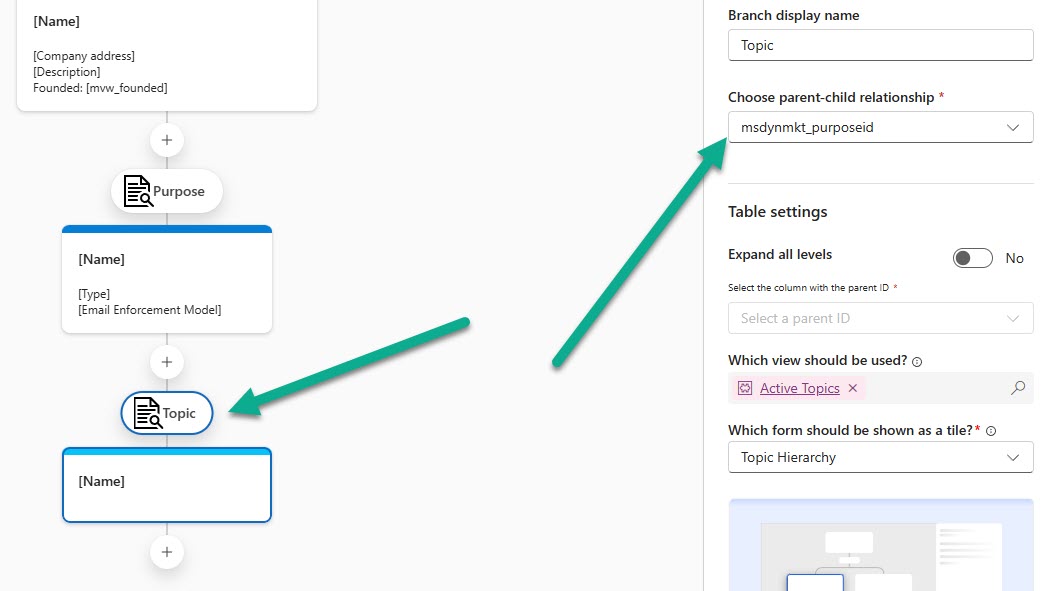
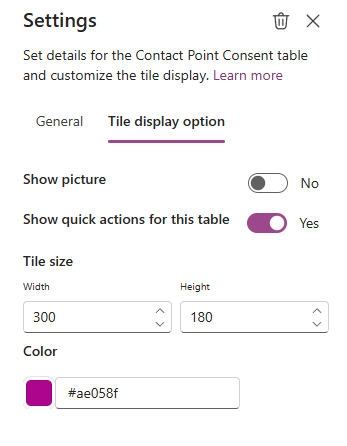
Each tile has a settings area where you can change the size, colour and determine if the picture shows, and if the ellipsis (3 dots) menu shows for quick actions.
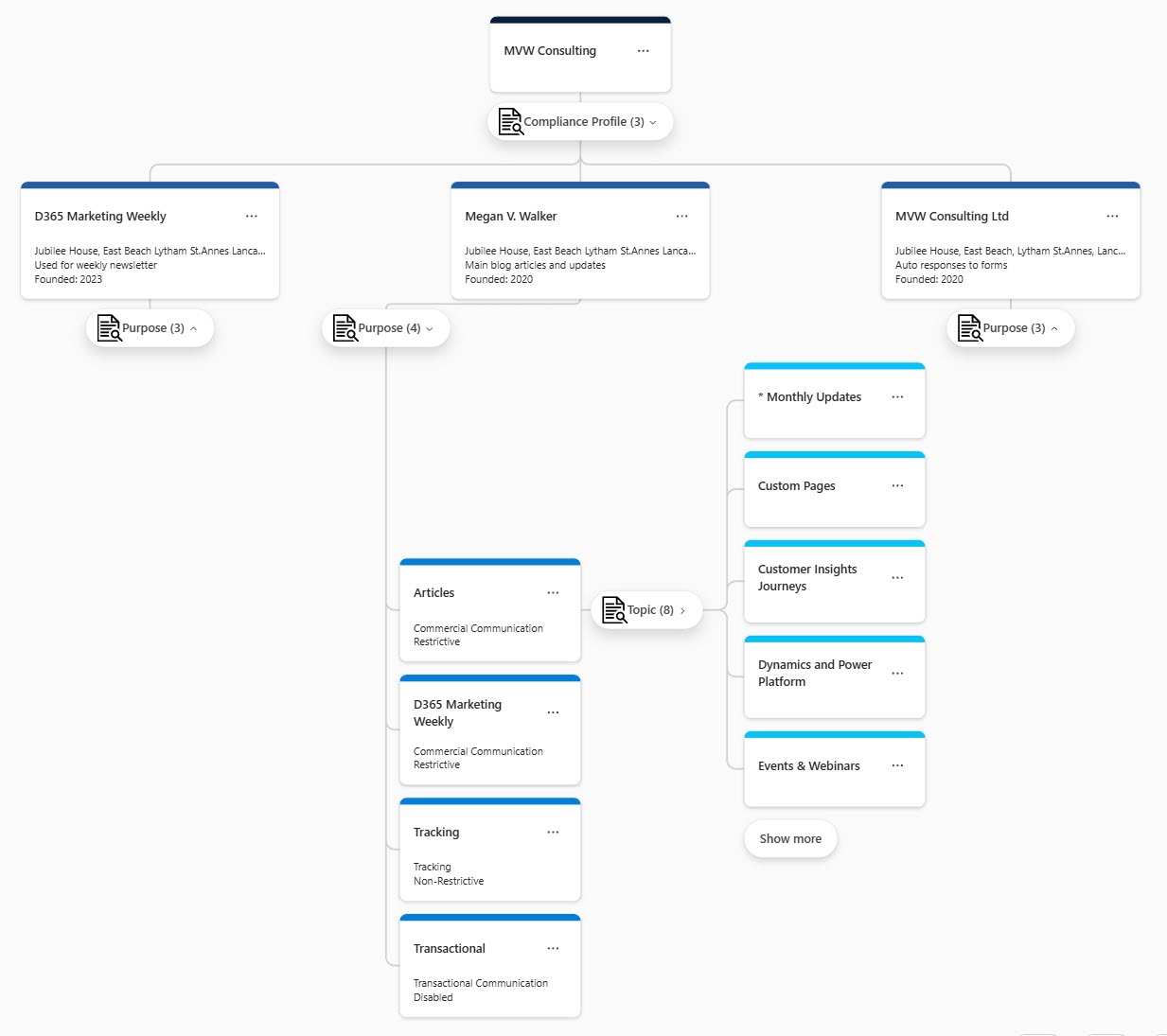
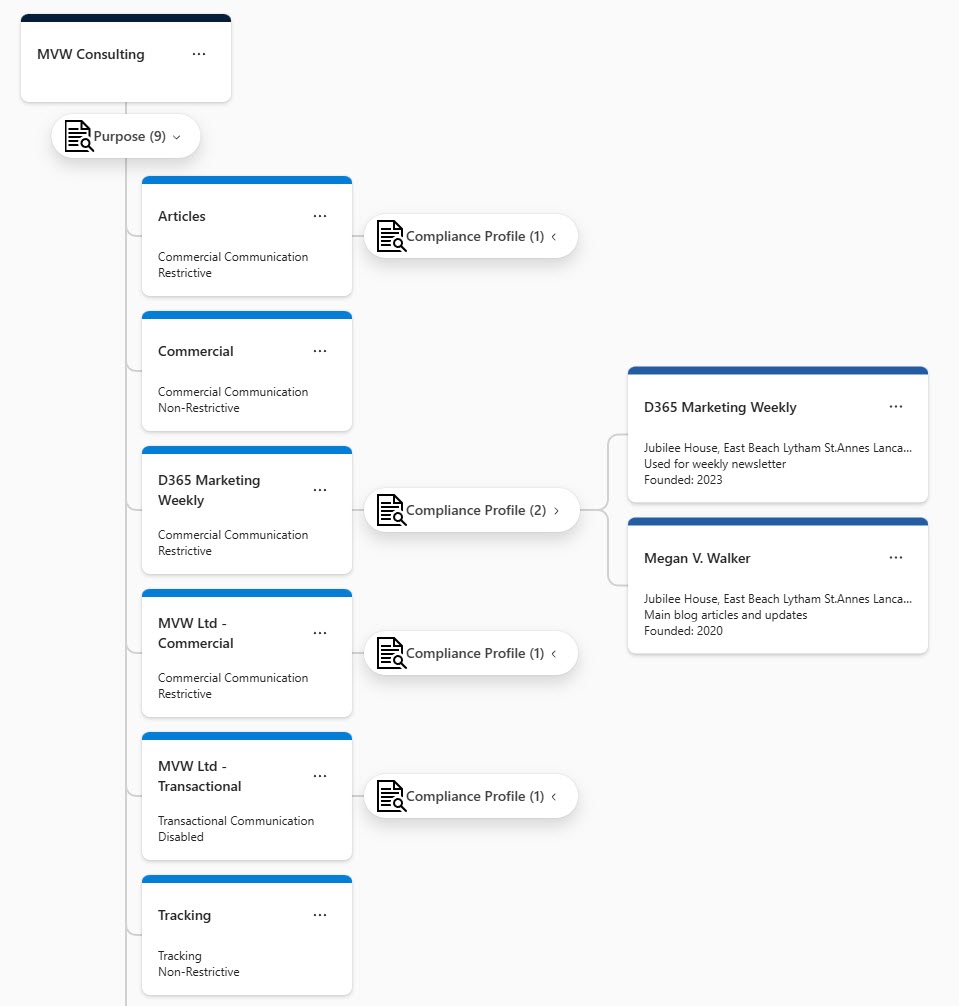
You can then do a preview to see the big picture. How does your Compliance look?
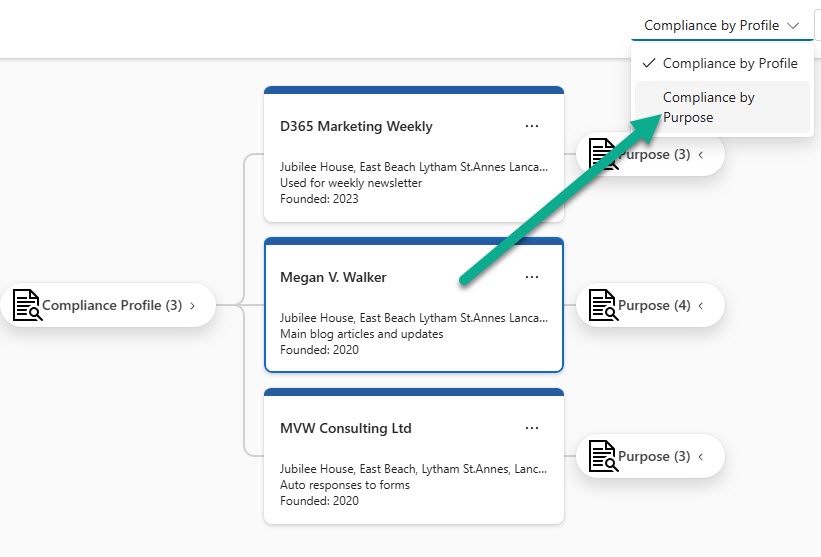
I also have a second one that is compliance by Purpose, allowing you to quickly see which Compliance Profiles are linked to a specific Purpose and sharing across between them. Again, start with the Business Unit table, then link to the Purpose table, then link that to the Compliance Profile table.
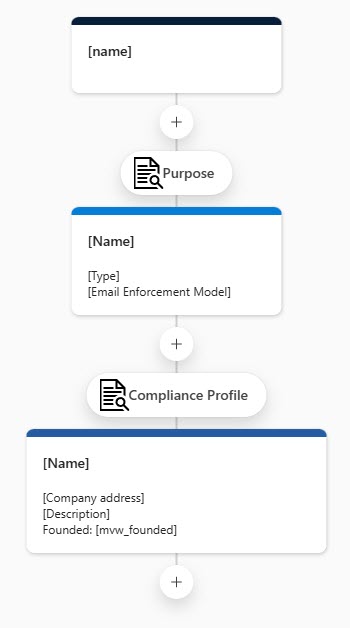
This immediately shows me where a Purpose is used by more than one Compliance Profile, so definitely handy!
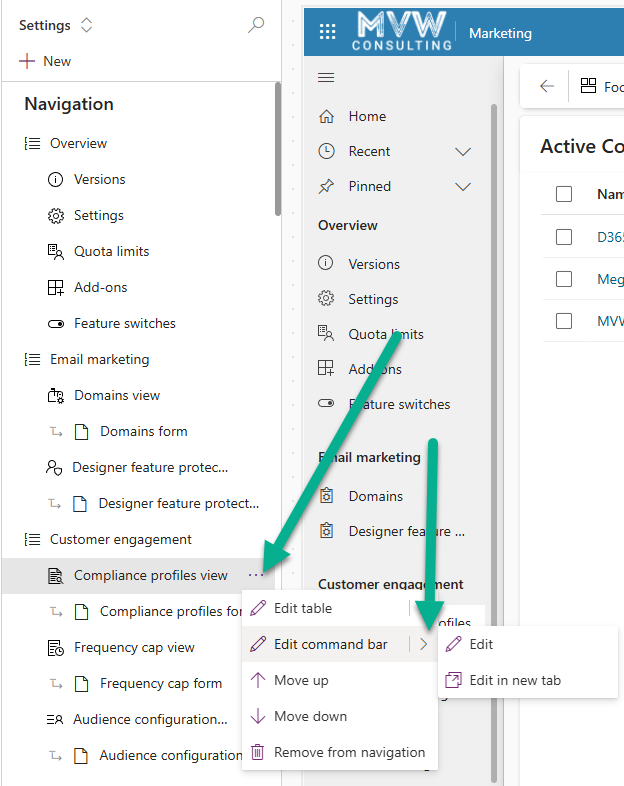
You could stop at this point, and can always go back in to the Sales Hub App to see the hierarchy overview. Or, you could add a button via the command bar so that you can open it directly from the top of a Compliance Profile. Edit the Marketing App, then go to the Compliance Profiles view, then Edit Command bar. If you’ve not done this before, make sure you check out this post on adding a custom page to a form ribbon in a model-driven app.
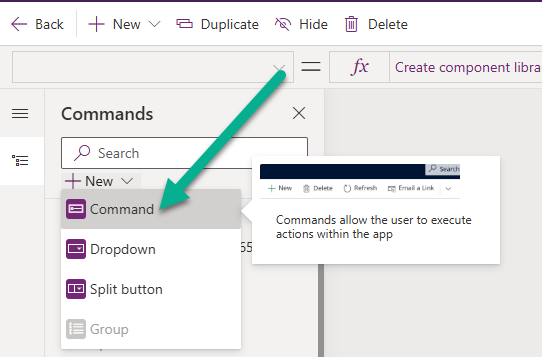
You need to add a Command.
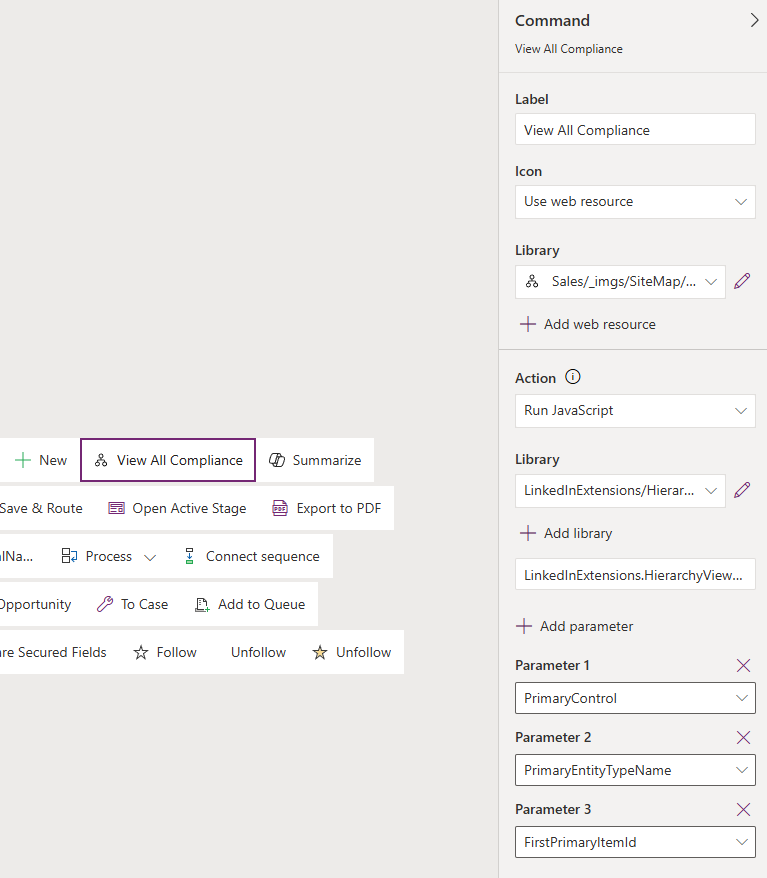
Then add an icon and a label. The documentation from Microsoft on what Library to use can be found here, but you will need to look for the LinkedInExtensions/HierarchyViewer/msdyn_HierarchyViewer.js library. and then add LinkedInExtensions.HierarchyViewer.RibbonActions.formShowHierarchyViewer as the function name. Set the 3 Parameters you see below (PrimaryControl, PrimaryEntityTypeName and FirstPrimaryItemId) in the exact order. Then save and publish.
You then have a nice button while on the Compliance Profile (which annoyingly now shows as Contact Point Consent on the form which is confusing!).
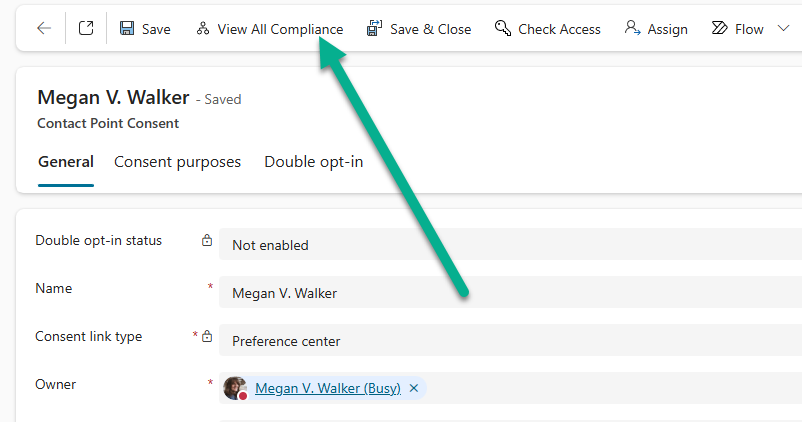
You can then toggle between any of the hierarchy configuration records you set up for that table.
Check out the latest post:
Use Custom Event Registration Questions To Branch Your Journeys In Customer Insights
Unsure about your Customer Insights set up?
Customer journeys are powerful, but only if the platform, data model, and compliance framework are aligned.
I work with teams using Customer Insights Journeys to make sure it is set up correctly, data is compliant, and journeys deliver without surprises.
This is just 1 of 603 articles. You can browse through all of them by going to the main blog page, or navigate through different categories to find more content you are interested in. You can also subscribe and get new blog posts emailed to you directly.