
If any of my blogs or videos have ever helped you, I’d love to ask a favour.
I’m taking on a challenge: walking 50 KM in under 10 hours in honour of two incredible women who are both bravely facing chemotherapy right now.
🩷 I’m fundraising for Cancer Research UK 🩷
If you can help, every donation, big or small, helps bring us closer to a cure
D365 Sales Accelerator Series
This is part of a series on using Dynamics 365 Sales Accelerator empowers your sales teams to work smarter and close deals faster. The tool streamlines the sales process by providing intelligent work lists, automated sequencing, and AI-driven insights, helping sellers prioritize activities, stay organized, and engage prospects more effectively.
Review Post Series
*** NOTE: ALL INFORMATION IS ACCURATE AT DATE OF PUBLISHING ***

As you start to use the Sales Sequence functionality in the D365 Sales Accelerator, you might find you have a lot of information that really use a quick and easy way to sort and categorise things. This is where tags can come in to help you filter and find them in a list a little bit faster. This post looks at how you can cerate and then use the Sales Sequence tags. Let’s take a look!

First, go to the Sales Insights settings area in the Sales Hub app, then Sequences and then click on the Tag manager option at the top.

Click to view in detail

A pop up will appear for the tag manager. Click on New tag.

Click to view in detail

You can type out the names of your tags and press enter after each one. Tags can have parents and be nested under others. Add your top level tags first.
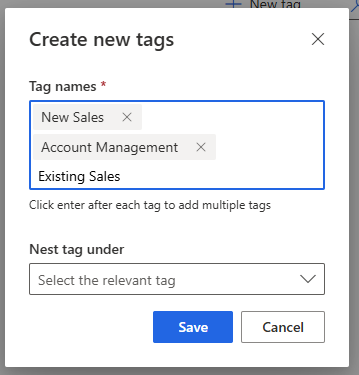
Click to view in detail

Once you start adding tags, each one has a series of controls you can use. Clicking the plus button lets you then easily add child tags to it.

Click to view in detail

Here we have the ability to add additional tags which will be nested under Existing Sales.
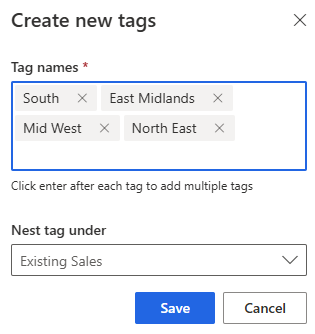

Click to view in detail

Now when we are on a Sequence, the Edit tags option can be used.

Click to view in detail

You can then add one or more tags to the sequence.

Click to view in detail

Back on your Sequence overview, use the Edit columns function to make sure Tags is included and visible. Then clicking on the column header, you can use the Tags to filter your list of Sequences. Hooray!

Click to view in detail

Users can use the tags if trying to manually connect a record to a sequence which makes it easier for them to find what they are looking for.
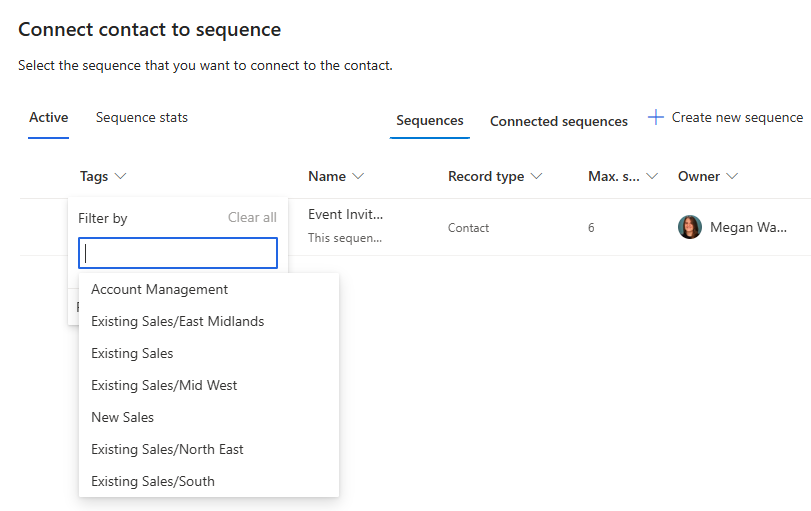
Click to view in detail


Check out the latest post:
Show Or Hide Custom Pages Using Power Fx Formulas In Your Model-driven Apps


If any of my blogs or videos have ever helped you, I’d love to ask a favour.
I’m taking on a challenge: walking 50 KM in under 10 hours in honour of two incredible women who are both bravely facing chemotherapy right now.
🩷 I’m fundraising for Cancer Research UK 🩷
If you can help, every donation, big or small, helps bring us closer to a cure
This is just 1 of 556 articles. You can browse through all of them by going to the main blog page, or navigate through different categories to find more content you are interested in. You can also subscribe and get new blog posts emailed to you directly.


Leave a Reply

Your email address will not be published. Required fields are marked *