
*** NOTE: ALL INFORMATION IS ACCURATE AT DATE OF PUBLISHING ***
Users can manage their Sales Sequence activities using the Sales accelerator work list which is great. However, what if they just want a list of all the Leads or Contacts (or other entity) that are currently in an active Sales Sequence, and what step of the sequence they are in? Or their manager wants to review all the data? It’s not as simple as creating a view, but it IS possible to add related sales sequence information using the fabulous FetchXML Builder tool from Jonas Rapp. Let’s see how it can be done!
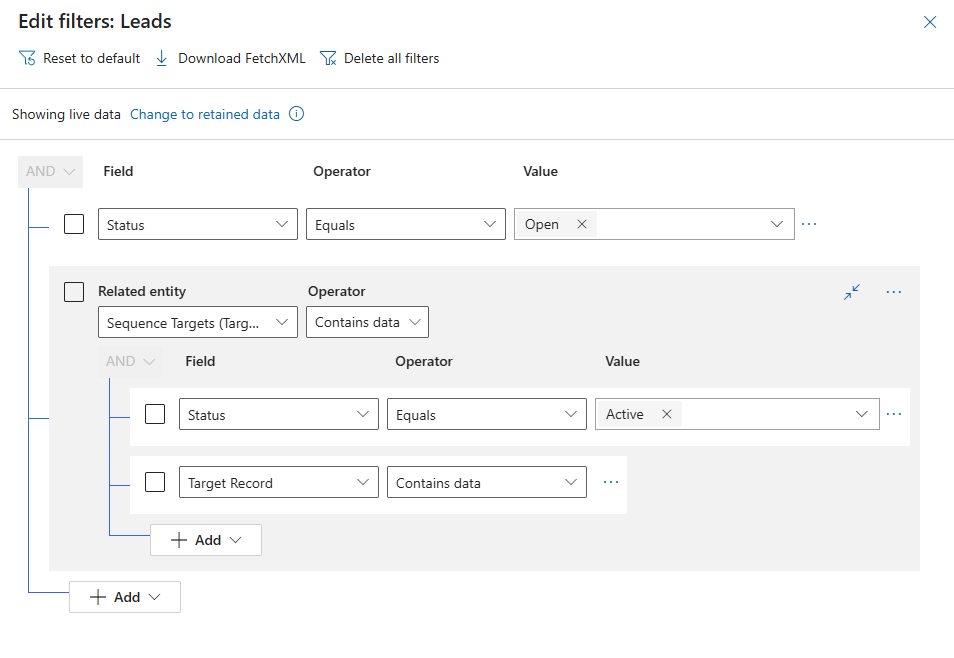
First, if you’ve never used the XRMToolBox, this might not be for you, so please check with your System Administrator who is likely familiar with the tool. We need a view first that is for your entity of choice, Leads in this case. It needs a little filter to find the Leads you are looking for (Open in this case), and those that have a related entity of Sequence Targets that are Active and where the Target Record contains data.
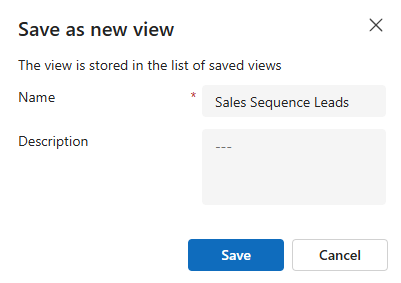
Save that view so you can access it again in just a moment.
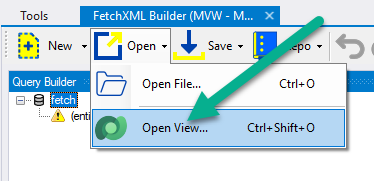
Now the reason we need to use the XrmToolBox and specifically the tool from Jonas is because we can’t add fields to the view to show WHICH sequence the record is in from within D365. But we CAN add them using the tool. Click to Open View from the Open menu.
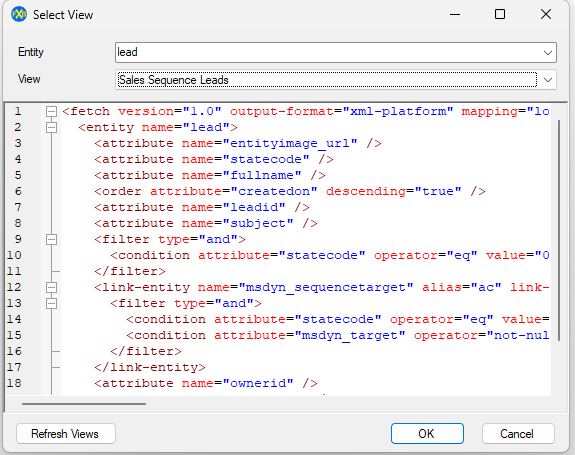
Select the correct Entity, then scroll to find your view. This will show System or Personal views. Find the right one then click OK.
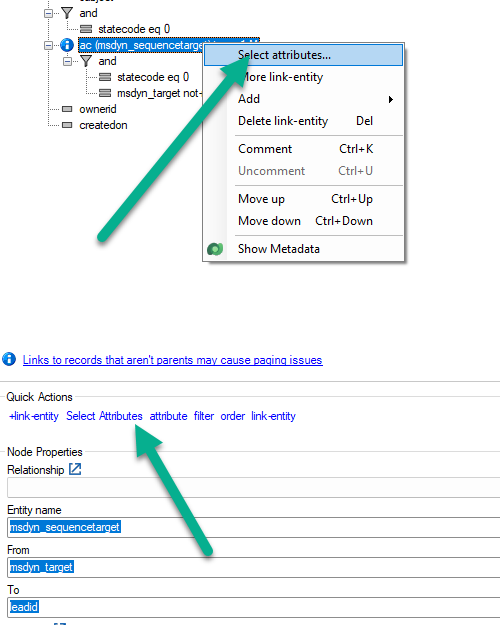
Click on the sequence target entity from within the query on the left. You can then right click and then select attributes or do it from the bottom section in Quick Actions.
It’s up to you to determine what you wish to show, but these are the ones I wish to show that feel valuable.
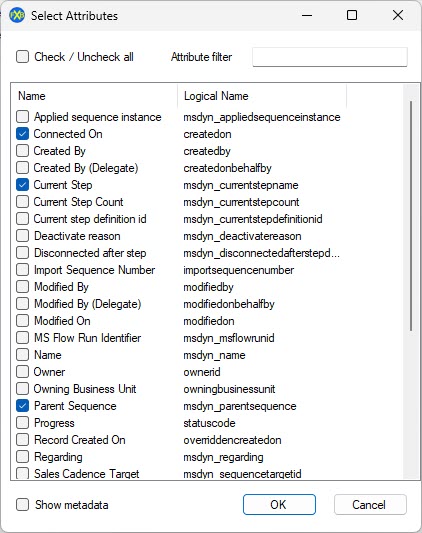
You can then execute the query to make sure it’s bringing back data.

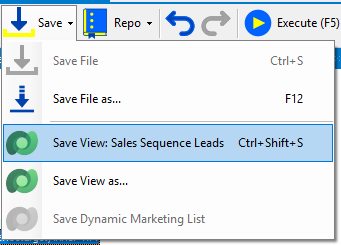
Once you are happy, click Save from the top. You can either save the View back as it is, or select Save View as.
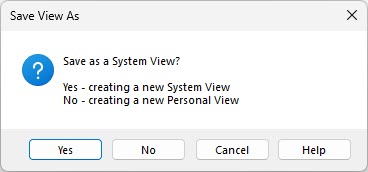
Saving as lets you determine if it should be a System View or a Personal View.
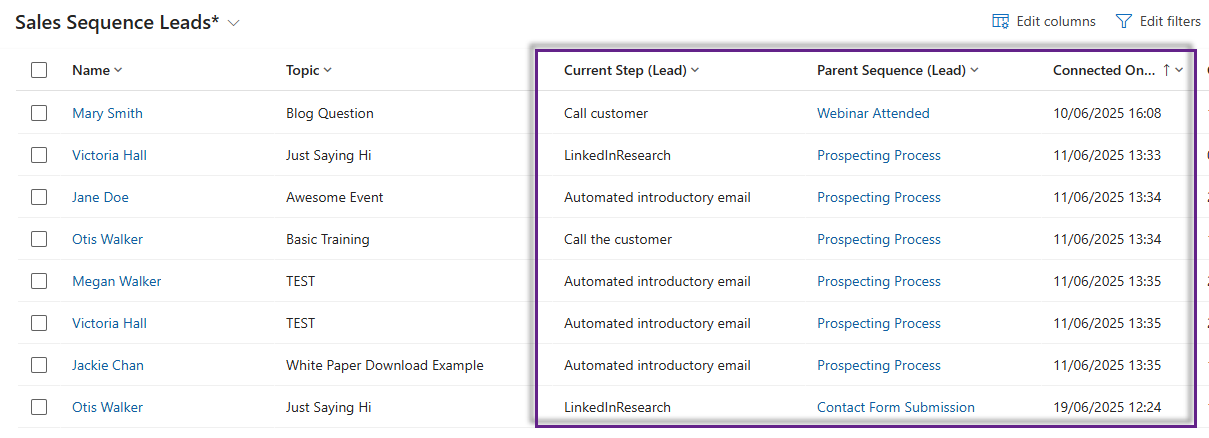
Once you’ve saved your changes, go back to the View in D365 and refresh a few times till you see the changes. The good news is you can still move the columns around and add new ones from the Lead (or entity you chose) if needed. The only reason you may need to edit again using FetchXML Builder is if you want to add or remove other columns from the Sales Sequence record. Now we have a nice overview of everyone that is in a Sales Sequence, which one and which step they are currently in.
Check out the latest post:
Set A Business Process Flow Stage With Custom Page
This is just 1 of 572 articles. You can browse through all of them by going to the main blog page, or navigate through different categories to find more content you are interested in. You can also subscribe and get new blog posts emailed to you directly.
Thanks for that – your timing is perfect as I need to do something very similar later today
Love a well timed post. Glad it helped Ben!