
*** NOTE: ALL INFORMATION IS ACCURATE AT DATE OF PUBLISHING ***
Are you using the Event Registration Forms with Sessions in Customer Insights – Journeys yet? I wrote about how you can format it nicely in a previous post, but one thing that bugs me about the form is the way the session date is displayed. It’s in US format (month, day, year) with no way to change it. Quite a glaring oversite from Microsoft and not sure if/when this is going to be changed. So this post is out of my own frustration on seeing the dates look entirely wrong for most of the world and wondering if there was another way to change the formatting. Let’s take a look and see some alternatives to change session date formats to modify how they look on your event registration forms.
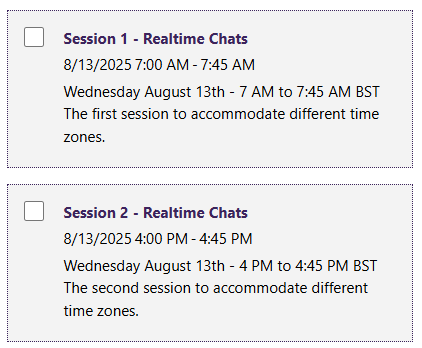
So first, what do things look like out of the box? This is how the sessions are displayed. If you are in the USA this would look perfectly fine to you right? Well, for the rest of the world, not so accurate. Different countries have different formats. In the UK it is d/m/y rather than m/d/y. If your event is global, you might even want to display it as y/m/d or actually spell out the name of the month and even the name of the day to avoid any confusion altogether.
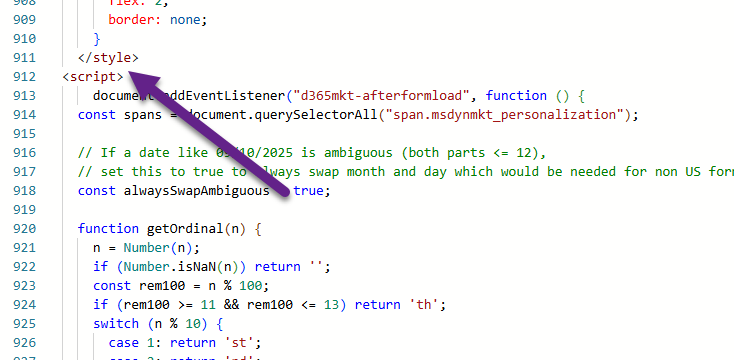
Adding in a script to the HTML of the form can help us alter the date formatting when the form loads. If you haven’t added a script before, it’s pretty simple. Just paste it in to the HTML directly below the closing style tag like you see below.
Option 1
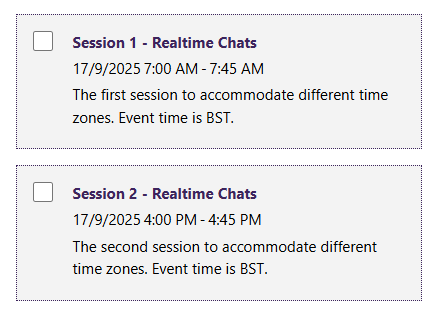
The first option is to swap the month and the day so it reads day, month, year.
<script>
document.addEventListener("d365mkt-afterformload", function () {
  const spans = document.querySelectorAll("span.msdynmkt_personalization");

  spans.forEach(span => {
    const text = span.textContent.trim();

    // Match US-style date m/d/yyyy
    const usDatePattern = /^(\d{1,2})\/(\d{1,2})\/(\d{4})$/;

    if (usDatePattern.test(text)) {
      const [, month, day, year] = text.match(usDatePattern);

      // Swap month and day for UK format
      const ukDate = `${day}/${month}/${year}`;
      span.textContent = ukDate;
    }
  });
});
</script>
Option 2
The second option is to use year, month, day instead so it is perhaps more globally acceptable as a date format.

<script>
document.addEventListener("d365mkt-afterformload", function () {
  const spans = document.querySelectorAll("span.msdynmkt_personalization");

  spans.forEach(span => {
    const text = span.textContent.trim();

    // Match US-style date m/d/yyyy
    const usDatePattern = /^(\d{1,2})\/(\d{1,2})\/(\d{4})$/;

    if (usDatePattern.test(text)) {
      const [, month, day, year] = text.match(usDatePattern);

      // Swap month and day for UK format
      const ukDate = `${year}-${month}-${day} - `;
      span.textContent = ukDate;
    }
  });
});
</script>
Option 3
The third option is to actually display the wording for the month and also include the day of the week to avoid any possible confusion.

  <script>
    document.addEventListener("d365mkt-afterformload", function () {
  const spans = document.querySelectorAll("span.msdynmkt_personalization");

  // If a date like 09/10/2025 is ambiguous (both parts <= 12),
  // set this to true to always swap month and day which would be needed for non US format
  const alwaysSwapAmbiguous = true;

  function getOrdinal(n) {
    n = Number(n);
    if (Number.isNaN(n)) return '';
    const rem100 = n % 100;
    if (rem100 >= 11 && rem100 <= 13) return 'th';
    switch (n % 10) {
      case 1: return 'st';
      case 2: return 'nd';
      case 3: return 'rd';
      default: return 'th';
    }
  }

  spans.forEach(span => {
    const raw = span.textContent.trim();

    // find a date like 9/17/2025 or 17/9/2025 (first match only)
    const match = raw.match(/\b(\d{1,2})\/(\d{1,2})\/(\d{4})\b/);
    if (!match) return;

    const a = parseInt(match[1], 10);
    const b = parseInt(match[2], 10);
    const year = parseInt(match[3], 10);

    let day, month; // month as 1..12
    if (a > 12 && b <= 12) {
      // a can't be a month, so it's day (UK style)
      day = a;
      month = b;
    } else if (b > 12 && a <= 12) {
      // b can't be a month, so a is month (US style)
      month = a;
      day = b;
    } else {
      // both <= 12 => ambiguous. follow the swap rule if requested
      if (alwaysSwapAmbiguous) {
        month = b;
        day = a;
      } else {
        month = a;
        day = b;
      }
    }

    // Build the Date using numeric args (year, monthIndex, day)
    const dateObj = new Date(year, month - 1, day);
    if (isNaN(dateObj.getTime())) return; // invalid date, skip

    const weekday = dateObj.toLocaleDateString('en-GB', { weekday: 'long' });
    const monthName = dateObj.toLocaleDateString('en-GB', { month: 'long' });
    const suffix = getOrdinal(day);
 const formatted = `${weekday} ${monthName} ${day}${suffix}, ${year}<br>`;
span.innerHTML = raw.replace(match[0], formatted);
  });
});
  </script>
Option 4
The fourth option is not so much about the dates but instead it removes the AM or PM and makes it 24 hour format on the start and end time of the sessions.

<script>
document.addEventListener("d365mkt-afterformload", function () {
  const spans = document.querySelectorAll("span.msdynmkt_personalization");
  const alwaysSwapAmbiguous = true; // keep your preference

  function getOrdinal(n) {
    n = Number(n);
    if (Number.isNaN(n)) return '';
    const rem100 = n % 100;
    if (rem100 >= 11 && rem100 <= 13) return 'th';
    switch (n % 10) {
      case 1: return 'st';
      case 2: return 'nd';
      case 3: return 'rd';
      default: return 'th';
    }
  }

  console.debug && console.debug('date/time formatter running, spans:', spans.length);

  spans.forEach(span => {
    try {
      const rawText = (span.textContent || '').trim();
      const rawHtml = span.innerHTML || '';

      // Try to match date optionally followed by a time:
      // groups: 1=partA, 2=partB, 3=year, 4=hour (optional), 5=minute (optional), 6=AM/PM (optional)
      const dateTimeMatch = rawText.match(/\b(\d{1,2})\/(\d{1,2})\/(\d{4})(?:\s+(\d{1,2}):(\d{2})(?:\s?(AM|PM))?)?\b/i);

      if (dateTimeMatch) {
        const a = parseInt(dateTimeMatch[1], 10);
        const b = parseInt(dateTimeMatch[2], 10);
        const year = parseInt(dateTimeMatch[3], 10);

        let day, month;
        if (a > 12 && b <= 12) {
          day = a; month = b;
        } else if (b > 12 && a <= 12) {
          month = a; day = b;
        } else {
          if (alwaysSwapAmbiguous) { month = b; day = a; }
          else { month = a; day = b; }
        }

        // build date
        const dateObj = new Date(year, month - 1, day);
        if (!isNaN(dateObj.getTime())) {
          const weekday = dateObj.toLocaleDateString('en-GB', { weekday: 'long' });
          const monthName = dateObj.toLocaleDateString('en-GB', { month: 'long' });
          const suffix = getOrdinal(day);
          const formattedDate = `${weekday} ${monthName} ${day}${suffix}, ${year}`;

          // If a time was captured in the same span, format it too and include on next line
          if (dateTimeMatch[4] !== undefined && dateTimeMatch[5] !== undefined) {
            let hour = parseInt(dateTimeMatch[4], 10);
            const minute = parseInt(dateTimeMatch[5], 10);
            const meridian = dateTimeMatch[6];

            if (meridian) {
              const isPM = meridian.toUpperCase() === "PM";
              if (isPM && hour < 12) hour += 12;
              if (!isPM && hour === 12) hour = 0;
            }
            const hh = hour.toString().padStart(2, "0");
            const mm = minute.toString().padStart(2, "0");
            const formattedTime = `${hh}:${mm}`;

            // replace the matched date/time substring in the innerHTML and add <br> between date and time
            const replacement = `${formattedDate}<br>${formattedTime}`;
            span.innerHTML = rawHtml.replace(dateTimeMatch[0], replacement);
          } else {
            // date-only: replace and append <br> so times in following spans appear on next line
            const replacement = `${formattedDate}<br>`;
            span.innerHTML = rawHtml.replace(dateTimeMatch[0], replacement);
          }
        }
        // done with this span
        return;
      }

      // If we get here there's no date; check for time-only spans
      const timeMatch = rawText.match(/^(\d{1,2}):(\d{2})(?:\s?(AM|PM))?$/i);
      if (timeMatch) {
        let hour = parseInt(timeMatch[1], 10);
        const minute = parseInt(timeMatch[2], 10);
        const meridian = timeMatch[3];

        if (meridian) {
          const isPM = meridian.toUpperCase() === "PM";
          if (isPM && hour < 12) hour += 12;
          if (!isPM && hour === 12) hour = 0;
        }

        const hh = hour.toString().padStart(2, "0");
        const mm = minute.toString().padStart(2, "0");
        span.textContent = `${hh}:${mm}`;
        return;
      }

      // no date or time found — do nothing
    } catch (err) {
      // log and continue so one broken span doesn't stop the rest
      console.error('date/time formatter error for span:', span, err);
    }
  });
});
</script>
Option 5
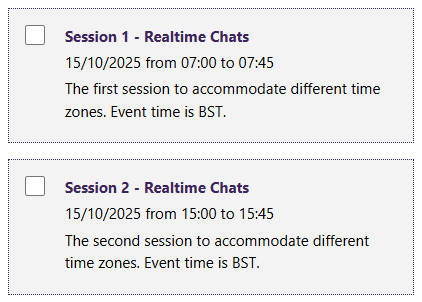
This one is from a commenter on the blog (thanks Angelika!). This will show day/month/year format on the date, then 24 hour format AND the ability to add words in between so it reads nicely. Just edit this part with the words you would want to use, or remove them completely and add hyphens or other punctuation if preferred.
dateSpan.textContent = ${dateText} from ${start24} to ${end24};
<script>
document.addEventListener("d365mkt-afterformload", function () {
  const timeParagraphs = document.querySelectorAll("div.eventSessionDescription p");

  timeParagraphs.forEach(p => {
    const spans = p.querySelectorAll("span.msdynmkt_personalization");
    if (spans.length === 3) { // date + start + end
      const [dateSpan, startSpan, endSpan] = spans;

      // Format date
      let dateText = dateSpan.textContent.trim();
      const usDatePattern = /^(\d{1,2})\/(\d{1,2})\/(\d{4})$/;
      if (usDatePattern.test(dateText)) {
        const [, month, day, year] = dateText.match(usDatePattern);
        dateText = `${day}/${month}/${year}`;
      }

      // Convert time to 24-hour
      const convertTo24 = (timeStr) => {
        const timePattern = /^(\d{1,2}):(\d{2})\s?(AM|PM)$/i;
        if (!timePattern.test(timeStr)) return timeStr;
        let [, hours, minutes, meridian] = timeStr.match(timePattern);
        hours = parseInt(hours, 10);
        minutes = parseInt(minutes, 10);
        if (meridian.toUpperCase() === "PM" && hours !== 12) hours += 12;
        if (meridian.toUpperCase() === "AM" && hours === 12) hours = 0;
        return `${String(hours).padStart(2,'0')}:${String(minutes).padStart(2,'0')}`;
      };

      const start24 = convertTo24(startSpan.textContent.trim());
      const end24 = convertTo24(endSpan.textContent.trim());

      // Combine into first span
      dateSpan.textContent = `${dateText} from ${start24} to ${end24}`;

      // Remove start and end spans and any previous/following sibling text nodes (like the hyphen)
      [startSpan, endSpan].forEach(span => {
        let prev = span.previousSibling;
        let next = span.nextSibling;
        if (prev && prev.nodeType === Node.TEXT_NODE && prev.textContent.includes('-')) prev.remove();
        if (next && next.nodeType === Node.TEXT_NODE && next.textContent.includes('-')) next.remove();
        span.remove();
      });
    }
  });
});
</script>
What option do you prefer? Any other formats you think might be needed?
Check out the latest post:
Add Information Buttons To Provide Additional Details For Custom Page Users
This is just 1 of 580 articles. You can browse through all of them by going to the main blog page, or navigate through different categories to find more content you are interested in. You can also subscribe and get new blog posts emailed to you directly.
Hi Megan,
Thanks this is really helpful! This bothered me from the start, as over here in Germany the US format looks really strange in an otherwise German registration form. I tried your Option 1 and just switched the / for . between the dates to get the German format and it worked great. How would I combine it with the formatting of the start and end time without AM or PM? Sorry I don’t really know Javascript to do it myself 🙁
Thanks, Angelika
It looks strange in EVERY OTHER PLACE than the USA 😉 looks terrible here in the UK too. I’ve adding in a 5th option for you so hopefully that will work!
Yes, perfect, thank you so much!
You are very welcome!
Thank you so much for this Megan!
I’m not a coder, so a quick question regarding this. Is there a possibility to change from english to other language e.g. swedish in the code to pick up “monday”-“sunday” in swedish instead?
/Anna
Hi Anna, you would need to change the part near the bottom where it has toLocaleDateString. Instead of en-GB it would need to be sv-SE.
Thanks!!
You are welcome Roger!
Great article, thx!
I see the same problem in the ‘new’ calendar component to show the sessions on an event. The time notation is always with am or pm, no option to localize in the component. Any solution for this?
Hi Jurgen, not sure where you are referring to. On the form or on an email or somewhere else?
Hi Megan,
It’s on the event form, the second tab where you can add sessions to your event. In the month view and the agenda view, time is shown with am and pm.
br, Jurgen
Ohhh right. Got it. So this is a standard D365 component rather than anything specific to the marketing app (Customer Insights – Journeys). Sorry, not something I can help with as standard controls aren’t usually anything you can make changes to.
Super helpful Megan – thanks so much!
You are very welcome Tanya!
The format is changed on the record, but it is not reflecting on the registration form itself.
Hi Nivetidya, it can take up to 10 minutes to see the change, and potential longer depending on your browser cache. By now I would expect you to see thy changes. Try opening your form page in a new browser.
Hi Megan,
We changed the date format from MM/DD/YY to DD/MM/YY using XRM ToolBox. Now all the dates in the Marketing are showing as DD/MM/YY. But if we look at a registration form, the format is still MM/DD/YY.
Hi Nivetidya, I wish it were as simple as the form using the settings you have in D365 but that is not what happens. This is why we need the script to do it on the form. The date format you are seeing within Dynamics has no reflection on what you see on the form, it has been programmed by Microsoft to show as MM/DD/YY. Your only option is to use a script on the form.
Very frustrating that this is still not possible out-of-the-box. Thank you so much for your article, Megan! You’re saving us once again!
Agreed!!! And you are very welcome Anna.