
*** NOTE: ALL INFORMATION IS ACCURATE AT DATE OF PUBLISHING ***
If you use Customer Insights – Journeys, and are using Realtime marketing forms on your website, there is a strong possibility you also have journeys running when a form is submitted. This is easy, and even better that we have a marketing form submitted trigger out of the box that can be used. Have you ever wanted to do something within a journey evaluating specific form fields when a form is filled out, and if it has a certain value? It can be done, but it’s not so obvious how. This scenario came up twice for two different clients on the exact same day (slightly different requirements), so I figured it was something good to share. Let’s jump in!
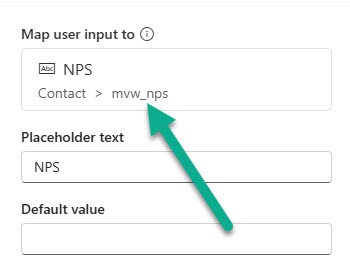
First, let us consider that we can add two types of fields to a marketing form. The first is known as a mapped field, meaning it is a field that exists in the database on a Contact or Lead and we can easily drag it on to the form. Note that we can see what is known as the logical field name for that field displayed.
The second is known as an unmapped field. In essence, you are creating a field on the form that has no place to go on a Contact or Lead. You have made a new space to capture data but are not ‘putting’ it anywhere so it will exist only as a field submission linked to a form submission. Note that when you add an unmapped field, it is given a random generated logical field name with the type first, then some numbers.
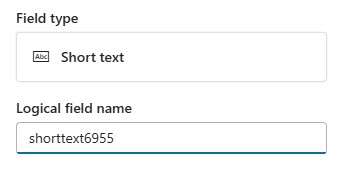
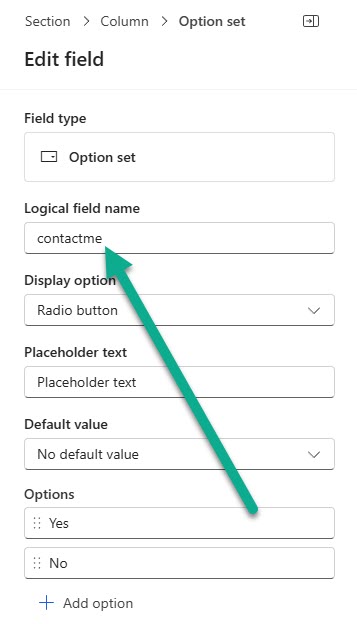
Make sure that you use something ‘logical’ in the logical field name as we will need to use that in our Journey later on.
Now, what happens when a form is submitted? It creates a Form Submission record (msdynmkt_marketingformsubmission) and for each field there is a corresponding Field Submission (msdynmkt_marketingfieldsubmission) record. So a many field submission record to form submission ratio (many to one). You can see my two examples below. Here we can see the logical name and also the value. If we want to do an attribute check on these, it is fine to use the values where it is text or number but when we have radio buttons, optionsets or checkboxes, these show the word and then the actual value that was submitted.
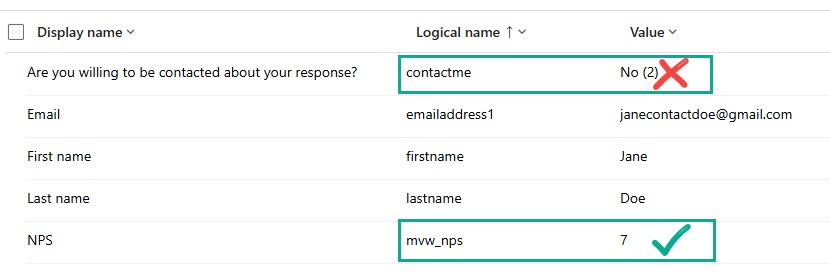
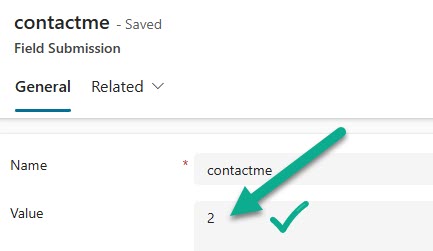
If I open the Field Submission record, I can see the logical name of the field, but then the Value stored is the important bit. Rather than using the word No in my journey attribute check, I need to use the value of 2 that is associated with that option. You need to confirm what values were assigned to your options to be sure you are using the correct values in your journey checks.
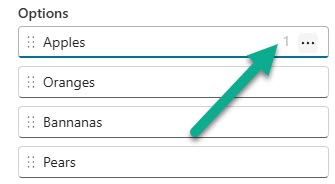
If you are not sure what value was assigned to an option, you can simply hover your mouse over it and you will see it displayed. The labels can of course be whatever you need them to be for your form.
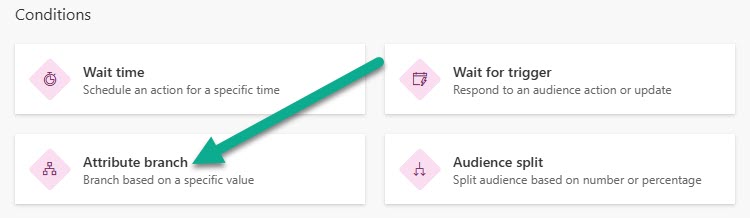
OK once you have your form up and running, make sure you have the logical name and the possible values that you want to check on. I will use two different examples within a journey that fires using the Marketing form submitted trigger. I can use the journey to send an email to the Contact/Lead and do other things, so rather than adding the condition on the trigger itself, I might want to add an attribute branch condition.
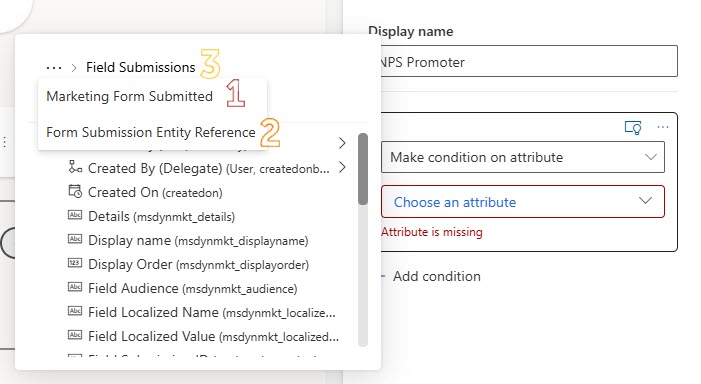
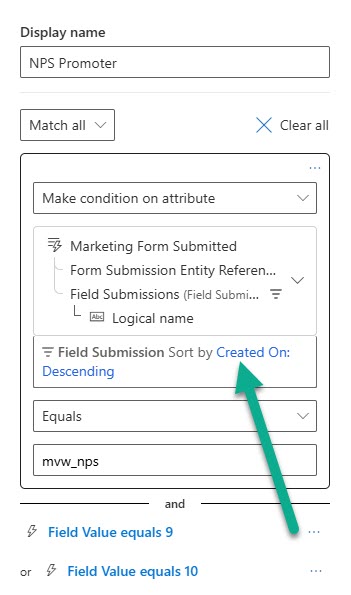
In Branch 1, I have renamed it NPS Promoter. I am going to check to see if one of the field submissions linked to the form submission has the mvw_nps field filled out and number submitted was either a 9 or a 10. To do that, it’s kind of hard to show in a screenshot, but we click to choose an attribute, then go in to the Marketing Form Submitted (1) trigger, then find the Form Submission Entity Reference (2) link, and then search for Field Submissions (3).
Once we have the right path, we can then pick the Logical name field and then use equals and add in the logical name the field already has (mapped field) or the one you gave it (unmapped field). Doing the same again, you can then use the Field Value field to check the match you are looking for. So below we have that the field logical name must equal mvw_nps and the value must be 9 or 10. HOWEVER! WE ARE NOT DONE YET. If you leave at that, it is likely your attribute check will never ben met. Click on the sort by logic like you see below, by default it has Created On: Descending.
This is why we need to do something more. It clearly states, if multiple records are returned, only one will be selected. As stated at the start of this post, we have multiple field submissions to on form submission. It’s unlikely that the field we want would be returned. For example, form is submitted, if we then do a check on the logical name and value of a field submission but the field for First Name was the first one brought back, the condition would never be met, even if the form DOES have a field submission for the NPS field. But that’s OK, we can add a condition on the filter too. It feels like extra work, but it’s a condition on the match and a condition on the filter to make sure we get the right record. C’est la vie.
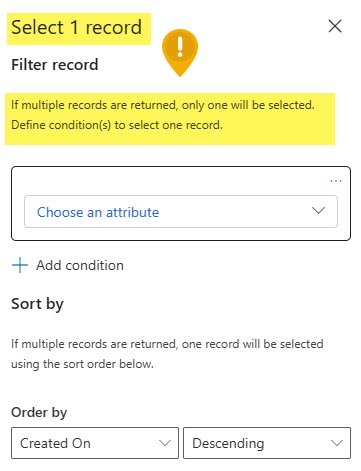
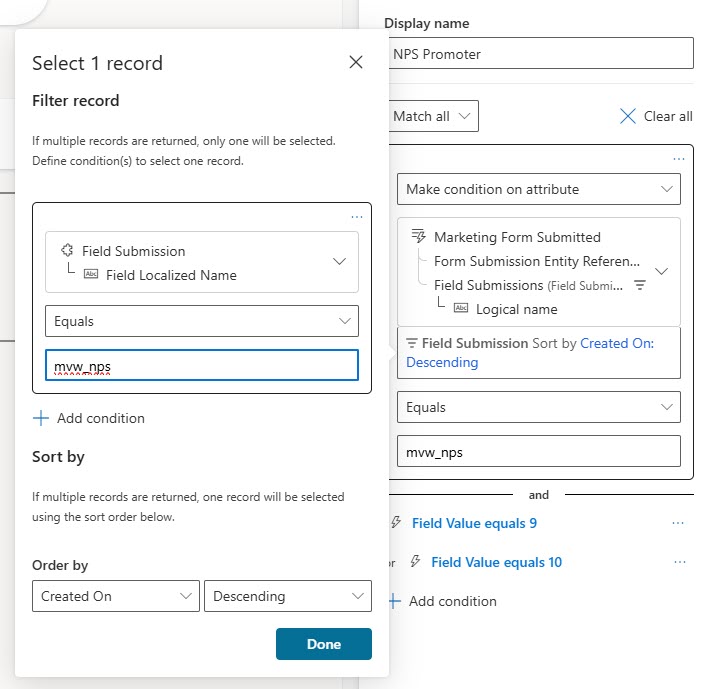
After clicking on Choose an attribute, we then need to go in to the Field Submission and pick the Field Localised Name and put the same field name in again. This means that we are only trying to filter to find the field submission record linked to the form submission for that one specific field. Add this and then click Done. Pay attention, because if you do the match condition first and THEN the filter condition, you will see that the match condition value gets removed (annoying). So be sure you don’t end up leaving that blank by mistake.
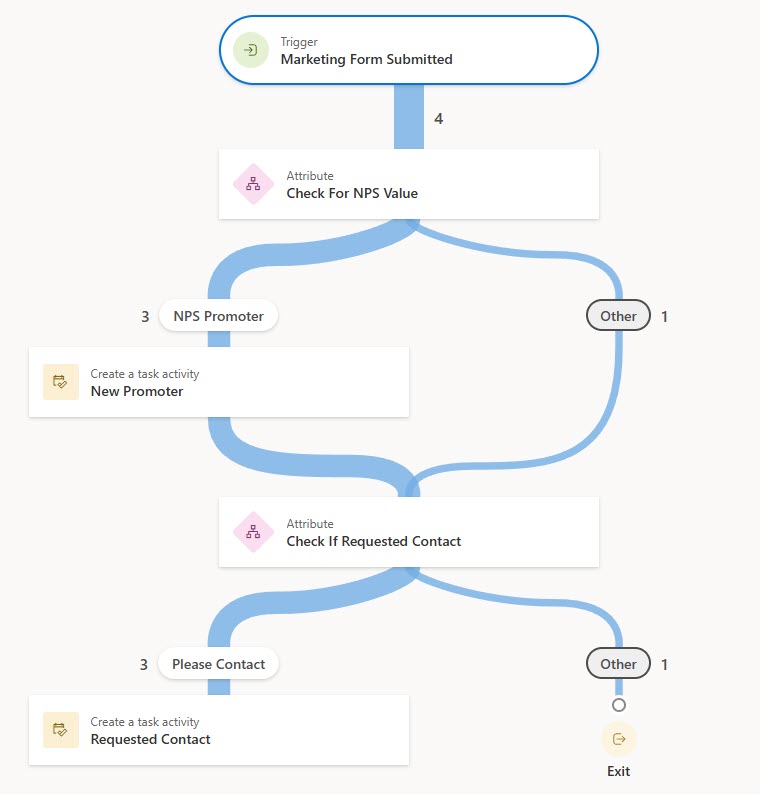
Once you have your attribute branches added along with the correct match conditions and filter conditions, you are ready to go! My quick test example was to check twice, once to see if the NPS value was a 9 or a 10 and once to check to see if someone answered Yes. This gives us the ability to define our Journeys in more detail based on specific fields on forms. You can always apply this same logic to any situation where you need to check records where there could be more than one. Applications someone has filled out for example, or Opportunities or Cases, anything where you want to check a related record where there could be more than one of them.
Check out the latest post:
Add Activities To A Record Timeline Using Custom Pages
Unsure about your Customer Insights set up?
Customer journeys are powerful, but only if the platform, data model, and compliance framework are aligned.
I work with teams using Customer Insights Journeys to make sure it is set up correctly, data is compliant, and journeys deliver without surprises.
This is just 1 of 577 articles. You can browse through all of them by going to the main blog page, or navigate through different categories to find more content you are interested in. You can also subscribe and get new blog posts emailed to you directly.
Hi Megan,
Did you found a way to segment based on these custom field submissions?
Thanks,
Renée
Hi Renée, unfortunately not. You can’t add Field Submission to the related tables because of how they are linked back through to a Contact (too many hops and not a clear path). You can add Form Submission but then it can’t handle the right path and only lets you map through to the form submission on the Source Form field on the Contact. So it’s great if you wanted a segment where the Submitted Values field on the Form Submission contains ‘ABC’ but only if that Form Submission is in the Source Marketing Form on their record.
Hi Renée,
we have implemented custom Trigger which we can call from a Journey (e.g. from certain Journey branch) that saves a Contact to the “static” segment.
So, for example, if people submitted “Cola” answer to unmapped “what you want to drink” question, then we are deciding in a journey “is this response = Cola?” in the same way as Megan described (thank you!). If so, then this Custom trigger block is responsible for adding this Contact to static segment “People who drink Cola”. That information can be later used in combination with other segments. It is not perfect, but I haven’t found a better method yet.
Hi Ivo, thanks for sharing your solution, hopefully that helps out Renée!