
*** NOTE: ALL INFORMATION IS ACCURATE AT DATE OF PUBLISHING ***
If you are a Customer Insights – Journeys user, this is not to be confused with Lead Scoring, but it could be something used in addition or to compliment the Lead Scoring. Or, just use it on its own as part of the premium Sales Insights features. From Microsoft, Predictive lead scoring uses a predictive machine learning model to calculate a score for open leads based on historical data. The score helps sellers prioritize leads and achieve higher lead qualification rates, and reduces the time it takes to qualify a lead. In this post, we will look at how you get it all set up.
First, if you are not sure if you have the correct licensing, check out this documentation from Microsoft which should be kept up to date. At the point of publishing this post, you would need Sales Premium, Sales Insights, or a Sales Enterprise license. Before you jump in and get excited about creating the models, some things to consider. Do you have enough data in your environment to even begin? You need a minimum number of records for the AI models to read, learn and understand what your typical patterns and predictability of winning or qualifying would even be. For Leads, you would need at least 40 qualified and 40 disqualified leads created within the past 2 years.

For Opportunities, you would need at least 40 opportunities closed as won and 40 closed as lost that were created within the past 2 years. So if you are new to D365 or your business hasn’t been using these processes for long, you might need to sit this one out and come back to it in the future.
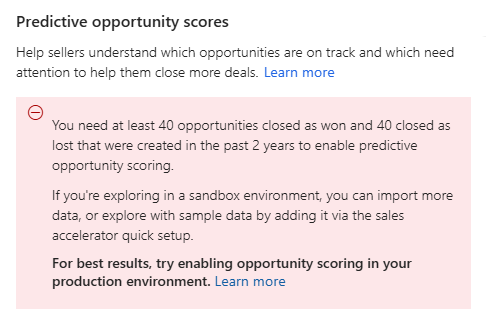
Assuming you do have enough records you can go in to the Sales Insights settings in the Sales Hub app, then find Predictive models and then Lead scoring. You can have up to 10 models but you would really need to make sure the logic is different within them so that you don’t try end up trying to score the same leads that are already scored by a different model. Note that you can’t have spaces in the name, but can use an underscore. If you use a business process flow you could select that to help define which Leads should be considered in the model. You can then pick the optionset that contains the values that you use to consider if the Lead is Qualified or Disqualified. I would think 99.99999999% of organisations are using the out of the box Status field for this. For the filter column, you might want to only include leads with specific Lead Sources for example, but it is not required. Finally, you can change the date range for the Leads. Then click Get Started.

Then just be patient. It could take a while to train the model, so go have a cup of tea or a glass of wine and let it do its thing. 🥰
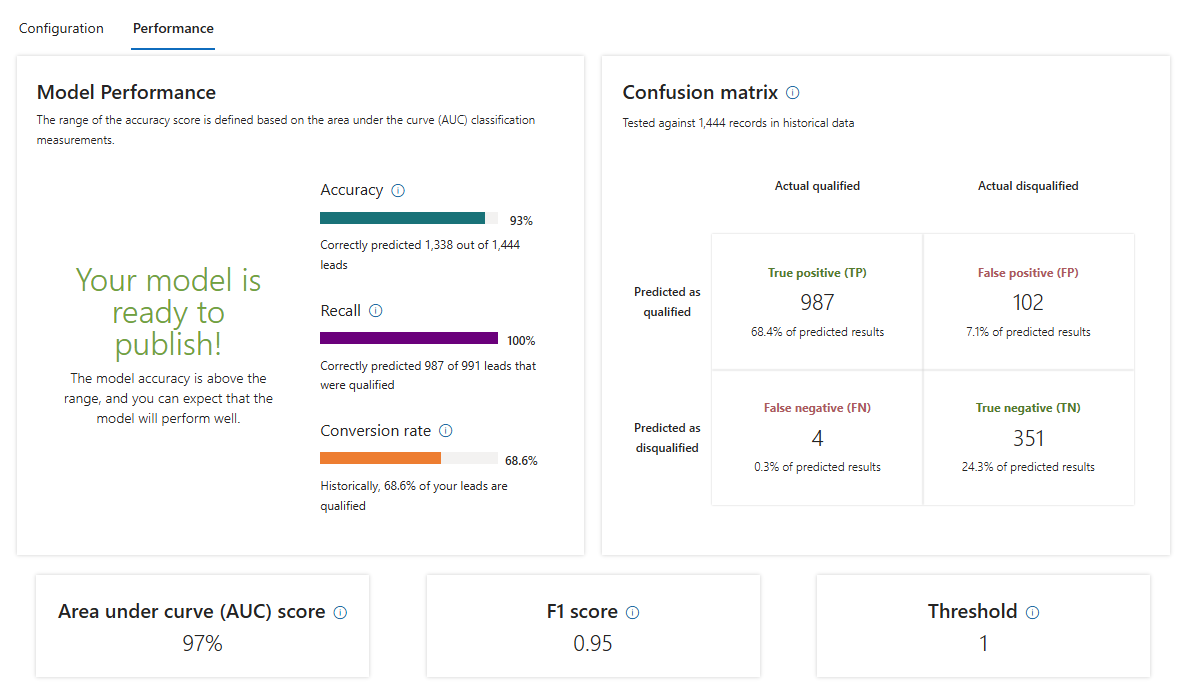
Once the training part has finished, you will see a message that it is ready to be published. This will give you some metrics to help understand a high level overview of the accuracy of scores based on your data. You can then publish the scoring model.
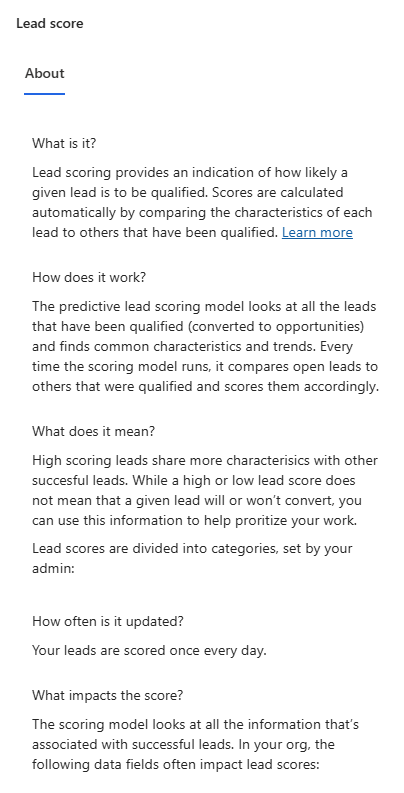
You will also see that Leads will be given a Grade, indicating how likely Leads are to be graded with an overall average qualification rate and score range. If you want to adjust those ranges you can do so.
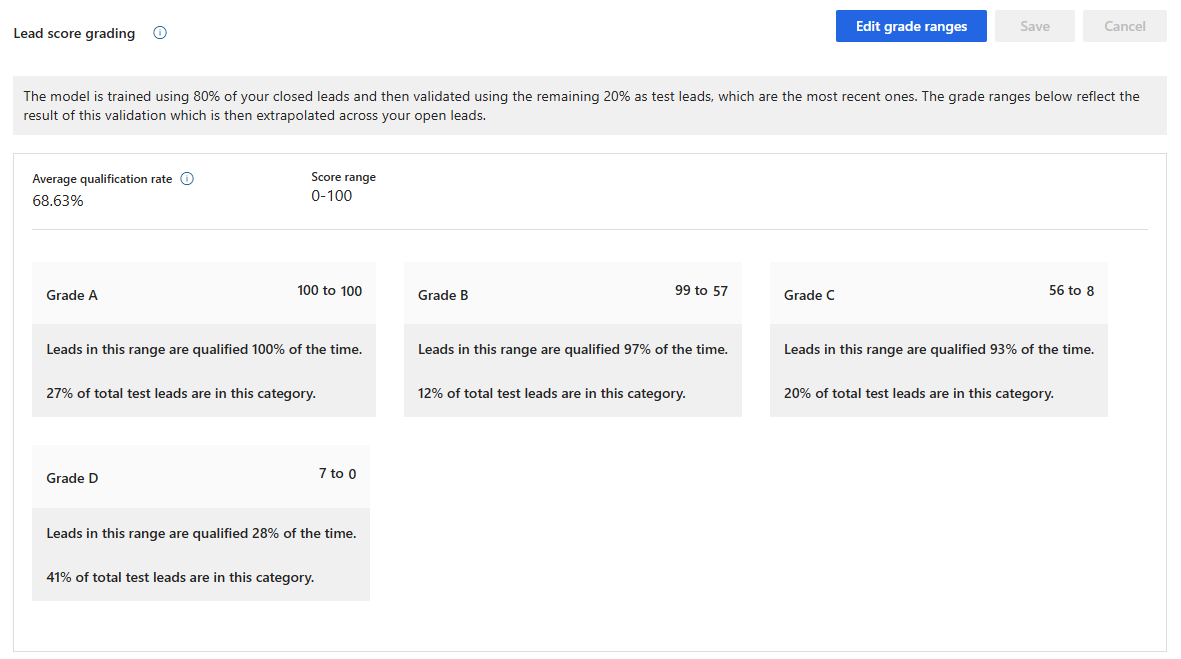
You can also review more information on how it all works from the little information icon next to Lead score grading that might be of interest to understand it in more depth. You can then walk through the same process to create a predictive scoring model for your Opportunities.
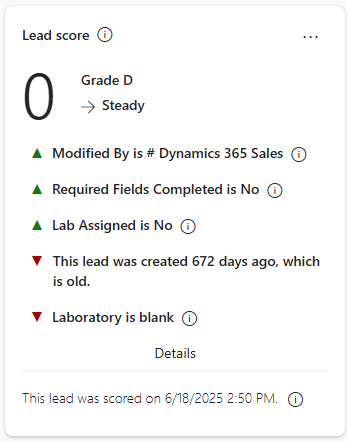
Once you have it all set up and published, you should start seeing the Lead score show on your records. Here we see a lead with zero as the score so in Grade D. We can see some insights about why it falls in to that bucket.
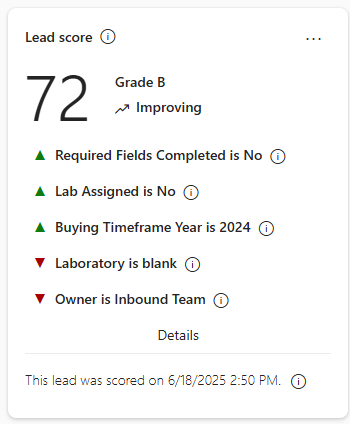
As users gather more information on the record, the score will increase and the grade will change.
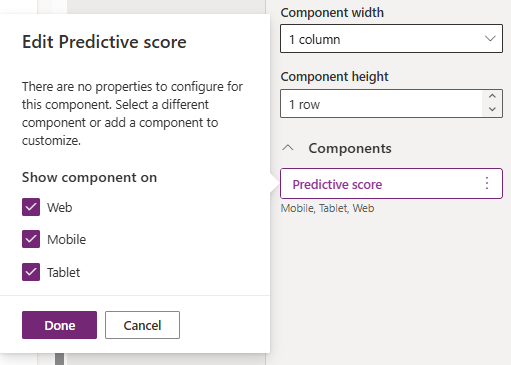
If you use a custom Lead or Opportunity form, make sure you (or your System Administrator) edits the form to add on the predictive score component. Simply drag it across to where you want to see it on the form. There is nothing to customise so just publish it and it should start showing data (for Leads/Opportunities) when you have a published Predictive Scoring model. Predictive Score is also available as a field that can be included on your views giving immediate insight in to the records that are likely to close so you can really focus in on the right Leads and Opportunities.
Check out the latest post:
Adding Multiple Screens To A Custom Page To Provide Confirmation Of New Record Creation
This is just 1 of 576 articles. You can browse through all of them by going to the main blog page, or navigate through different categories to find more content you are interested in. You can also subscribe and get new blog posts emailed to you directly.
Is it possible to combine the predictive lead scoring with the one we have in CI-J? Can you test this in Sandbox environment or do you need to set it up directly in prod?
Hi Amanda, you can set it up in a SANDBOX environment but you still need to meet the threshold in terms of the number of records needed to set up a model. So if you don’t meet that, you cannot create a model. For the combination of scores, what would you be trying to do? You could look for the Predictive Score on the Lead and also look for the related CI-J Lead scores and check both? Take a look at this post that shows how to use the CI-J Lead scores for auto assigning as part of the Sales Accelerator functionality: https://meganvwalker.com/auto-assign-leads-without-code-using-lead-scoring-work-assignment/
You could then factor in the Predictive Score in to that.