
*** NOTE: ALL INFORMATION IS ACCURATE AT DATE OF PUBLISHING ***
If you have been creating Custom Pages, hopefully you are used to creating collections by now. A collection is a temporary table you build and use inside your the custom page to store and change data on the fly. It’s perfect for holding records you gather, reshape, or filter without constantly hitting Dataverse or another data source. If you want to show a list of records when the page opens, then creating the collection at that point is a good idea. This post will show how you can do a nice loading screen that displays when the custom page is opened so it is more obvious to the user that something is happening rather than an empty screen showing.
If your users have super duper speedy internet access, this might never be an issue, but sometimes things lag and waiting for a list of records could look like nothing is happening if a connection is slow or something else is interfering with the data. In my example custom page, I want to show a gallery with a list of active contacts for an Account. My current OnStart logic is getting the current record ID (or adding one we can use for testing while editing the page), then finding the Account the ID relates to. Then it is creating a collection of Contacts that are linked to the Account and where their Status is Active and sorting them by Last Name in Ascending Order. I then have a gallery on the page that uses the ContactsList collection as the Items. All pretty simple so far.
Set(
    varRecordItem,
    If(
        IsBlank(Param("recordId")),
        GUID("0e77fc9f-15ef-ec11-bb3c-002248005fd0"),
        GUID(Param("recordId"))
    )
);
Set(
    varSelectedRecord,
    LookUp(
        Accounts,
        Account = varRecordItem
    )
);
ClearCollect(
    ContactsList,
    SortByColumns(
        Filter(Contacts,'Company Name' = varSelectedRecord And Status = 'Status (Contacts)'.Active),
        "lastname",
        SortOrder.Ascending
    )
);
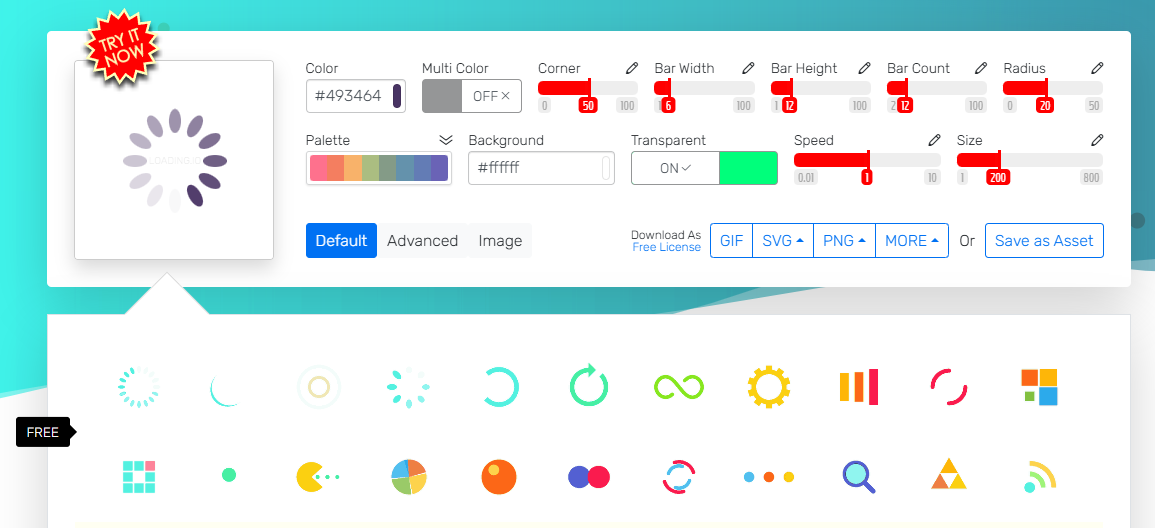
What I want is the same experience for everyone, regardless of how quickly it loads the collection. To do this, I will add a nice little loading spinner gif that shows for a minimum of 2 seconds. If it takes a bit longer to create the collection, the timer will repeat for another 2 seconds and keep going until the collection has finished. First, go and create a loading gif. There are plenty of free sites, but I have used loading.ico quite a few times. Make the background transparent and download as a gif.
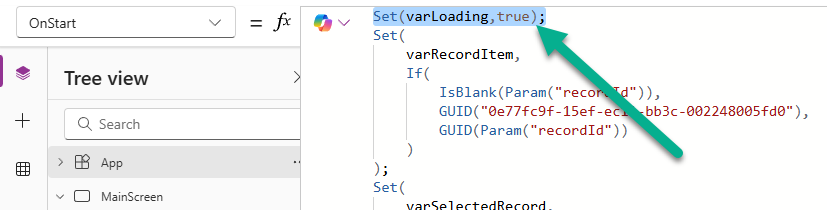
When the custom page first opens we want the loading gif to show. In your App OnStart logic, add something to set a variable to true. I am calling my variable varLoading.
Set(varLoading,true);
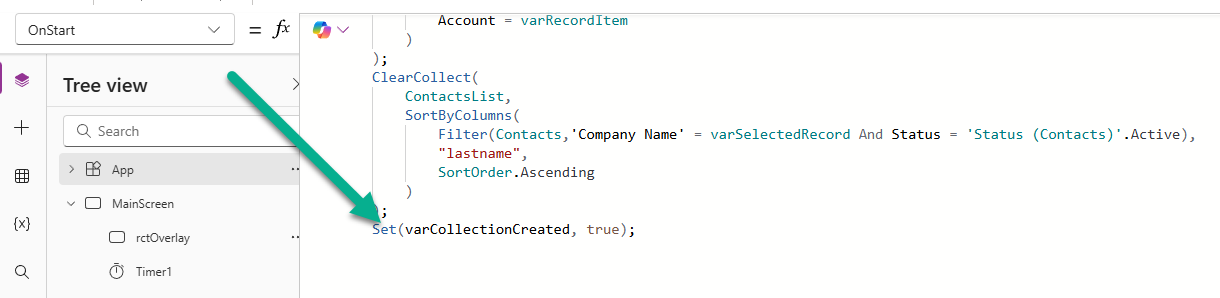
Directly after the ClearCollect where you are creating your collection, add in something like this to set a variable to indicate the collection has been created. We can use this to only stop the timer once the collection has actually been created. So make sure this is last or at least right after your collection is complete. This also means if the collection is empty we can still stop the loading screen from showing.
Set(varCollectionCreated, true);
Add an image to your main screen.
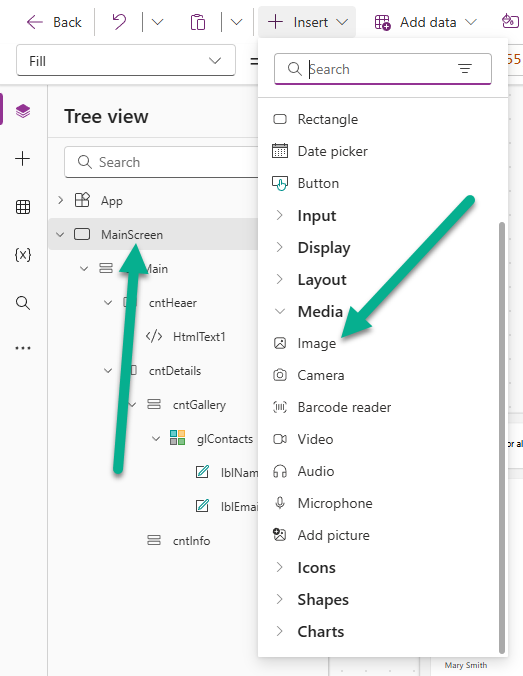
In the properties of the image you can upload your new loading gif.
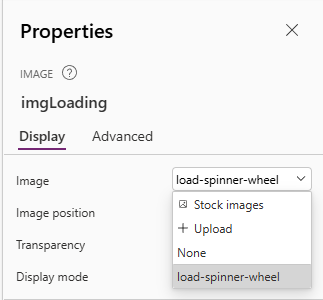
Change the following properties for the image. This will make the loading gif show directly in the middle and be visible only while the varLoading variable is true.
- Visible – varLoading (or whatever you named your variable)
- X – (Parent.Width – Self.Width)/2
- Y – (Parent.Height – Self.Height)/2
Make sure you also change the visible property of your gallery. Set this to only be visible if the varLoading variable is false.
!varLoading
Also on the main screen, add a rectangle and a timer. Then set the properties for each one as follows. This will give a nice transparent overlay on the screen while a timer counts down. The overlay is hidden once the collection is created.
- Rectangle
- Fill – RGBA(0, 0, 0, 0.4)
- Height – Parent.Height
- HoverFill – remove the value
- PressedFill – remove the value
- Visible – varLoading (or whatever you named your variable)
- Width – Parent.Width
- Timer
- AutoStart – true
- Duration – 2000 (or however long you want the initial loading image to show)
- Repeat – !varCollectionCreated – this will be the opposite value of the variable that shows if the collection is created. So if the collection created is false, the repeat will be true and vice versa
- Start – true
- Visible – false
For the OnTimerEnd property, to check if the collection is complete (using the varCollectionCreated variable) and if it is set the variable of varLoading to false which will hide the rectangle and loading gif image, and show the gallery.
If(
    varCollectionCreated,
    Set(varLoading, false);
)
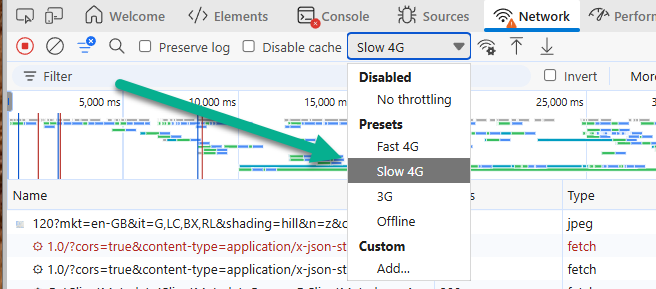
How do you know if it is working? You can use the dev tools in your browser (F12) and on the network tab change this to 3G or slow 4G. I set the Duration to 1000 and kept the timer displayed so I could see it repeating after a second while testing. Just make sure you change the visible property on the timer back to false and the duration to whatever you want it to be.
Here it is in action. Now I know the user experience will be the same and the loading screen will be there for at least 2 seconds for each person. This approach might not be right for each type of custom page, and you may want to show a nice message if the collection is empty (meaning no rows in a gallery) but this is a great first step to a professional custom page experience.
This is just 1 of 574 articles. You can browse through all of them by going to the main blog page, or navigate through different categories to find more content you are interested in. You can also subscribe and get new blog posts emailed to you directly.