
*** NOTE: ALL INFORMATION IS ACCURATE AT DATE OF PUBLISHING ***
For anyone using the Sales Accelerator functionality AND Customer Insights Journeys, you may have a need to add Contacts or Leads to a sequence as part of a Journey. Consider someone new who has subscribed, perhaps you want to put them in a nurture journey of some kind. There are ways this could be done manually, or by your filter criteria on a Sales Accelerator segment (not to be confused by a Customer Insights segment), but what if you want the option for marketing to add this via a journey? This post will show you how you can add to a sales sequence using a custom trigger.
First, make sure you have a sequence created in the Sales accelerator. Determine if this should be for Leads or Contacts.

Once you have that up and running, create a new trigger in Customer Insights Journeys and make sure you pick the second option below in terms of what will activate the trigger.
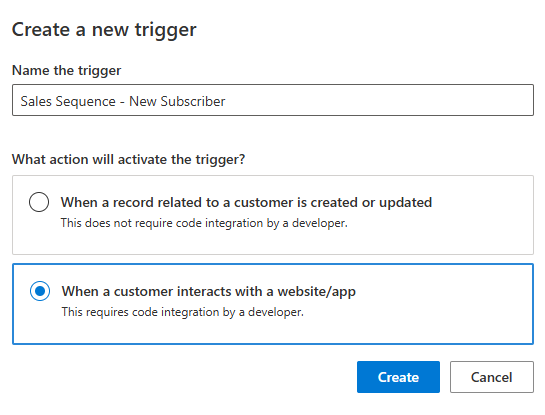
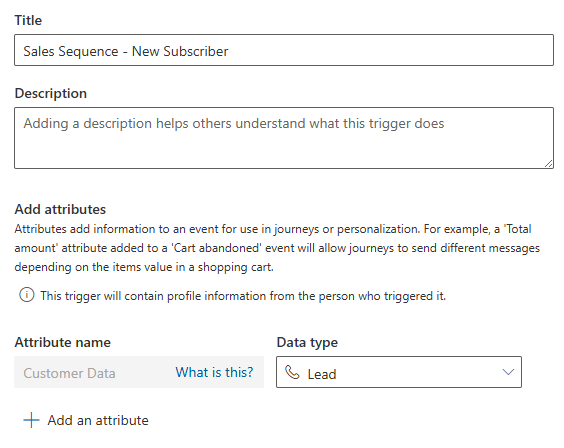
In this example we will link this to a specific sequence (more in a moment) so the only attribute we need is the data type of either Lead or Contact. Make your trigger ready to use.
Now create a flow in Power Automate using the Dataverse trigger option of when an action is performed. Pick Cxp as the catalog, custom as the category and table name as none. Your action name will be whatever you named the trigger you created.

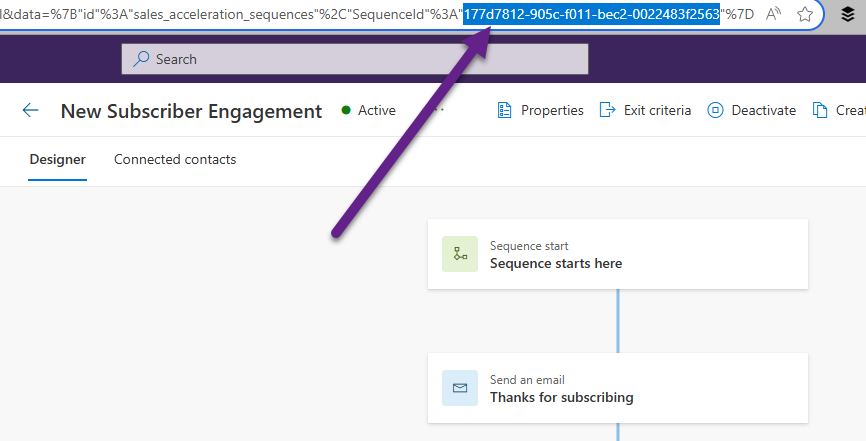
Next, get the ID of sequence you created. It is this string towards the end of the URL when you are viewing the record.
Now we just need one more step in the flow. From the Dataverse connector again, select Perform an unbound action. The action name you need is msdyn_ConnectSequence. For the RegardingEntityId, add in the profileid item from the step above. This will be either the Contact or Lead that is going through the Journey. The next value for RegardingEntityName should either be the word contact or lead (based on what you have set up your trigger for). Then paste in the id for your specific sequence. I added in the Source just to see where that went but I cannot find it anywhere… so yeah. Maybe don’t bother. You can leave all other values empty. Save your flow and make sure it is turned on.

Now in your Journeys in Customer Insights. you can add a step to Activate a custom trigger, then select the new trigger you created. This will fire the Power Automate flow to run.
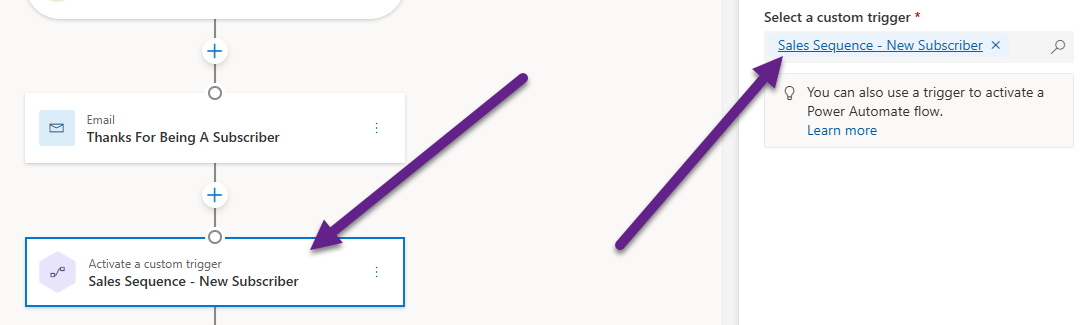
At that step of the Journey, the related Lead or Contact will be added to the sequence by the flow that will run. This way you can help Sales people by adding them in to Sequences, and manage this from your Journeys in Customer Insights.

Check out the latest post:
Create Hierarchy Overview Of Compliance Setup In Customer Insights - Journeys
This is just 1 of 566 articles. You can browse through all of them by going to the main blog page, or navigate through different categories to find more content you are interested in. You can also subscribe and get new blog posts emailed to you directly.