
*** NOTE: ALL INFORMATION IS ACCURATE AT DATE OF PUBLISHING ***
This post is pretty short and sweet. How can you assign a record to a user or to a team from your custom page? Assigning records from a custom page doesn’t have to be complicated. Whether you want to hand something over to a specific user or assign it to a team, using a custom page gives you a straightforward way to trigger this behind the scenes. In this quick walkthrough, you’ll see exactly how to code things so your users can assign records to a user or a team without ever leaving your custom page.
Depending on your requirement on who you want to assign records to, you will need to make sure your custom page includes the Users table and/or the Teams table. So add those from the data panel first.
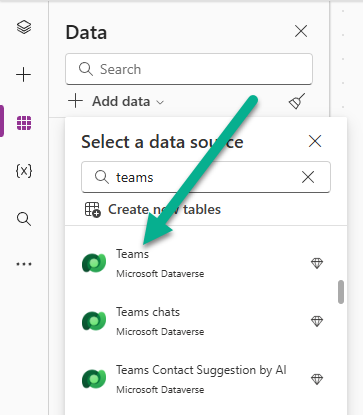
To just assign to a specific team without checking any other kind of logic, set the Owner field by using the LookUp function, then the Teams table, and then where the Team Name equals whatever team it is that you want the record assigned to. Make sure that whatever Team you add already has security rights to be able to own the kind of record you are assigning them. Otherwise you will get errors and it might take you a while to figure out why!
Owner: LookUp(Teams, 'Team Name' = "Marketing")

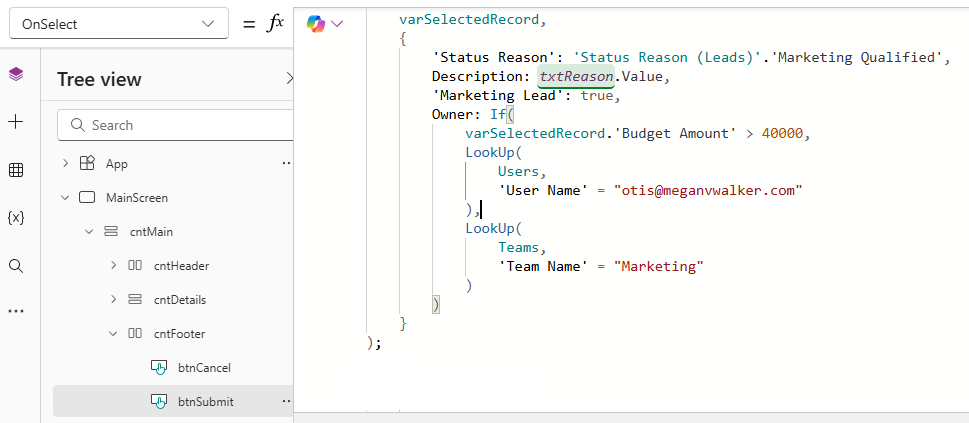
If you have some kind of condition to determine where the record is assigned, you can do a check first. So in the code below we are checking if the selected Lead record has a value greater than 40,000 in the budget amount field. If it does, we will use the LookUp function to find a specific user who might be responsible for dealing with Leads over a certain value which we can do by matching the User Name on the Users table and enter their email address. If the value is not over 40,000 we will assign the Owner as a specific Team using the same steps as above where we enter the name of that team.
Owner: If(
            varSelectedRecord.'Budget Amount' > 40000,
            LookUp(
                Users,
                'User Name' = "otis@meganvwalker.com"
            ),
            LookUp(
                Teams,
                'Team Name' = "Marketing"
            )
        )
Good to note that in theory if someone were to rename the Team name, the Team would no longer be found in this way. If it seems plausible someone could do this, you can change the lookup for the Team to use the GUID of the record instead. However, this isn’t great for moving across to other environments if the same Team has a different GUID in each one, but something to be mindful of.
Owner: If(
            varSelectedRecord.'Budget Amount' > 40000,
            LookUp(
                Users,
                'User Name' = "otis@meganvwalker.com"
            ),
            LookUp(
                Teams,
                teamid = GUID("08eb329b-0e1f-ee11-9967-0022481b5054")
            )
        )
This is just 1 of 571 articles. You can browse through all of them by going to the main blog page, or navigate through different categories to find more content you are interested in. You can also subscribe and get new blog posts emailed to you directly.