
I’ve written about how you can add a custom page to a table/entity in a model-driven app with a script for a specific custom page. However, as you start to see the power and flexibility of custom pages, you will likely add more. Creating a script for each custom page is a pain and not very flexible. So lets look at how you can create a script that you can use over and over, and just set different parameters to indicate which custom page to open and where to open it.
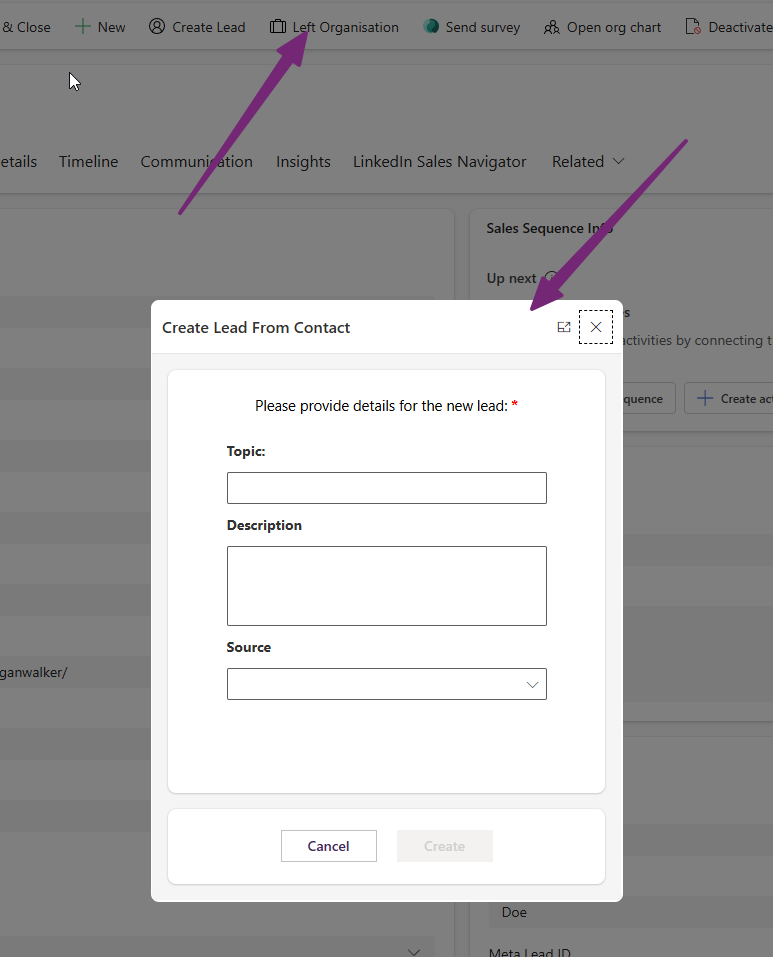
First, this is what we are referring to when on a record, in my case an Account. Clicking on a button from the top ribbon which can then open up a custom page in a number of ways. It can either be as a side bar like you see below, as a dialogue opened in the middle of the screen with a specific height and width, or can be opened as a new full page within the model-driven app (either with or without the context of a record).
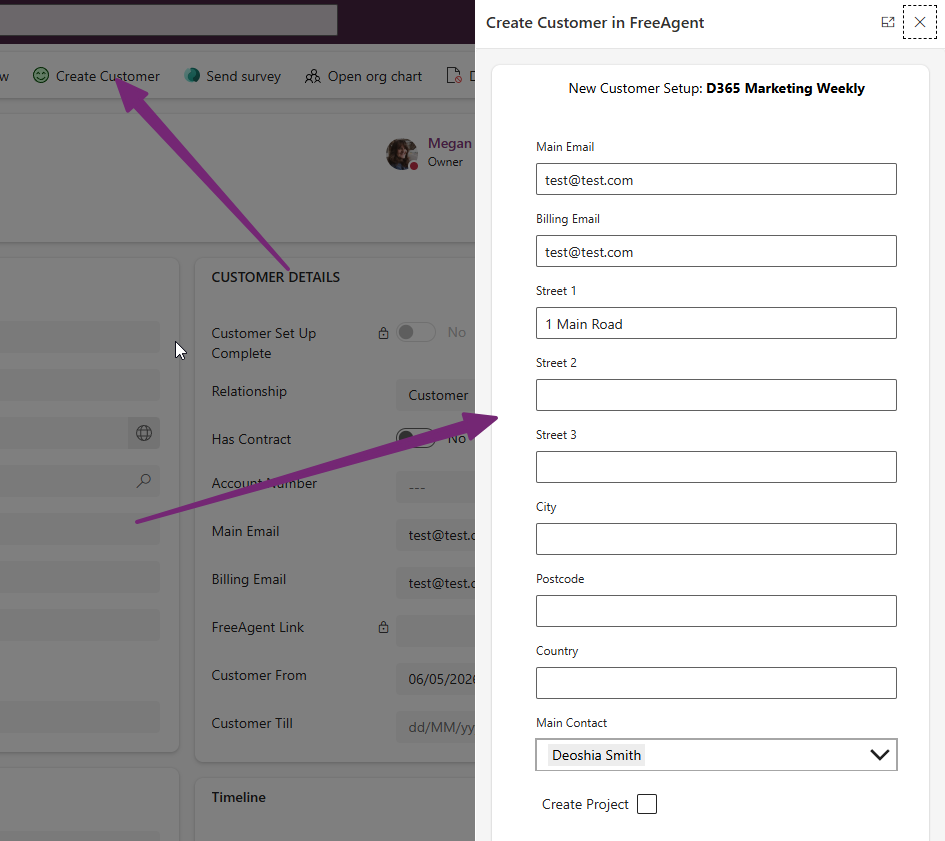
Lets jump right in to the script. You will need to create this as a web resource in your environment so it can then be used throughout on any button for an entity (Account, Contact, Lead etc.). I’ll explain each part below, but this gives you a script you can use and pass through information via parameters on your button.
function showDynamicCustomPage(primaryControl, varCustomPage, varTitle, varTarget, varPosition, varHeight, varWidth, varError) {
   var formContext = primaryControl;
   var entityName = formContext.data.entity.getEntityName();
   var recordId = formContext.data.entity.getId().replace(/[{}]/g, "");
   var pageInput = {
      pageType: "custom",
      name: varCustomPage,
      entityName: entityName,
      recordId: recordId
   };
   var navigationOptions = {
      title: varTitle,
      target: varTarget || 2,
      position: varPosition || 1,
      width: varWidth || 470,
      height: varHeight || 600
   };
   Xrm.Navigation.navigateTo(pageInput, navigationOptions)
      .then(function() {
         // Refresh parent form when dialog closes
         formContext.data.refresh();
      })
      .catch(function(error) {
         console.error(varError || "Custom page failed to open:", error);
      });
}
This is what we mean by passing through parameters. If you’ve never added a new button to the command bar and this all looks new, be sure to check out this post. After adding the script as a web resource, you can then use it on your button, set the function (showDynamicCustomPage) and then add in the parameters (variables).
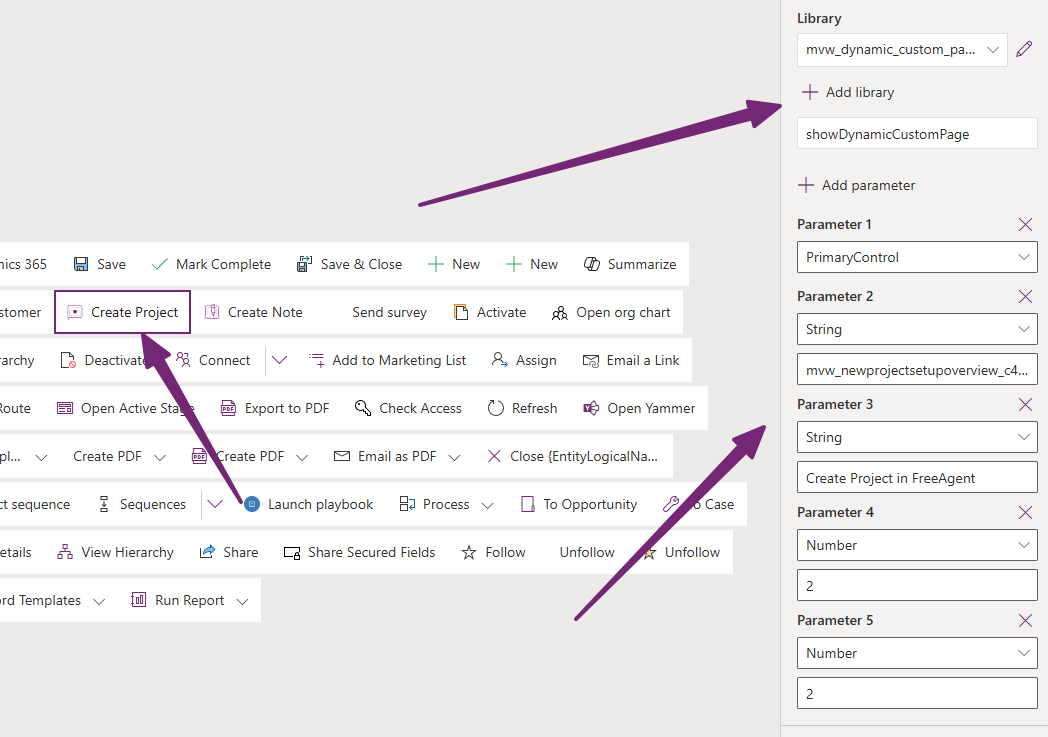
The script has 8 variables, with 3 variables required and the last 5 optional. The variables are all in the first line of the script: showDynamicCustomPage(primaryControl, varCustomPage, varTitle, varTarget, varPosition, varHeight, varWidth, varError). They must be added in that exact order when you are adding them to your button.
- primaryControl is the Dataverse form context passed automatically from a form event or ribbon command. This is selected from the list of Parameters with nothing else to add,
- varCustomPage is the database name of the custom page to open. Add a string parameter and then add in the custom page you want to use (check out the post I referred to if you are not sure how to find this)
- varTitle is the value that will show at the top of the Custom Page when opened. Add it as a string parameter and then put something short and snappy 🙂
- varTarget is to state how the page opens. Add the parameter as a number then specify 1 to open the page inline. Specify 2 to open the page in a dialog. 2 is the default used if this variable is not set. If you have specified 2, then the next variable is needed. If you specified 1, you don’t need to add any more parameters
- varPosition is to indicate where the custom page opens in terms of centre or far right side if you have set varTarget as 2. Make sure the parameter is a Number, then specify 1 to open the dialog in centre and 2 to open the dialog on the far side like in my first screenshot. 1 is the default used if this variable is not set. Note that if you set varTarget as 1 you should not be adding this parameter
- varHeight is an optional numeric value (in pixels) that controls the custom page height. Make sure the parameter is a number. 600 is the default used if this variable is not set. Note that if you set varTarget as 1 you should not be adding this parameter
- varWidth is an optional numeric values (in pixels) that controls the width custom page width. Make sure the parameter is a number. 470 is the default used if this variable is not set. Note that if you set varTarget as 1 you should not be adding this parameter. Also, do not use it if you did not set a value for varHeight as these only work if added in the correct order
- varError is an optional string displayed in the console if navigation fails. ‘Custom page failed to open’ is used if this variable is not set. Must be a string. Again, do not put anything if you haven’t used all of the other parameters
After saving and publishing the command bar changes, you can then try out your button to see if that has all worked. So now I have one script and I can open the custom page in which ever way makes the most sense for the use case. Hope this helps on your custom page journey!



Leave a Reply