
I hate it when I a tool I use weekly (or even daily) is retired or removed. I’ve used Collections, a tool from Microsoft, for well over 5 years and they’ve helped me manage links to websites and notes without needing to add them as favourites. Often you just want to keep a log of a website for reference but for a short period of time. This really started when I did The UP Podcast with Lisa Crosbie, and now I use it for making note of links to add to an issue of the D365 Marketing Weekly. BUT, Microsoft announced they are retiring Collections and direct you instead to Bing Collections. 🙄With that news, I decided to look for a Microsoft Collections alternative.
Discovering Raindrop.io
Doing some searching online, it seemed one of the most used or preferred tools that people were using is something called Raindrop.io. This is NOT a paid blog at all, and I’ve not been asked to write it, I just believe in sharing content that might help others trying to find an alternative and how to get up and running using it, and how to get your current content that might already be in Collections. Here is some of the criteria I had for a Collections replacement, and Raindrop.io meets (and exceeds) all of them.
- Ability to create new collections easily – Raindrop.io has folders and even subfolders that can be added quickly
- Ability to add links to a collection easily from a website – Raindrop.io has a browser extension, that can be used to add a link to a collection with one click, or by right clicking on a web page. Either way is easy
- Ability to add a web page to a collection when on my mobile phone – Raindrop.io has a mobile app that can be installed allowing me to share a link to it when I’ve viewing it on my mobile
- Ability to open and manage links in my collections – Raindrop.io gives me that ability by opening the mobile app, desktop app, or from the browser extension
So yeah, that is just what I am looking for. Let’s look at what currently happens with Collections.
The End of Microsoft Collections
I first noticed because I tried to add a link to one of my collections from my mobile phone. Nothing would load which seemed odd. When trying again from my desktop, I saw a message that stated it was going away.
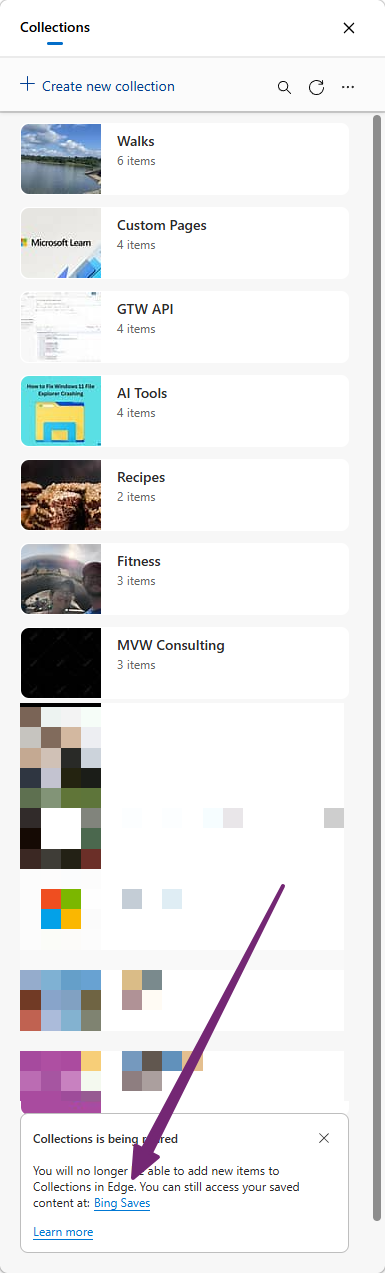
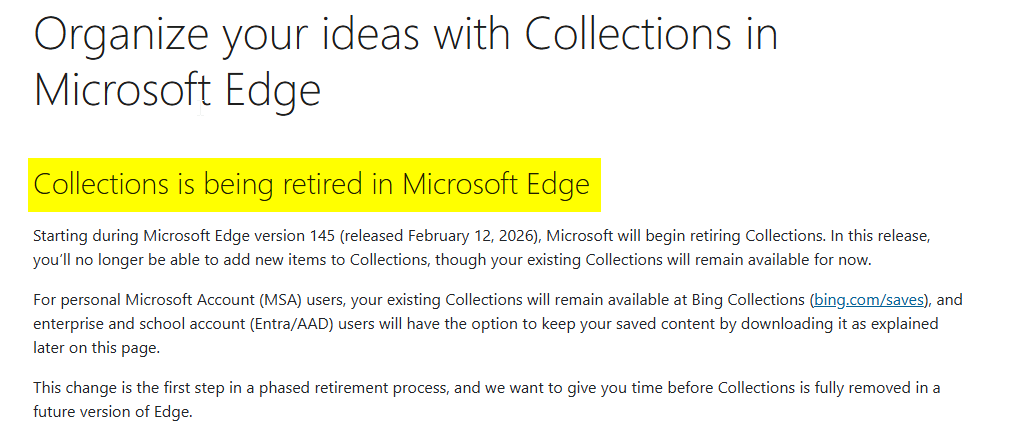
Clicking on the Learn more link takes you here, where it tells us it’s being retired. Now this says retired in Microsoft Edge, not completely, but I am not going to mess about going to Bing Collections and using that. It even says, this is the first step in a phased retirement process, so who knows if it will go completely. Time to replace it with Raindrop.io
Clicking on the Bing Saves link goes to https://www.bing.com/saves. OK, that’s great to know I can still get to my Collections. But what do I do next?
Bringing My Collections With Me
The support link states that you can send saved collections to Excel by selecting the collection you want to send, then more options, and then send to excel. Well yeah, but that doesn’t seem to exist, so not so easy.

Instead, I took perhaps a slightly manual approach but it helped me do some Collection Clean-up so to speak. From the Bing Saves, I can see all of my collections.

In the Raindrop.io desktop app (or from the extension), I can create collections which are effectively folders, then even create nested collections within that.
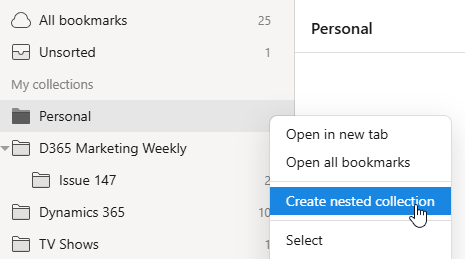
From your existing collections, you can either right click on each link, then use Raindrop.io to save the link, or you can drag each item from your existing Microsoft Collection to your new collection in Raindrop.io. I tried selecting multiple links from MS Collections and dragging them but it still only added one, so I just did them one at a time. It also meant I could review and make sure I only brought in the links I wanted. I also realised there were a few collections I no longer needed so only added new ones in Raindrop.io that I needed.

You can then start to review your links in Raindrop.io.

Once you’ve added all the links from one of your MS Collections, or decided you no longer need it, you can click the menu from the top right of the collection and then click on Delete.

What I Like About Raindrop.io
A nice little feature that didn’t exist in MS Collections is the ability to change the icon used on a collection. So instead of the folder icon, I can make it something more specific.
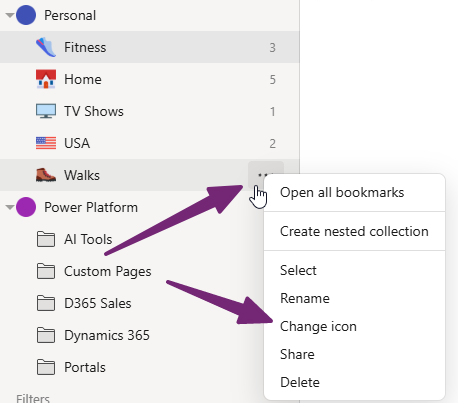
I also love that I can add my own icon. So for this one, I can use the icon for the D365 Marketing Weekly newsletter instead of selecting one of the standard ones. Nice!
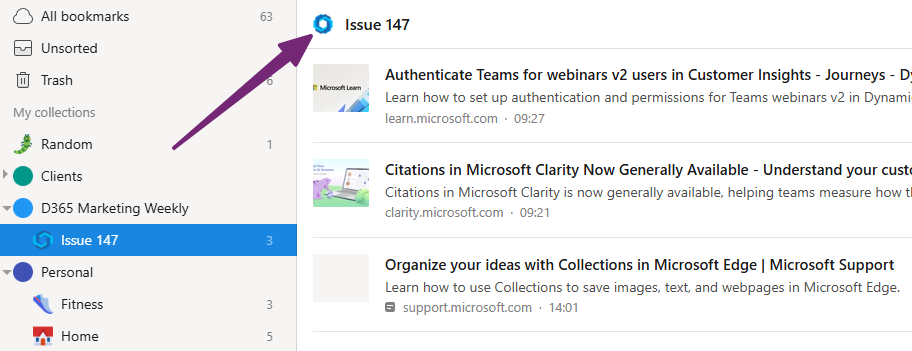
When adding a link via the extension, I can add notes for it, pick which collection to add it to, add tags, and make it a favourite. There is a notification bell, but that is a pro feature (currently £25 for a year). I can get everything else I need with the free feature so no worries about needing to pay!
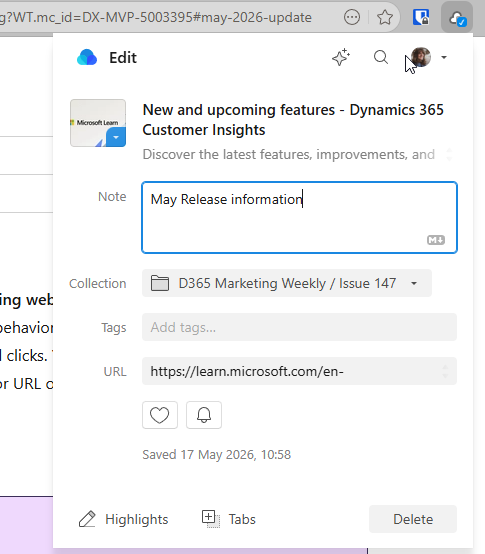
There is also the ability to highlight information on the page by selecting content, then either right clicking then Add highlights, or highlighting, adding from the extension and then clicking Highlights from the button you see in the screenshot above. You do need to grant specific access for the extension, so you can do that if it feels like a valuable feature.
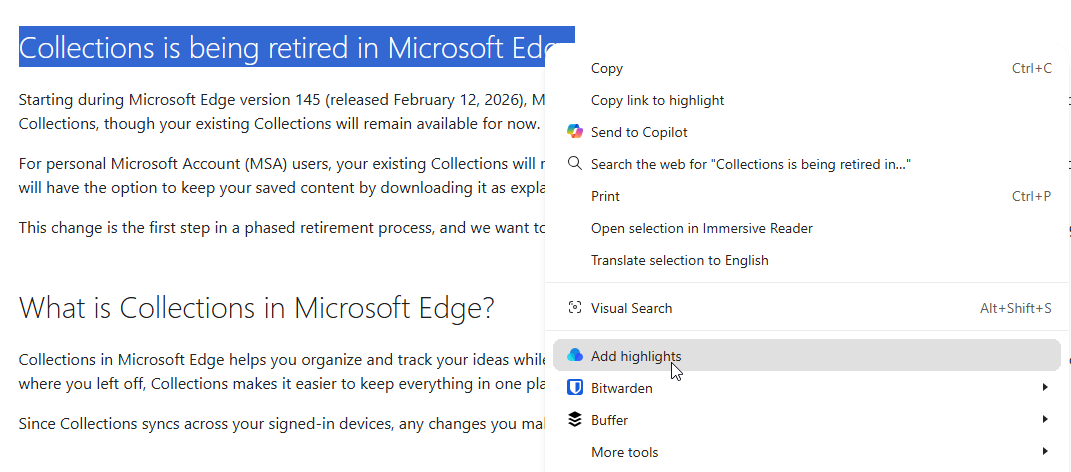
Once you’ve added the highlight, it will stay there when you next view the page. You can also change the colour and delete it.
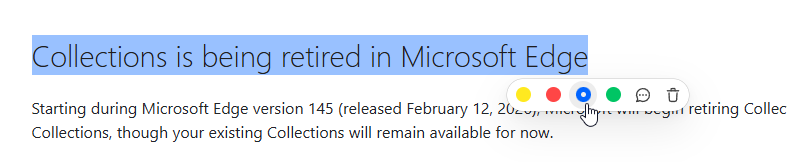
You will see an indication that something has been highlighted when you look at the list of links in Raindrop.io.

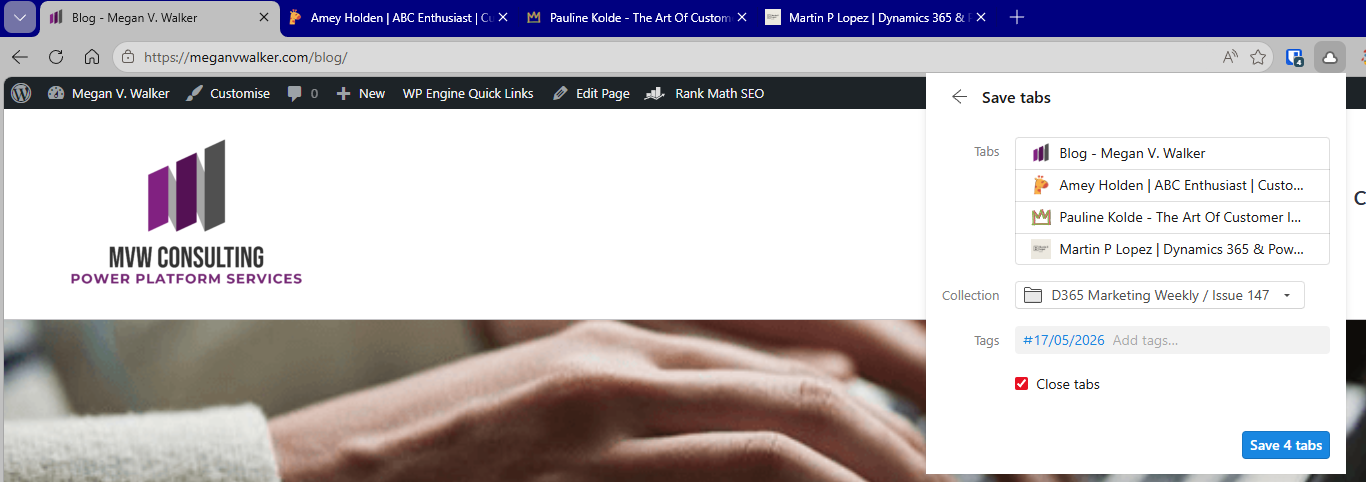
I can also use the Tabs button when adding from the extension. It will then show all of the tabs that are open (you can delete if there is something you don’t want to include), then pick the collection. Todays date will be added as a tag for you (which you can remove or add more to). Close tabs will close all of the tabs you have open if you have that selected. After saving, all of the tabs will be added to your collection at once. Pretty slick!
In addition to adding links to your collections, you can also upload a file. Could be good for PDFs or images you might want to keep a record of for easy access.

A Few Extra Features Worth Mentioning
Using the Share option (see screenshot above) means we can create either a public page, or a link for others you wish to collaborate with. The Collaboration option will allow anyone with the link and a Raindrop.io account to join and edit or view the collection. The public profile gives you a link you can share with others to view the page, including the ability to add a description for the page.
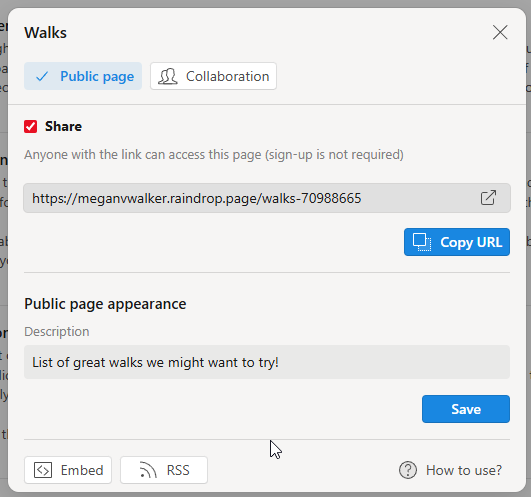
Opening it up shows the user name of the person who owns/created the collection, the name and icon of the collection, and the text added as the description. This is a really cool feature, liking this one!

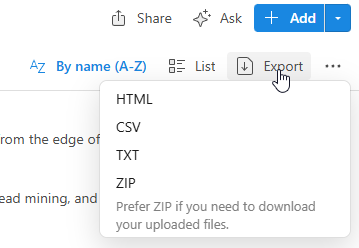
The export feature gives you options for HTML, CSV, TXT or ZIP files. The HTML and TXT files contain the link only. The CSV file contains an ID, the title of the link, any notes for the link, an excerpt from the website, the URL, any tags used, date it was added, the thumbnail image used, any highlights, and if it is added as a favourite. The ZIP file will contain any files uploaded along with a CSV file, TXT file and HTML file.
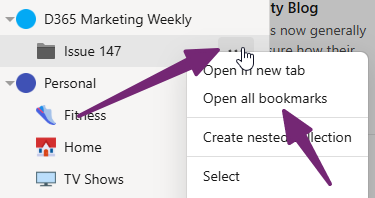
One of the features I used a lot in Collections was to open all of the bookmarks from a collection at once. I did this to get started on putting together my newsletter. This can be done by clicking on the ellipsis menu (three dots) from the collection, then clicking on Open all bookmarks.
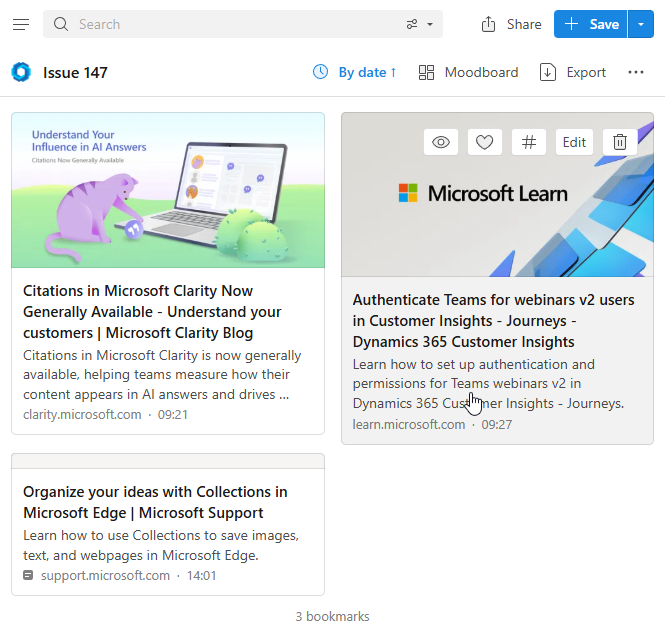
Finally, don’t miss the settings for the App and the settings for the Extension. I especially like the Moodboard view mode for collections, and the ability to determine which buttons show up when viewing the items in your Collection.

After changing to Moodboard and adjusting the buttons, this makes it really clear and easy to see what the link is all about, AND gives me quick access to buttons I might want to use.
If you are using Raindrop.io, what other features are you using? Anything that you currently use in Collections that you think might be lacking that you will miss? Or have you already found your own alternative tool? Let me know in the comments, would love to hear your own experiences.






Leave a Reply