
*** NOTE: ALL INFORMATION IS ACCURATE AT DATE OF PUBLISHING ***
Are you asking unmapped custom event registration questions when someone is registering for your events? If so, how can you get people who have answered in a specific way in to a segment? I’ve shown you how you can actually see all of the responses themselves all in one place, but sometimes you might need a segment. Perhaps some people have indicated they need additional information or have requirements you want to follow up with and put people in a different journey, or use the segment to branch within the registration journey itself. This post shows how to create a segment using custom event registration questions your segment filtering so check it out!
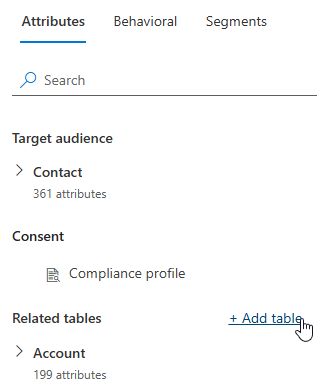
First things first, make sure you have the right tables added in to the segment builder. To add a new table, click the Add table link from the Related tables section.
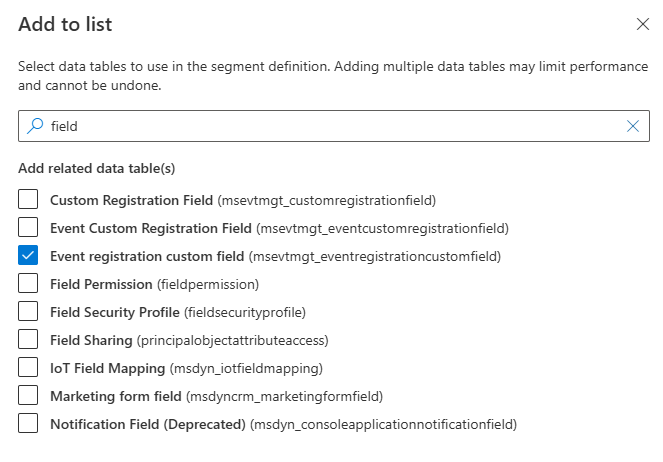
The Event Registration table should already be there, but what is unlikely to be is the Event registration custom field table (not to be confused with the Event Custom Registration field table. 🤪Select that from the list. Then go through the next screen to add it.
Now this is made easy by the fact that this table contains ALL of the custom registration fields that you are adding to event registration forms. Hooray! You can see some of my questions below are there to be added to the segment, easy peasy. One thing to note, you will see that the table shows as syncing. This is a one time thing, but sometimes the table can disappear, so be patient if you need to add it back in. Easiest thing is to add a field, then save the segment so it ‘sticks’. After that, the table will always be there for you.
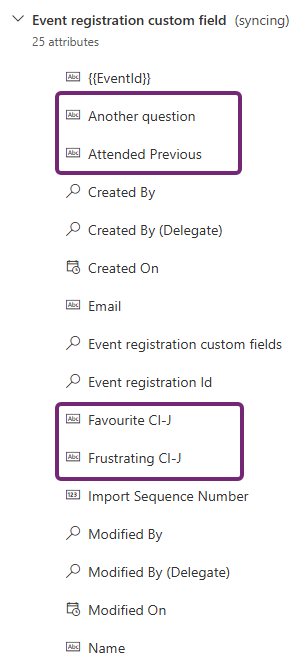
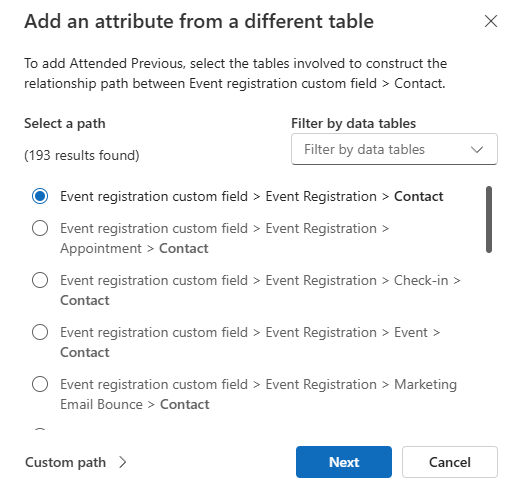
I’m going to create a segment for people attending my webinar for the first time, so I click on the Attended Previous field from the table. This screen will pop up for you to define the path between the custom field record and the Contact record. Most times when you see a screen like this, it’s the simplest relationship needed. In this case the link goes through the Event Registration table between the two. Click Next.
Now it needs us to pick which field creates the link between each record type, again, pretty simple and usually only one obvious choice to make. Click Set path.
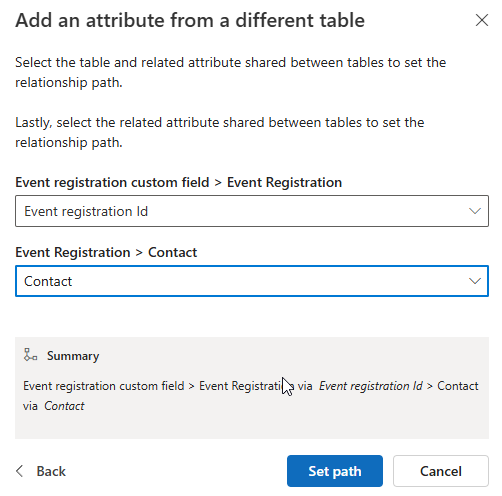
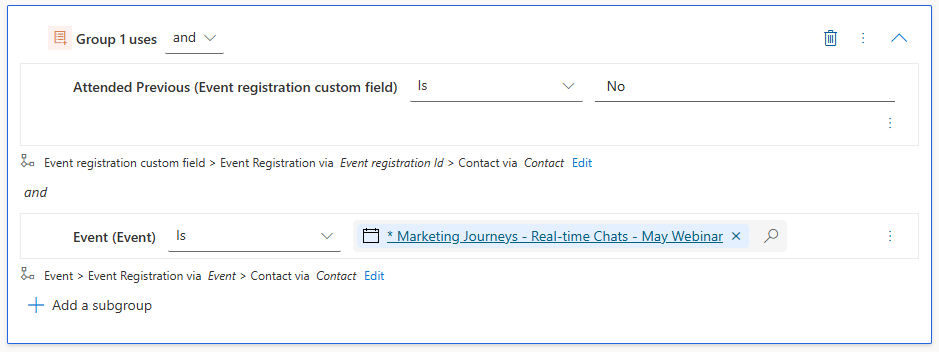
The field is then added to the segment. In this case, I know that the options for my Attended Previous field are Yes or No. If you want to filter it down further you can add in another clause to filter via the Event Registration table and use the Event lookup field to determine only people who filled out the custom field with a specific response for a specific event.
Hope this helps you out!
Unsure about your Customer Insights set up?
Customer journeys are powerful, but only if the platform, data model, and compliance framework are aligned.
I work with teams using Customer Insights Journeys to make sure it is set up correctly, data is compliant, and journeys deliver without surprises.
This is just 1 of 600 articles. You can browse through all of them by going to the main blog page, or navigate through different categories to find more content you are interested in. You can also subscribe and get new blog posts emailed to you directly.