
*** NOTE: ALL INFORMATION IS ACCURATE AT DATE OF PUBLISHING ***
The Website Tracking for Realtime Marketing is FINALLY here. A long awaited feature that has been pushed several times from Wave to Wave, now we can see it in it’s preview state. In this post I will walk through what the feature has in this iteration… and what you might consider ‘missing’ that will hopefully be released by the time it’s generally available. Let’s take a look!
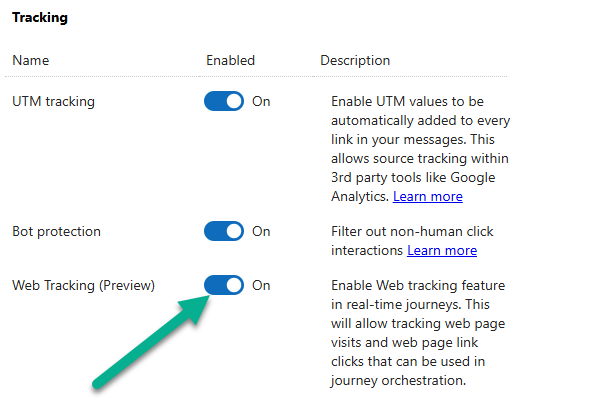
First, make sure you are on at least version 1.1.51539.118 (December 2024 release). Then navigate to the feature switches and turn on the Web Tracking feature.
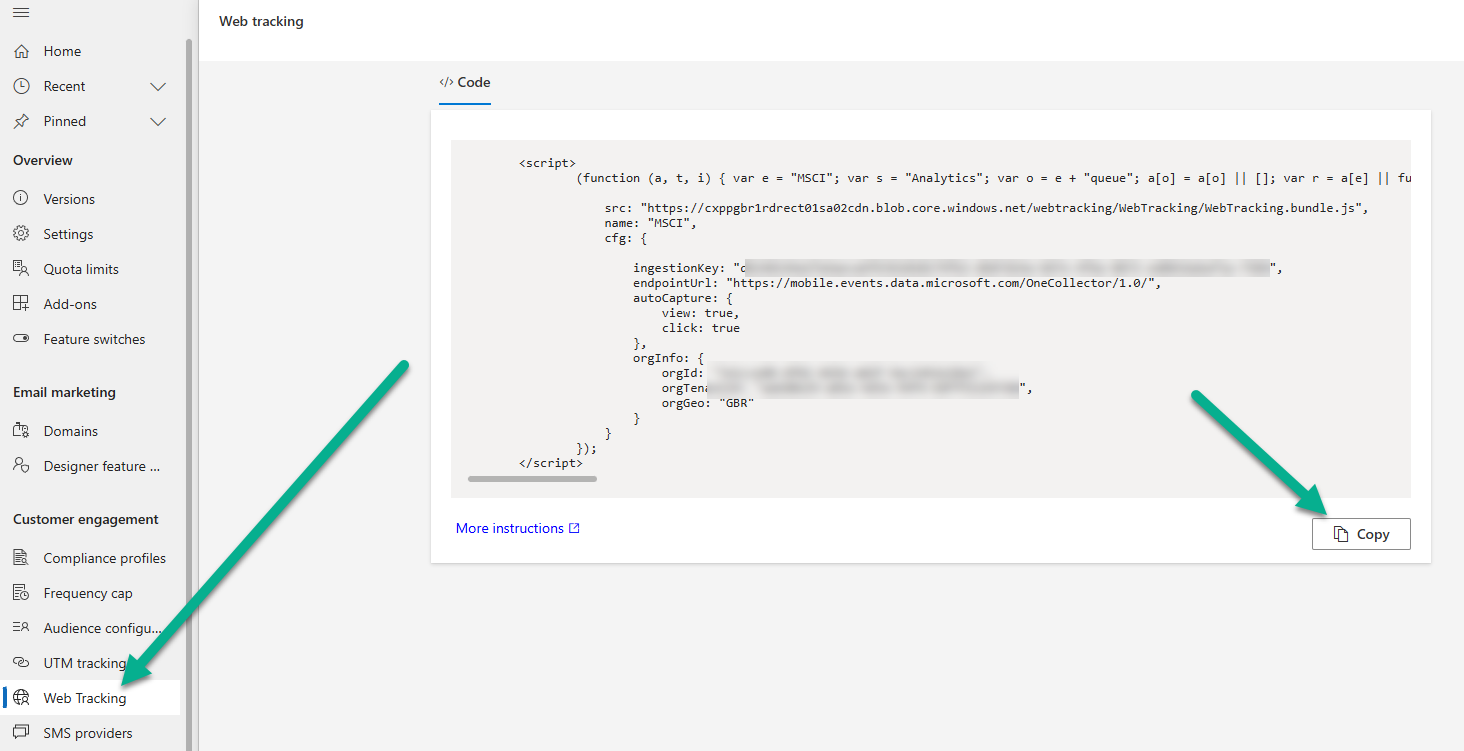
Once you’ve done that, you might need to refresh your browser a few times, but you should get access to the Web Tracking option under Customer engagement in the Settings area. You’ll need to copy this then add to your website (either directly in the header of your site, or using Google Tag Manager). Note that if you have different websites, it is still the same tracking code as there is nothing that determines different sites.
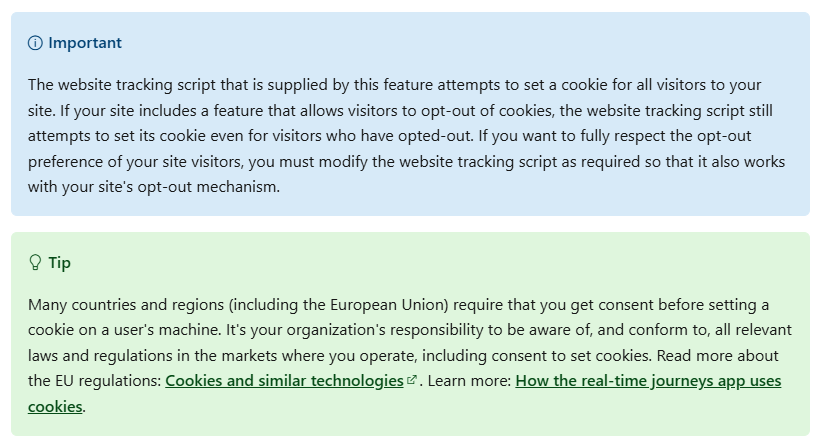
So how does the tracking work? Currently it works with cookie browsers (you can find more information about how the cookies are used here). So consider someone navigating your site, then filling out a form which would create/update a Lead or Contact. Once the form is filled out, sending them back to the website via an email would then apply a behavior-analysis cookie ID to the person’s browser, where the cookie will remain active for one year.
Ok so now let’s get on to the new standard triggers. You will see two new ones, Marketing Website Clicked and Marketing Website Visited. Ignore the two that say outbound marketing, those will likely end up going away in June anyway, are not the ones for you.
- Website visits: Captured every time a known customer visits a page on your website.
- Website link clicks: Captured every time a known customer selects a link such as a banner on your website.

In this example I will use the Marketing Website Visited trigger. You will be prompted to set if it is for Leads or Contacts.

Next, you can add one or more conditions to the journey. If you don’t, it will fire for ANY page visited at ANY point for ANY of the websites where you added the code. Not really what you want right? Each trigger has slightly different values/information that will be passed back via the trigger (more on this in future posts).

In this example, we will start the trigger when a Lead has visited a specific URL on my website. Once that happens, the Lead will be sent through the Journey and go through any of the steps set up (sent emails etc.).

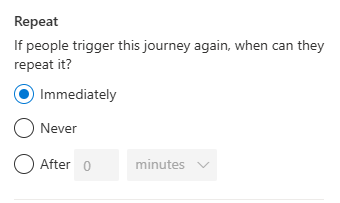
One important setting on the journey to consider is the repeat option. The default in terms of when someone can go through the journey again is immediately. That would mean each time they visit the URL (refresh their browser, go back and forth in their browser), they would go through the journey again. So consider the purpose of your journey and how likely it is they should go through it again.
What Else Does It Do?
Well, this is in preview, and this is the important part, preview means we need to share feedback with Microsoft to make it better!
UPDATE 06/05/2025: You can now see information on the Insights tab on a Contact/Lead:
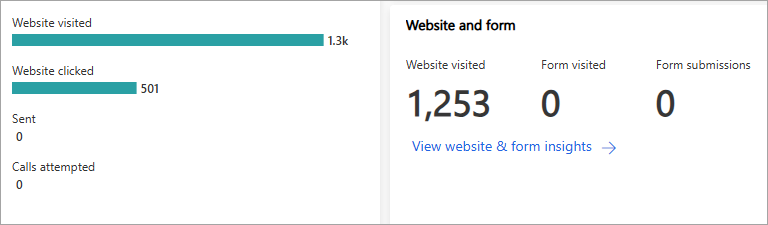
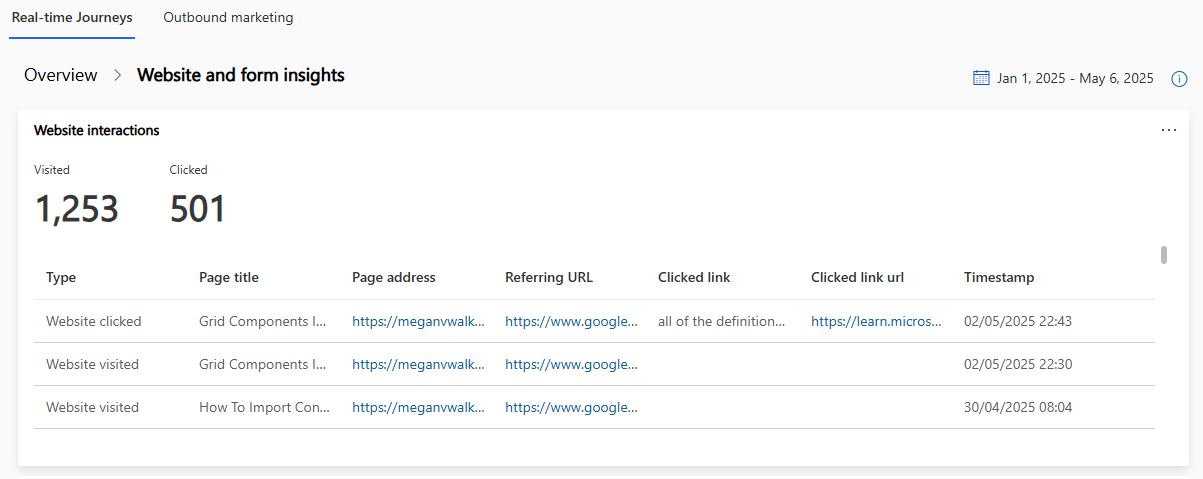
Clicking in and going to the insights will show a list of all of the website visited and website clicked interactions that have occurred along with the page title, page address, referring URL, clicked link, clicked link URL and timestamp. You can also click on the three dots on the top right and export the results to Excel.
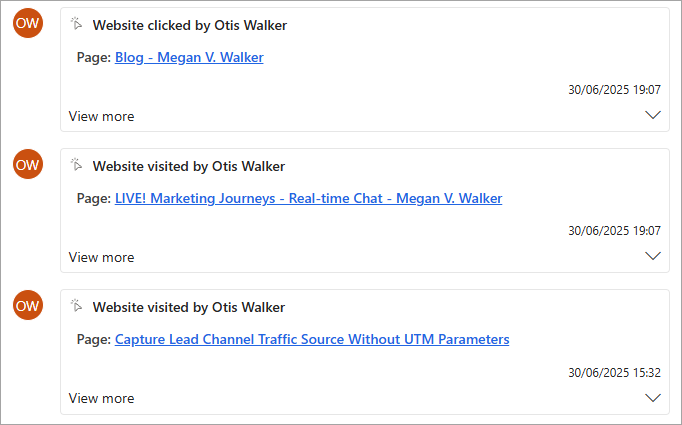
UPDATE 01/07/2025: You can now see information on the timeline of a Lead or Contact.
These things are currently (at time of this post being published) not available to work with Website Tracking.
No way to see the traffic anywhere in Customer Insights – Journeys so you won’t know who has visited a specific page any other way than the trigger firingNo way to use the website visits or clicks to build a segment- No way to use the website visits or clicks for lead scoring
No visibility of website visits or clicks on the timeline for a Contact or Lead
So as always, check out the feature but always give constructive feedback to Microsoft so they know what to add, improve or consider working on for future releases. The best place to add it, constructively, is on the Microsoft Ideas site in the Analytics and Insights section.
Check out the latest post:
Create A Segment For People Searching On Your Website
Unsure about your Customer Insights set up?
Customer journeys are powerful, but only if the platform, data model, and compliance framework are aligned.
I work with teams using Customer Insights Journeys to make sure it is set up correctly, data is compliant, and journeys deliver without surprises.
This is just 1 of 602 articles. You can browse through all of them by going to the main blog page, or navigate through different categories to find more content you are interested in. You can also subscribe and get new blog posts emailed to you directly.
One thing I’m not to fond of with the website tracking is that there’s no way to identify a person via the cookie unless it’s through a form submission.
Other tools like HEAP or Intercom all seem to have JavaScript snippets that allow you to manually identify an anonymous user.
Where would be a good place to leave this sort of feedback to Microsoft?
Oh I 100% agree with you. I am really hoping they add this, and a whole lot more to it. My first thought is to the Ideas site, but I am not sure which category it would fit under.
https://experience.dynamics.com/ideas/categories/?forum=dfa5b83d-9e4c-e811-a956-000d3a1bef07&forumName=Dynamics%20365%20Customer%20Insights%20-%20Journeys
I am checking with someone at Microsoft and will update once I know what they consider the right place.
Hi Michael – add feedback to the Analytics and Insights section – https://experience.dynamics.com/ideas/categories/list/?category=c47004cc-855c-e911-a95f-000d3a4f3883&forum=dfa5b83d-9e4c-e811-a956-000d3a1bef07
Thank you for the post! I will definitely provide feedback on the Idea page. I hope they share the same level of detail that Outbound Insights tab did, as well as the website insights page that used to be in the settings area.
You are welcome JP! Yes, agreed. We can only hope…. 😄
The most powerful thing here is leveraging the behavioral data, like adding to a segment contacts who visited a specific URL on my Website together with additional conditions for a super personalized segment. Based on what I understand from above is that this new feature is not available for segmentation , but only trigger based. If this is right ,it makes this feature quit shallow and difficult to beat the competition out there (for example – Eloqua [Oracle] that has this feature on segmentation a long time ago).
Is there a plan to extend it to be used on the segmentation as well?
I would imagine it will be extended, but that’s why we need to add to the Ideas forum to make sure Microsoft hears our cries for better functionality in this area!
We can only dream lol… I went ahead a made a few Idea Suggestions. The last one is inspire by this post 🙂
– https://experience.dynamics.com/ideas/idea/?ideaid=d70ba0d1-21cd-ef11-95f5-6045bd8418a5
– https://experience.dynamics.com/ideas/idea/?ideaid=44b0ba58-20cd-ef11-95f5-6045bd8418a5
– https://experience.dynamics.com/ideas/idea/?ideaid=f7ef51d1-22cd-ef11-95f5-6045bd8418a5
Good work my friend. I’ve voted for all of them too.
Kudos on the article. Really summarizes the features with everything that’s been out there, while what can be done to make it better.
One question, would it not track anonymous site visits since we can only use them in journeys?
Is there a way we can have insights built on the same grounds?
Hi Aayush, no, everything you see in the article is what it currently does. As suggested, any features you think would be good, add them as an Idea for Microsoft to review.
Hey Megan,
Great Blog, any reason why I have no inflow into my journeys. I’m sure the snippet is installed correctly and if I just use no conditions it should just pick up any visits on that site, is there anyway to confirm the cookie was placed on the machine? Im assuming you need to be logged into your browser with the email linked to the contact record you tracking? Any other checks i can make?
Hi David, you should be able to see it in the Developer Console in the browser (F12, then Application, then Cookies):

If you have access to a test email, and a browser profile for them, I would send that account an email from a Journey linking to your site. Then click on a link from that Journey (but all while accessing the email from that browser profile), then check the dev console for the cookie.
Thanks Megan for this great blog!
We can’t see the table “web tracking” in our app nor can we find the table in power apps
Do you know what the entity is called?
Hi Jade, you definitely did the first step from the blog and turned the feature switch on? If yes, you might need to refresh your screen a few times to see the Web Tracking in the navigation.
Hi Megan,
I have created a journey with trigger as “Marketing Website Visited” but when I publish the journey, I see an error message form notification saying “This trigger can’t be used to start a journey”
Can you please help if I am missing something ?
Warm Regards
Ankit
Hi Ankit, the only thing I can think might cause that is if you set the Trigger to be for Contacts but then used emails that contained personalisation for Leads perhaps? Hard to know. You should be able to use it to start a Journey. if you check the combination again between trigger and any of your emails and they are for the same record type, I would suggest opening a support ticket with Microsoft so they can take a look for you.
Hi Megan
The journey has only two steps
1. The trigger which is “Marketing Website Visited”.
2. Custom trigger to call a power automate flow which will store the details of the visit in a table.
There are no email steps. We are using it to capture insights from a third party CMS where we have embedded the tracking script as mentioned above. So, ideally the journey should get triggered as soon as someone open the website where the tracking script has been embedded but the journey does not gets triggered at all.
Warm Regards
Ankit
Hi Ankit, I am not sure. Perhaps the combination of just two triggers isn’t being allowed, it might be something you need to ask Microsoft about to see if that’s being blocked because you don’t have an email or anything other than starting from trigger and then starting a trigger. That’s the only thing I can think.
Hi Megan
A quick queestion to clearify for me 🙂 You wrote:
“Once the form is filled out, sending them back to the website via an email would then apply a behavior-analysis cookie ID to the person’s browser”
Would the trigger NOT trigger if we have the form filled out and the lead/contact created or updated and they just visit the website? Would they have to get to the website via a link in an email?
Regards Mattias
If the Lead/Contact doesn’t have a cookie in their browser then no, it wouldn’t fire the trigger. So you need some way to get the link between the Lead/Contact and your website, otherwise it’s just an anonymous visitor. Once you’ve added the tracking code to your site, then the next time you send an email and people click on links to your site, it would add link their cookie (assuming they aren’t blocking them) to their D365 record. From Microsoft – Whenever a profile (contact, lead, Customer Insights – Data profile) visits a webpage, real-time journeys correlates the behavior-analysis cookie ID with the available profile data. In this way, the cookie ID is mapped to a real-time journeys profile ID, allowing the administrator to determine who has been browsing the site.
Thanks for the article. It’s still a bit too early to get excited about this addition. We really want to see both the original source of the lead and the latest source. I’ve been perusing the ideas site and the closest thing I see is this, https://experience.dynamics.com/ideas/idea/?ideaid=9304e2ed-0140-ed11-97b0-0003ff45ab71.
Sadly it was posted in 2022. The first comment from Microsoft was in 2024 which basically said to kick rocks.
Hi Mark, agree, it would be great if it was all in there out of the box. Sadly we have to come up with our own options. Perhaps check out this post?
https://meganvwalker.com/capture-lead-channel-traffic-source/
I use something similar on my own website for my Contact form. Here you can see information on a view of Leads.
http://meganvwalker.com/wp-content/uploads/2025/05/lead-tracking.png
And here is the full detail on a Lead where you can see the original source information and the latest visit source information side by side:
http://meganvwalker.com/wp-content/uploads/2025/05/original-and-latest-referral-info.png
I also capture the language of the person based on their browser settings:
https://meganvwalker.com/set-language-of-person-realtime-marketing-forms/
Hope this helps!
Hi Megan,
First, let me thank you for your amazing content. It’s been really helpful.
Secondly, is there a way to get an overview of the business’s web data? By that, I mean:
– how many of my customers actually went to my website?
– how many went to the cart page ? … etc
I’ve asked Microsoft but they haven’t been able to answer me.
Regards.
Hi Sandrine, currently no, that isn’t part of the web tracking functionality. They have added in the ability to see website stats for an individual Contact/Lead but only recently. Nothing yet at a top level.
Hi Megan,
Great post like many other gems on marketing that you have written.
I was just about to set this up on customer environment but I am missing the Web Tracking option in feature switches. Under Tracking only two options are available
1. UTM Tracking
2. Bot Protection
For version this is what I see:
SANDBOX
Server version: 9.2.25042.00234
Client version: 1.4.10292-2504.2
Are you aware if the change is pulled back from preview. I am eager to try this out but don’t find any option to enable the feature from feature switches.
Hi Debajit, when features come out of preview, the feature switches are often removed. Have a look at the navigation and you might find that the Web Tracking is already in the navigation for yuo.
Hi,
Thanks for the post.
When we talk about ‘form submission’, do we mean a ‘cookie policy acceptance’ type form for the contact?
I have just ran test emails – and it doesn’t look like the cookie is being set by the emails. I wonder if I am missing something?
Hi Graham, form submissions are in relation to someone filling out a Realtime Marketing form. So for tracking to start, you must have followed these step:
1. Add the web tracking script to the header of the website or pages you want to track.
2. Make sure the customer’s first visit to your website comes from selecting a Customer Insights – Journeys link, like an email link that directs the customer to your website OR someone fills out one of your forms that has website tracking enabled on it.
3. Enable link tracking for your URL.
4. Make sure the customer has a Tracking Contact Point Consent record that is Opted In
If you are just sending yourself a test email and clicking on links, that isn’t going to do anything. It will only work where the context of a Lead or Contact exists, meaning only via an email delivered from a journey.
Hi Megan,
Great article.
It initially appears the web tracking does not work when I use a non-D365 UTM Link Builder. I take web links create UTM tracking links then add to emails in D365.
Have you ever seen a similar problem? Do you have any advice?
Thank you,
Graham
Hi Graham, after you have added the web tracking, it will ONLY start tracking someone on the website after one of two things have happened:
1. They fill out a Realtime Marketing form that has Web Tracking turned on
2. You send them an email from Customer Insights – Journeys that has a link back to your website, and they then click on that link
Hi Megan, we are on the later version 1.1.62310.76 however don’t have Web Tracking under Feature switches. Is this one for Microsoft or am I missing something? Asking because the web tracking script I can see in our settings is Outbound Marketing one rather than Real-time Journeys because the codes doesn’t have this URL: rtp-ci.customerinsights.microsoft.com
Hi Linh, there is only one Web Tracking section in the Settings area, and this has never been for Outbound. So whatever tracking code you see there should be the one to use. My own tracking script does not have rtp-ci.customerinsights.microsoft.com in it either. Have you tried adding it to see if it works? And it’s likely the feature switch is gone because this has now been out for over a year.
Hi,
Can we use Lead Scoring and Web Insights together, or is this still a feature that needs to be implemented? If it isn’t available yet, is there a workaround in the meantime?
Thank you!
Unfortunately it is not an option yet, and no work around that I am aware of Dilveen!