
Sounds simple right? I want to create a segment to give me all Contacts (or Leads) that have had a failed form submission, or one with a warning. We have the ability to use the behavioural option, but if you add that it doesn’t give us a way to get through to the status of form submissions to check which ones might have failed. In my case, I wanted those that had failed with a warning and were specific to someone registering for an Event, so I also wanted to check the Event Registration field on a form submission for those that were empty. Sigh… how can this be done? Don’t worry, I figured it out so you can too if you need to.
Right, so my use case. Something happened in my environment and my event registrations were no longer being created. I wanted to make sure the person registering knew there was an issue, and no need to register again, they would get the event information as soon as possible. For that I wanted a Segment that included all Contacts who had filled out the event registration form based on a specific date onwards where the status reason of the form submission was Warning, and the Event Registration field was empty. Obviously we can just add the Form Submission table to the segment builder right?
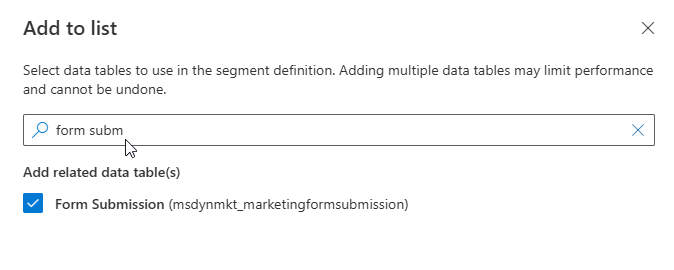
All good so far, but then we pick one of the only possible relationships between Form Submission which goes via a Form, but that gives use the Source form field only. That gets set the first time a Contact fills out a form which will only be right for new Contacts. NOT what we want.

Instead, we need a table that sits in between the Form Submission and the Contact table. That table is called the Created linked entity.
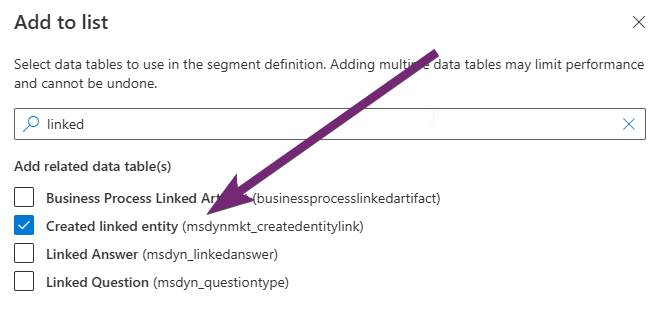
Now when we pick the path, we can see Form Submission > Created linked entity > Contact. You would be able to do the same thing for a Lead too.

Now we can set the path correctly.

Now, one thing to note, this path will not show up right away when you are adding the tables for the first time. The best thing to do is add the Form Submission table then pick any field to add to your segment. Then add your Created linked entity table and pick any field to add to the segment, then save the segment. It needs time to sync things first. Give it an hour or so, then come back to it, remove the fields and then try to see if that relationship above exists. This is only something you need to do the first time you are getting the tables added. Now I can add the fields I want to use from the Form Submission and check the Status Reason, Created On date and the Event Registration field to check what I want.
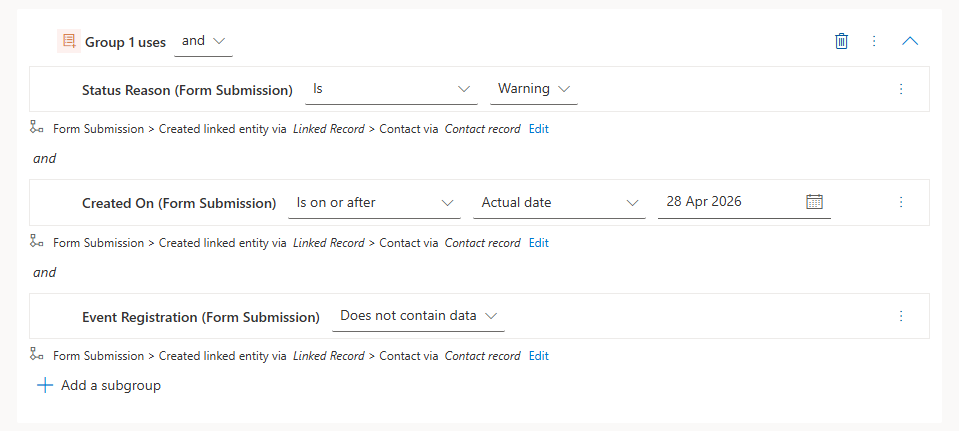
Although this might be a unique use case (and I really hope I don’t need to use it again!), it gives me a way to capture Contacts that fill out my form and there is an issue of some kind. You could use the status of Failure if needed too and add in which Form it is that people would be filling out that you are concerned about.




Leave a Reply