
*** NOTE: ALL INFORMATION IS ACCURATE AT DATE OF PUBLISHING ***
If you use Sales Sequences AND Customer Insights – Journeys you may have noticed another post from me about how to add someone to a Sales Sequence when someone is going through a Journey. That could be a massive help! But what about needing to take someone and disconnect from Sales Sequences? Maybe you have Leads or Contacts going through a Journey with the end goal of creating or winning an Opportunity, or getting them to fill out a form. In this post we will show creating a custom trigger that can be used to remove someone from a sequence within a Journey.
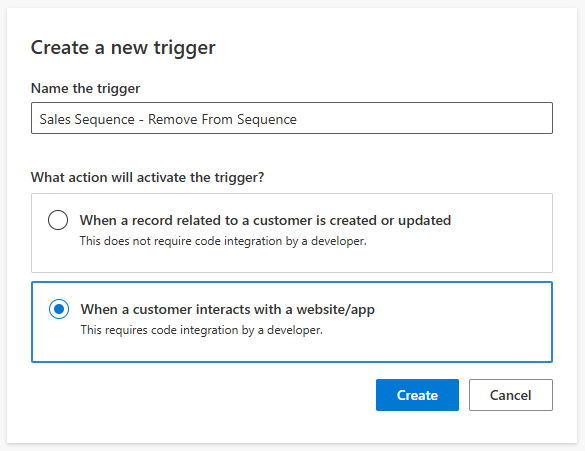
First, create your custom trigger and select the option of ‘When a customer interacts with a website/app’ option.
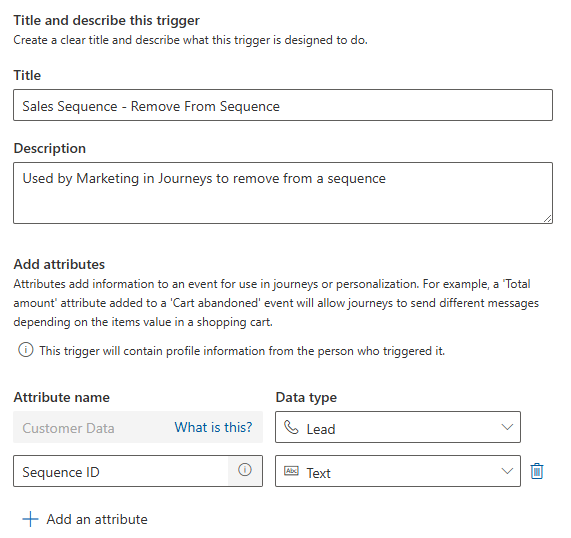
We just need to set the customer type (Lead or Contact) and then add in a second attribute called Sequence ID that is a text field. Save and publish the trigger. Note that you would need two triggers if you add both Leads and Contacts to segments and journeys, one for each audience member type.
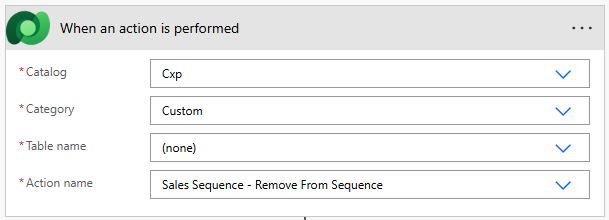
Now go in to Power Automate and add a flow that is triggered with the ‘When an action is performed’ option from the Dataverse trigger. Select Cxp as the Catalog, Custom as the Category, none as the Table name. In the Action name drop down, find the new trigger you just created.
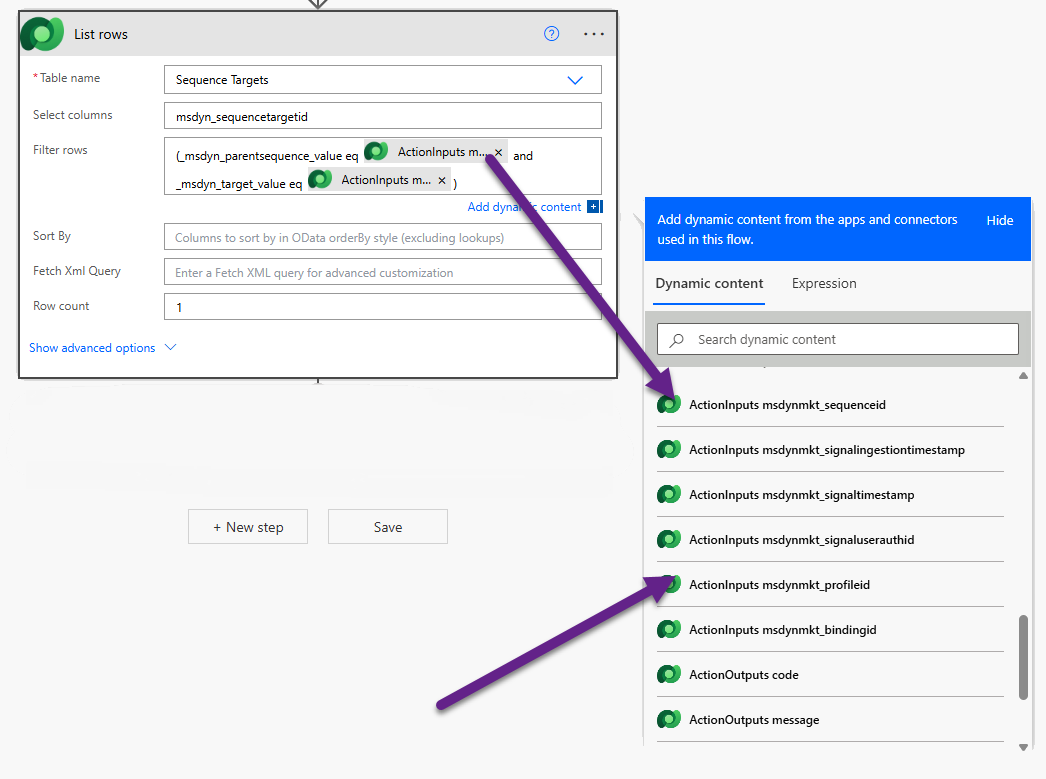
Add a List rows action step from the Dataverse connector. When we use this trigger within a Journey, we will pass through the ID of the sequence that we want to take someone out of. We will then get that from the start of our flow. Use msdyn_sequencetargetid in the select columns and then filter the rows. To do this we need to pass through the sequence id from the values from the start of the flow, and then the profile id also. This means we are finding the instance for a specific person going through a specific sequence.
(_msdyn_parentsequence_value eq @{triggerOutputs()?['body/InputParameters/msdynmkt_sequenceid']} and _msdyn_target_value eq @{triggerOutputs()?['body/InputParameters/msdynmkt_profileid']})
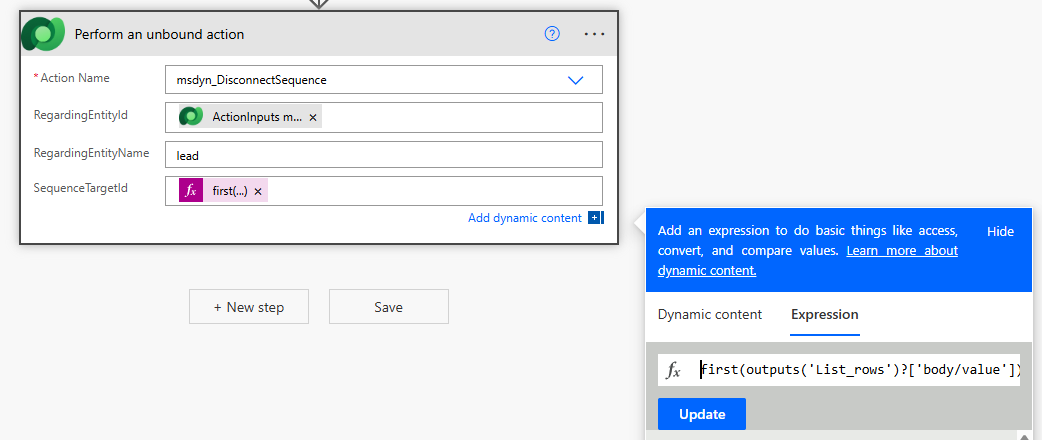
Now we need to use the Perform an unbound action from the Dataverse connector. From the action name list, pick msdyn_DisconnectSequence. The RegardingEntityId needs to be the same profileid option from the list of ActionInputs. Then the RegardingEntityName should either be lead or contact depending on what you set the trigger up for. The SequenceTargetId needs to be the first record found from the List rows step above. You can use the expression below, just rename the List_rows part if you renamed your List rows step.
first(outputs('List_rows')?['body/value'])?['msdyn_sequencetargetid']
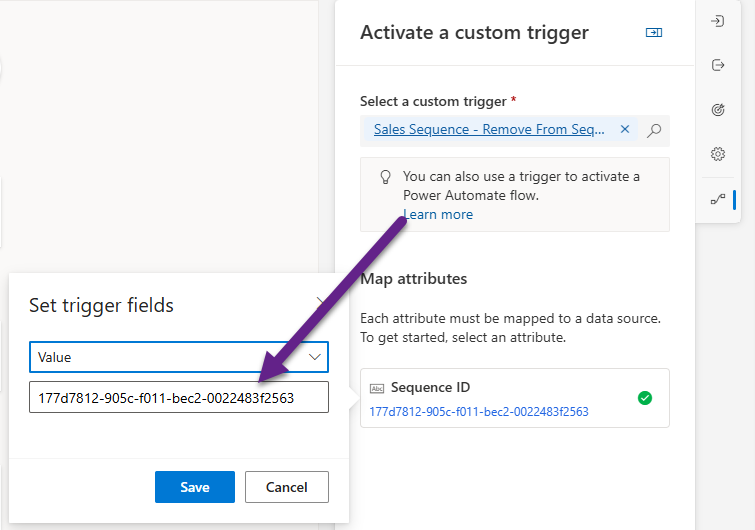
Once your flow is ready, you can use the trigger in a couple of ways. First would be to add in as a step within a journey and ‘Activate a custom trigger’ and select the custom trigger. You will need to map the sequence id attribute as a value.
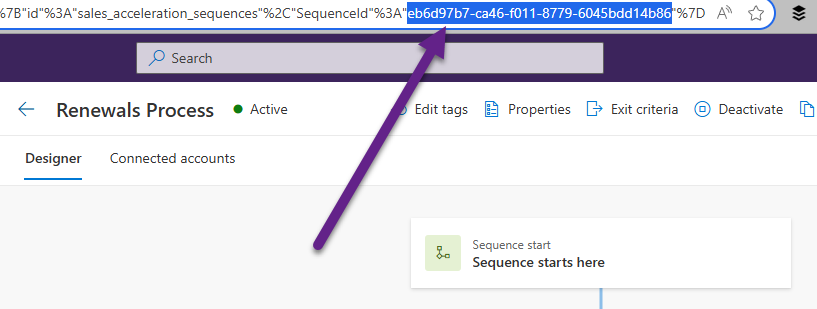
If you are not sure about where to find the sequence id, there are various ways to get it, but the easiest is to go to the sales sequence from the Sales Hub and open it, then look at the URL. The end of it will show the id. It’s stored a bit strangely here, but it is the id within the two quotes at the end.
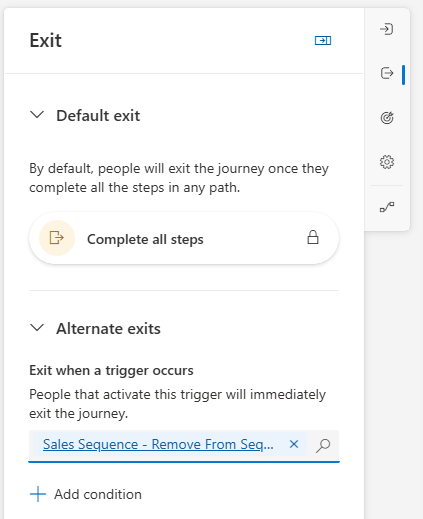
The other way it could be used is as part of an alternate exit. That way if the trigger fires, you can take them out of any Journey. You could even use the condition section to state which sequence they are removed from to consider exiting them from a journey.
Check out the latest post:
Set A Business Process Flow Stage With Custom Page
This is just 1 of 572 articles. You can browse through all of them by going to the main blog page, or navigate through different categories to find more content you are interested in. You can also subscribe and get new blog posts emailed to you directly.