
*** NOTE: ALL INFORMATION IS ACCURATE AT DATE OF PUBLISHING ***
This post has come out of a need I’ve had myself when sending out the D365 Marketing Weekly newsletter to subscribers. Someone fills out the form to opt in and the first name and last name a required (always the best option for your forms!) so I know the data is in there. What I can’t control is if they typed upper case, lower case or a mixture of the two. What I can control is setting the first name and last name value in a nicely formatted way using a capital letter on the first name and lower for the rest. This post shows how you can format recipient names then use the new fields in your emails.
First thing, we need two new fields. One thing to keep in mind, if you want something more complex you would need to use Power Automate, or if you want to update the actual first name and last name fields again, Power Automate is the way to go. This approach leaves the default values alone and just gives marketing a formatted version of each. The fields should be the Formula data type.
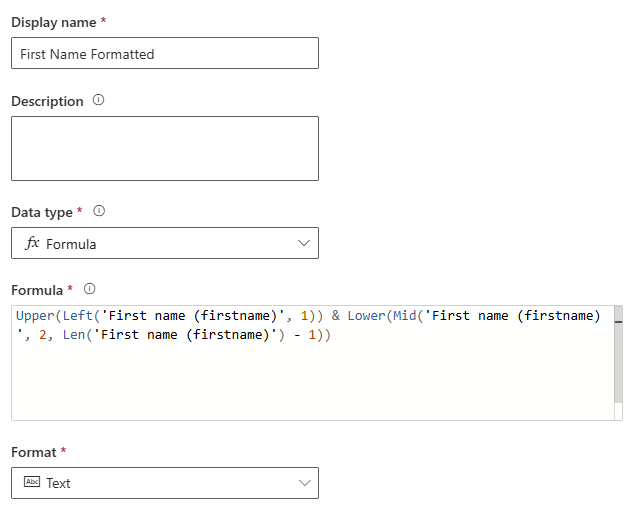
This formula for the first name field will set the first character as a capital letter and the rest as lower case.
Upper(Left('First name (firstname)', 1)) & Lower(Mid('First name (firstname)', 2, Len('First name (firstname)') - 1))
This formula for the last name field will set the first character as a capital letter and the rest as lower case.
Upper(Left('Last name (lastname)', 1)) & Lower(Mid('Last name (lastname)', 2, Len('Last name (lastname)') - 1))
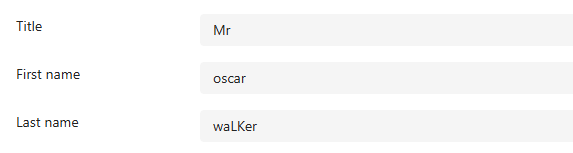
Here we can see the standard first and last name fields where someone has typed with random cases used.
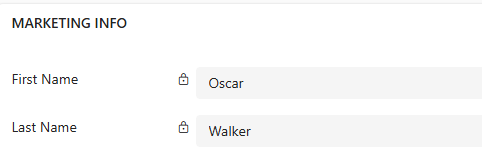
Our two new formula fields will show these with correct capitalisation.
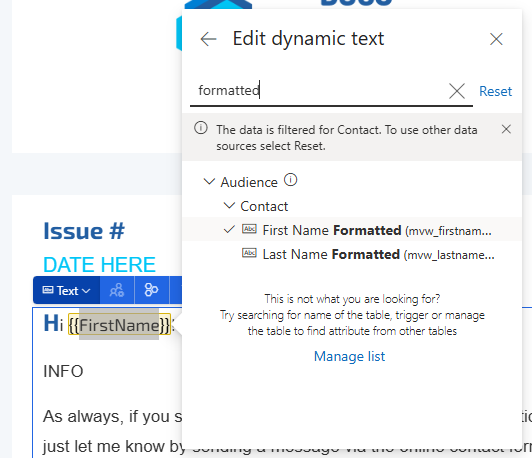
Now on emails, I can use the new First Name Formatted field instead of the standard First Name field. Quite simple, but can make a difference when addressing someone in an email.
Check out the latest post:
Add Information Buttons To Provide Additional Details For Custom Page Users
This is just 1 of 580 articles. You can browse through all of them by going to the main blog page, or navigate through different categories to find more content you are interested in. You can also subscribe and get new blog posts emailed to you directly.
Thanks Megan, that’s a really approachable intro to formula fields!
Though in this use case, I’d worry about names which intentionally start with lower case letters (Robin van Persie) or have mixed cases (LeBron James) or double-barrelled names like mine!
I wonder whether a really convoluted formula could account for some of those…
Hi Tej! Are you are welcome, and yes that is definitely not a fool proof approach but one I thought worth sharing. Will have a think about that one. For now, unfortunately neither LeBron or Robin are subscribed so at least I don’t have to worry about them. 😉