
Customers using Dynamics 365 are in all kinds of industries with all kinds of use cases and requirements. Standard out of the box fields can be find for one company while another may need custom fields added to tables to capture more than basic data. You may need to email the main email address sometimes, then at times send emails to a secondary email field. Did you know you can do this by setting the audience data accordingly? Let’s look at how to do it in this post.
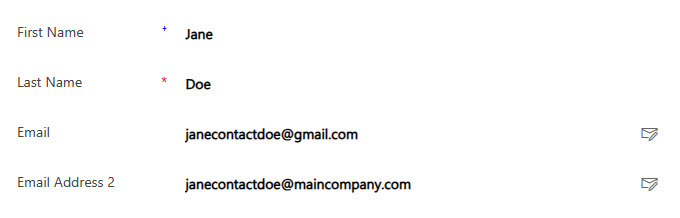
In this example I am looking at the Lead table. It’s not quite ready for Contacts yet, but fingers crossed that is on the way! There are three email fields that exist out of the box. The emailaddress1 field is the one added to the Lead form by default, but there is also emailaddress2 and emailaddress3. You may even had additional email fields created as custom fields based on your company requirements.
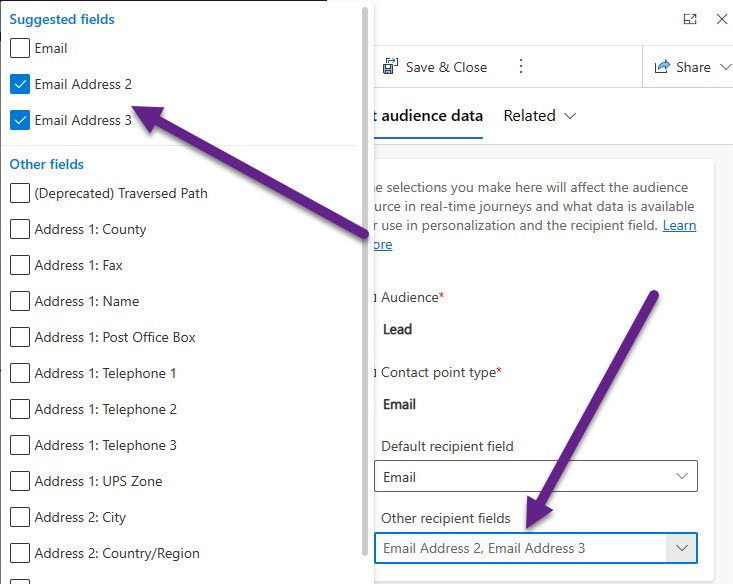
By default, when creating a Journey and adding emails to it, those emails will be sent to the emailaddress1 field (labelled Email). What if you want to pick and choose which email to send them to depending on the Journey you are building? The first step is to navigate to the Settings area in the D365 Marketing App, then go to Customer engagement, and then Audience configuration (the Contact Point Settings table). You will see a series of records for Contact, Lead and Customer Insights customer profile. Click on the Lead record for Email. The default will be Email which would likely work for most organisations. However, you can set other fields to use. In this example I’ve selected Email Address 2 (emailaddress2) and Email Address 3 (emailaddress3).
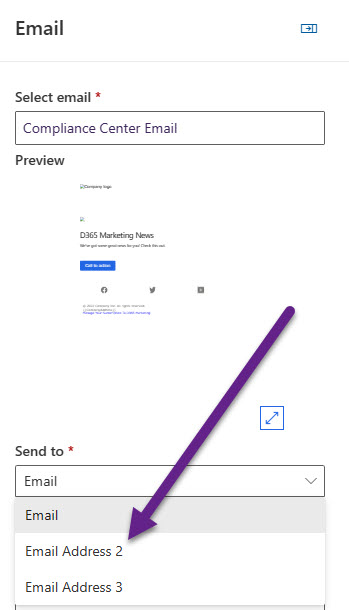
Now when creating a Journey and adding an Email, you have the option of where to send it to based on the Default recipient field and the Other recipient fields that were added to the Audience configuration record. Note that this is done on an email by email basis rather than at a top level on the Journey.
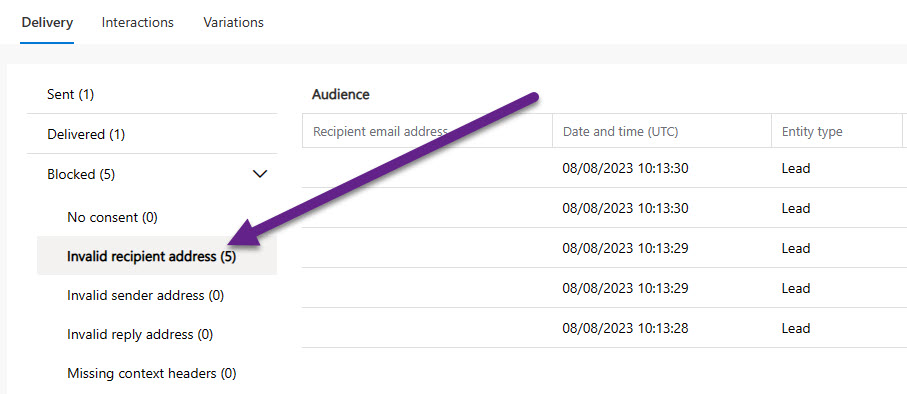
Now when the emails are sent from the Journey, you can review the analytics. If someone didn’t have an email address in the field you selected to use, they will show under the Blocked section as ‘Invalid recipient address’.




6 responses
Hi Megan
Thanks for pointing this out. It’s a handy feature that’s not available in ‘core’ Dynamics, where only the email column can be used. I’ve been asked for the ability to use the other email addresses a number of times.
Alex
No, only for D365 Marketing right now! Would be good to have in the core product for sure Alex!
you can use this alternative mails in the send now option?
No, that would send it from the primary email address. You only get the option to switch to a different email address field when on the Journey and adding your emails that way.
This feature is working on contacts too.
Hi Clare, yes it is now. Was added in a more recent release. Happy to see it there for both!