
Most of the time, we use AI when we need something. We open ChatGPT or Claude, ask a question, get an answer and move on. But some of my favourite uses of AI are things I only had to ask for once. Scheduled prompts or tasks let you set something up once, then have AI go off and do the work for you at a specific time or on a regular basis. The results can be waiting for you when you return to the AI tool, or delivered straight to your inbox.
For example, every Thursday I get a handful of ideas for things to do that weekend, based on where I live, how far I’m willing to travel, what I enjoy and how much I want to spend. It’s simple, but genuinely useful — and it’s just one example of what you can put on a schedule. So, let’s look at how it works and some ideas you might want to try for yourself.
Getting Started With Scheduled AI Prompts
First, you will need to have at least the lowest level paid account for either Claude or ChatGPT. In my examples I will use ChatGPT where I have the Plus plan. You might be tempted to just get going like this. And that’s OK. nothing wrong with it.
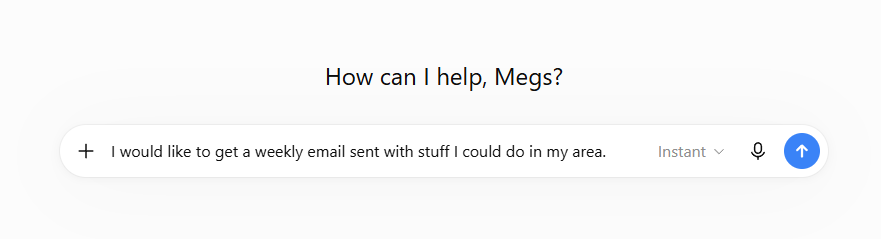
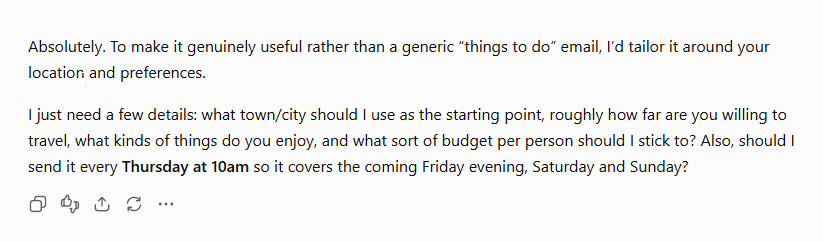
However, then you need to go back and forth a bit with the tool and giving one sentence here and there can drag it out a bit.
A Good Prompt Makes All The Difference
This is where having a clear and structured prompt first, and really thinking about what you want is key. Lets say you want to get a list of ideas to do for the coming weekend. When do you want the list of ideas generated, Thursday morning to give yourself time to plan, or last minute on a Friday? Do you want that list of ideas emailed to you (assuming you’ve got a connector set up linked to your email) or do you use the CGPT mobile app and will get notified there? What are you interested in, how far would you be willing to travel etc. Make it easy for both you and the AI assistant and give them as much as you can upfront. Consider starting like this.
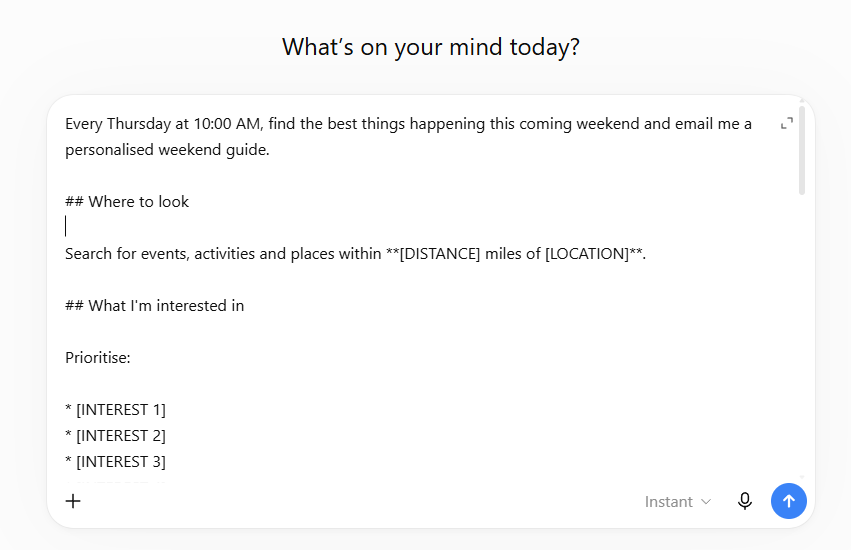
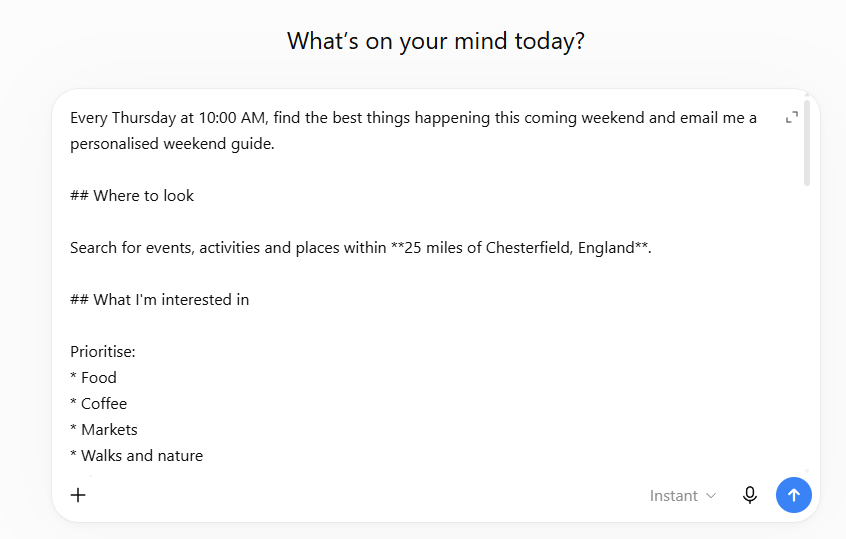
For my example, I want stuff near Chesterfield and want to prioritise the things I am interested in like food, coffee etc. I can also tell it the budget, days to find things, and to asl check the weather forecast and take that in to consideration too. The prompt I use is shared at the bottom for you as a starting point. Once you have your prompt added, click enter to start it processing.
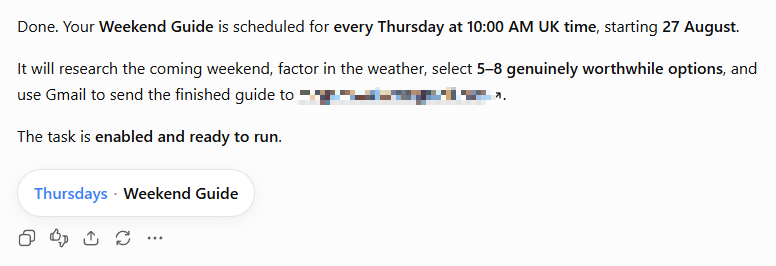
That should be it, and in a simple one prompt step, your scheduled task should be created with a confirmation. Quick and easy. The prompt is the hardest part, thinking about what you want to find, when you want to run the task, and how you want the output structured.
Managing Your Scheduled Tasks
If you want to adjust what is being sent and change the delivery days/times or change the prompt itself, you should find it in the scheduled area. Then click the edit icon.
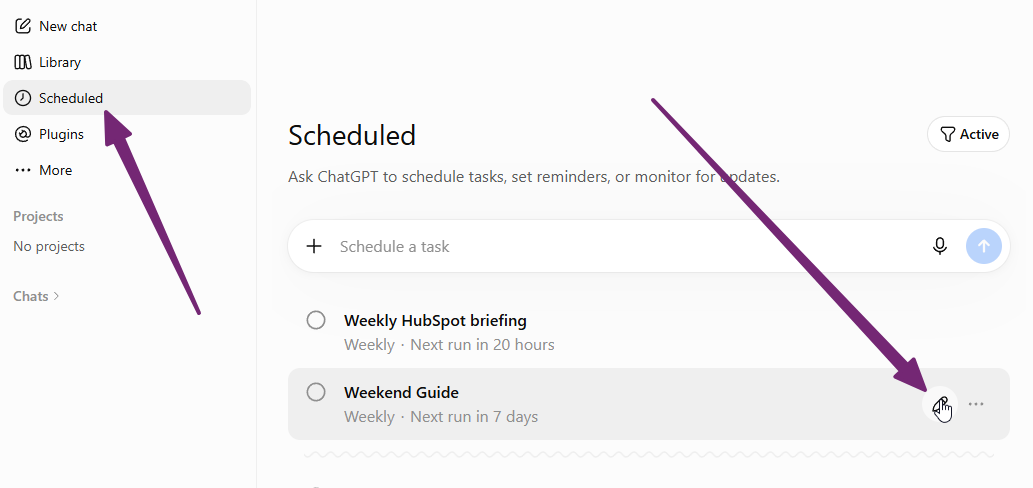
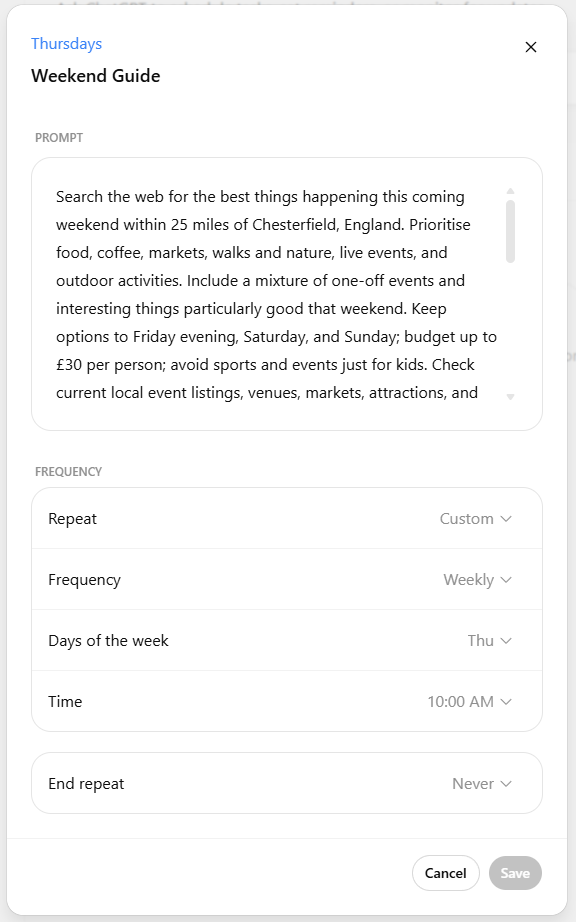
Here we can make changes as needed rather than starting a new ‘chat’ and trying to change things that way.
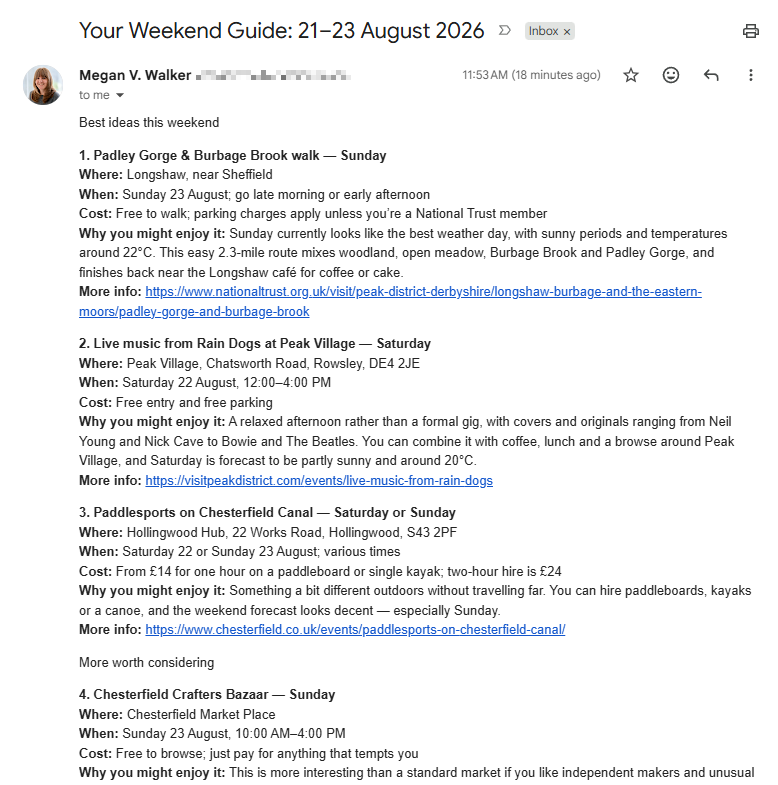
It makes me happy when I get my email each week. Even if I hadn’t started thinking about the weekend yet, this is a fun reminder to start considering what might be going on that we could do.
More Ideas For Scheduled AI Prompts
So that idea is great for something fun and personal, but what other things could you use it for?
- Keep me up to date with my industry. – A Friday briefing covering the important news from the week, with instructions to skip minor announcements and explain why each item matters.
- Help me learn a new subject. – A short lesson three times a week, gradually progressing from fundamentals to more advanced concepts. You could make it practical: explain something, give an example, then ask a question to check understanding.
- What changed in the products I use? – Weekly check of release notes and announcements for a handful of platforms. Much better than remembering to visit five different product blogs.
Have you started using scheduled tasks, and if so, share your use cases in the comments. If not, do you think you will start?
Try It Yourself: My Weekend Ideas Prompt
Finally, if you want to get started with your own ‘fun weekend ideas’ task, here is the prompt I used as an example to get going with.
Every Thursday at 10:00 AM, find the best things happening this coming weekend and email me a personalised weekend guide.

## Where to look

Search for events, activities and places within **[DISTANCE] miles of [LOCATION]**.

## What I'm interested in

Prioritise:

* [INTEREST 1]
* [INTEREST 2]
* [INTEREST 3]
* [INTEREST 4]

Include a mixture of one-off events and interesting things that are particularly good to do that weekend.

## My preferences

* Budget: up to **[BUDGET] per person**
* Travel distance: no more than **[DISTANCE] miles**
* Days: **Friday evening, Saturday and Sunday**
* Avoid: **[ANYTHING I DON'T ENJOY / WANT TO EXCLUDE]**

## Check current information

Search the web each week for up-to-date information.

Check local event listings, venues, markets, attractions and other relevant sources rather than relying only on general recommendations.

Where possible, confirm that an event is actually taking place that weekend and check the current date, time, location and price.

Take the **weather forecast** into account. Prioritise outdoor activities when the weather looks good and indoor options when it doesn't.

## What to send me

Choose **5–8 of the best options** rather than giving me a huge list.

For each recommendation, include:

* What it is
* Where it is
* When it's happening
* Approximate cost
* Why you think I'd enjoy it
* A link where I can find out more or book

Start with a short **"Best bets this weekend"** section containing your top three recommendations.

If there isn't much happening that fits my preferences, say so rather than filling the list with weak recommendations.

Send the completed recommendations as an email through gmail to *MY-EMAIL-ADDRESS* with a clear subject line for that weekend. Do not merely report that email delivery is unavailable; use the Gmail sending action when it is accessible.




Leave a Reply