
One of the things I love about custom pages is being able to put together a Patch statement to create or update records directly back in Dataverse (D365). The more that can be done via the Patch the better. No need for extra flows or processes to run if we don’t need them to. However, there are times when things are needed that will either take a while to run and we don’t want the user to have to sit and wait for that to happen. Or, we want to update something in a different system so can’t do it via a Patch statement. This post shows how you can add a flow to the custom page, and wait for a signal back from the flow to indicate the user is free to close the custom page.
From your custom page, navigate to the Power Automate section. This might be hidden in the ellipsis (three dots) menu.
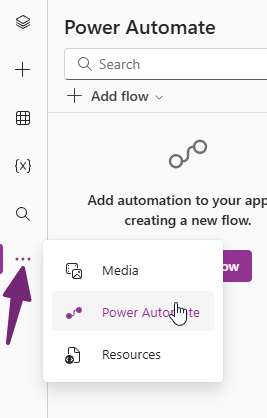
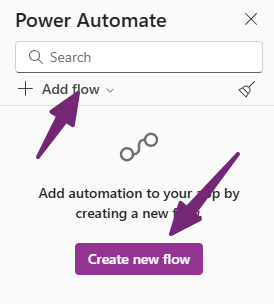
You can either add an existing flow, or click to create a new flow. We will pick that option in this case.
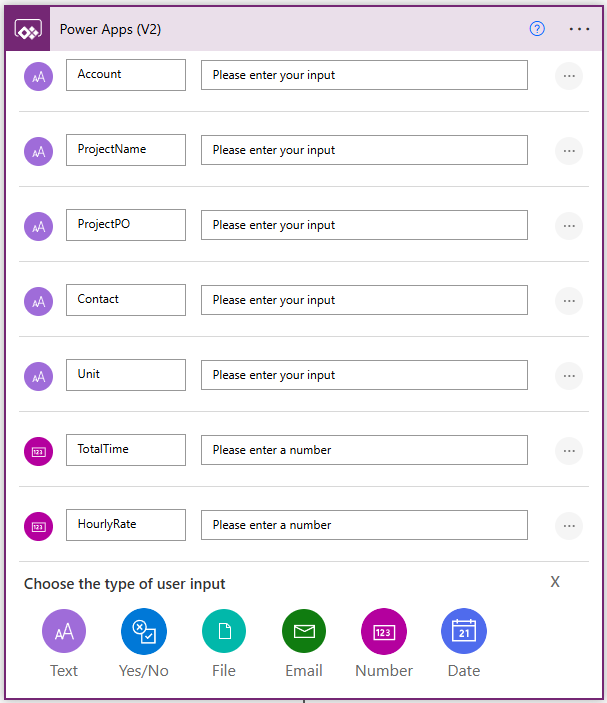
Running a flow from a custom page (or canvas app) starts with the flow being sent some kind of information from the page. What you send across depends upon what you are doing with your page. In my example page, I am using a custom connector to create a new Customer and Project record in my finance software for an Account record in D365.My custom page will have information about the Account, the main Contact, and details about the Project that needs to be created. For each piece of information, I need to add an input to push the values from the page in to the flow. You can see all of the types you can pick from. Mine has some text inputs and a couple of number inputs.
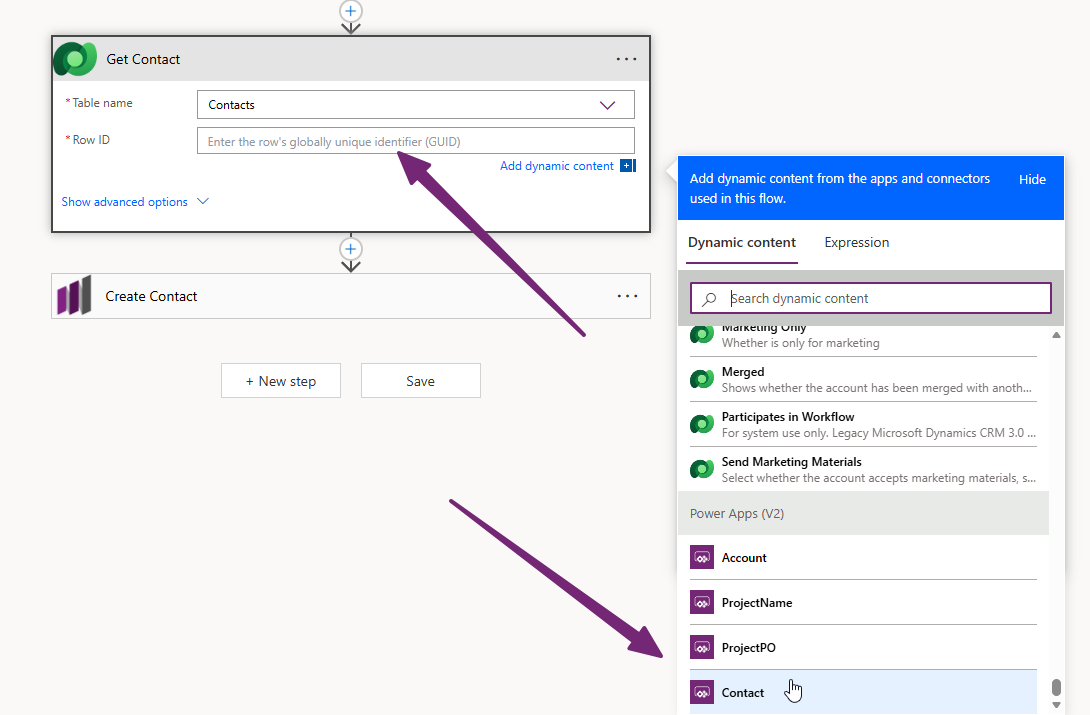
The next parts of your flow can be anything depending on what you are trying to do. This is where the power comes in. I can use the values from the top Power Apps trigger to get records or create new records. Here I can use the GUID of the Contact that a user selects from the custom page, and pass that through in to a Get row by ID step from the Dataverse connector.
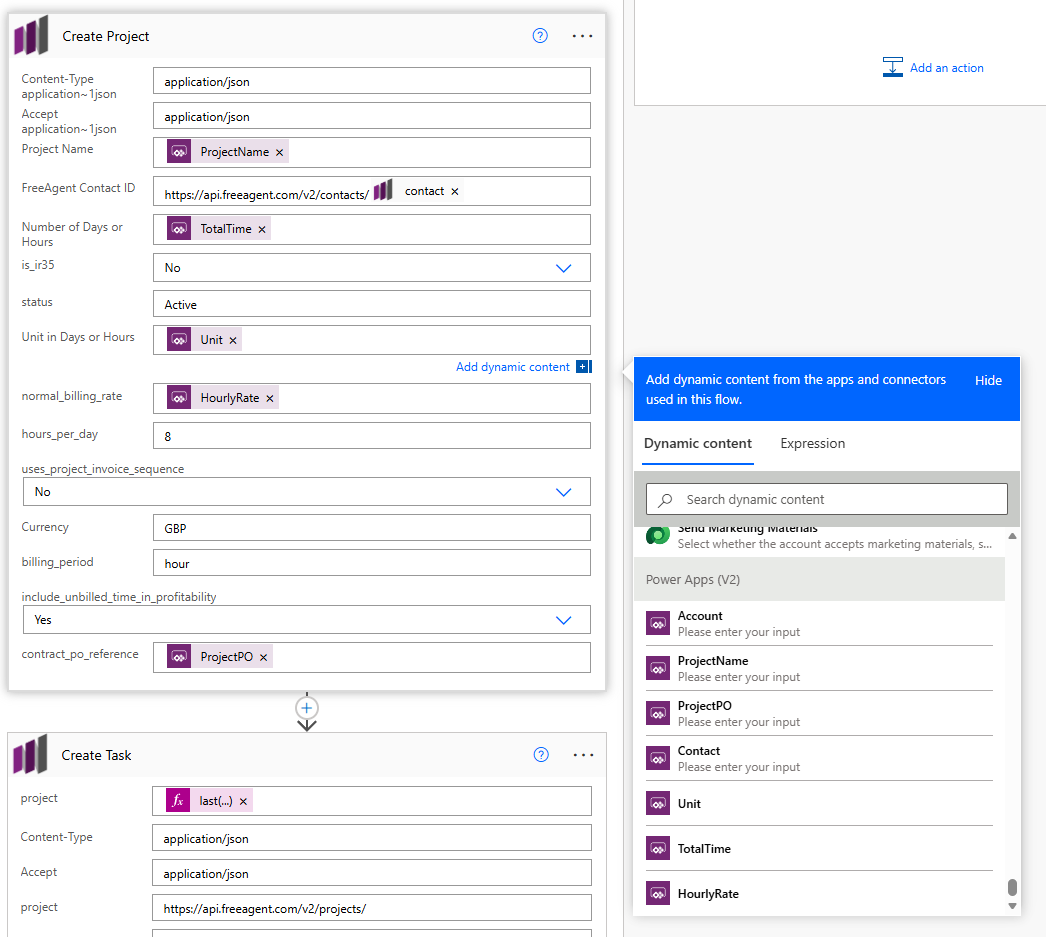
I can use other values to set up and create records using my custom connector that have all been passed through via the custom page. Awesome!
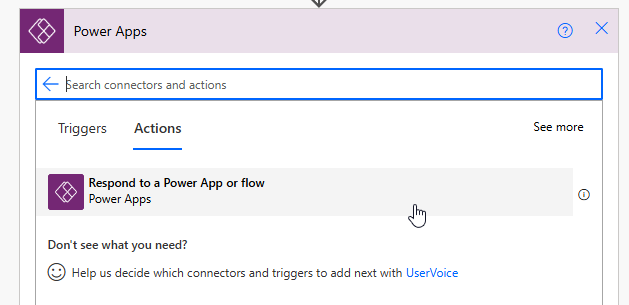
This next step could be the last step in your flow, or midway, depending on all that needs to be done in the flow, but for me I am adding it at the end. Search for Respond to a Power App or flow which is an Action for the Power Apps connector.
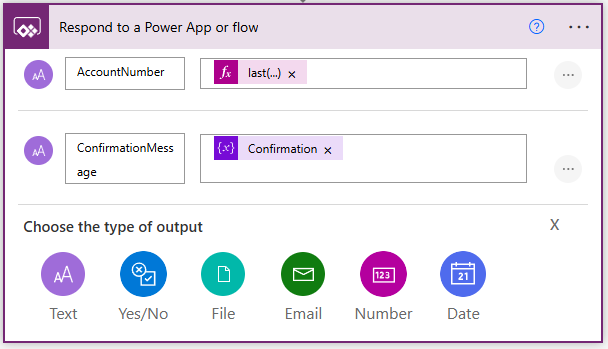
This is used to send information back to the custom page. So we have the custom page that starts the flow, the flow running, then the flow sending information back to the custom page. Again we can add different types of output. I am passing through an Account Number which I am getting from the new record I created in my finance software, along with a confirmation message I am generating as part of the flow. That’s all I need.
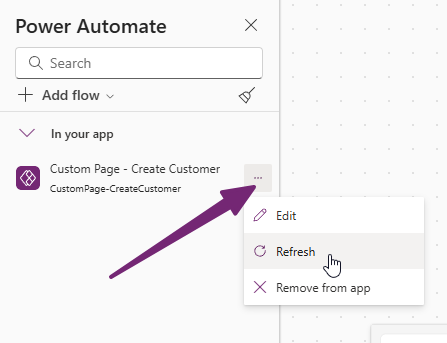
Once you are done, or if you make changes to the flow after you first added it to the custom page, go back in to the Power Automate section and then click the ellipsis and then Refresh.
Currently all we have done is linked the flow to the custom page, but nothing will trigger that flow to run. That’s what we need to solve. I want to run the flow when someone clicks on a button, and then get the response sent back (Account Number and Confirmation Message at the end of my flow). To do that, from the OnSelect of my button, I am going to create a variable called varFlowResponse, which will give me the outputs from the flow run. Although you don’t need to do this, it can be helpful to do other things within the custom page. So, we do Set(varFlowResponse, then go on to the next line.
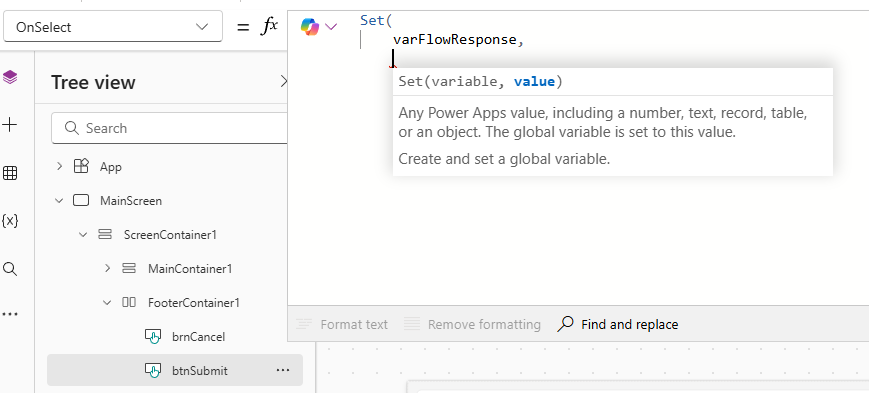
Ideally you know the name of your flow, so you can start typing it, and you should see it show up with .Run after it. Pick that.
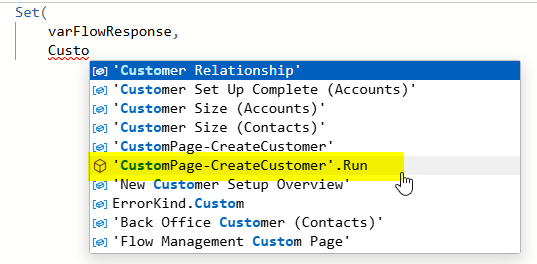
You can also type Run and can find it that way too, but might take a bit of scrolling.
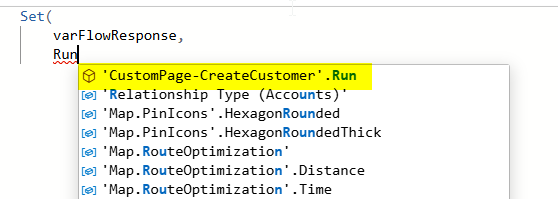
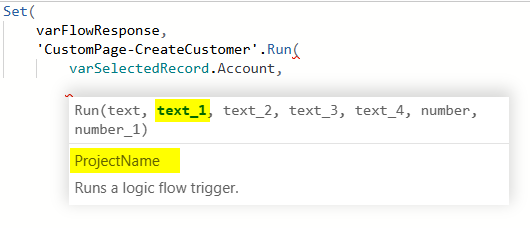
Once it is there, you will see a bunch of inputs listed with either text or number or date etc. I have 5 text inputs then 2 number inputs. It goes in order that you added them, so we can see the first text is for the Account.
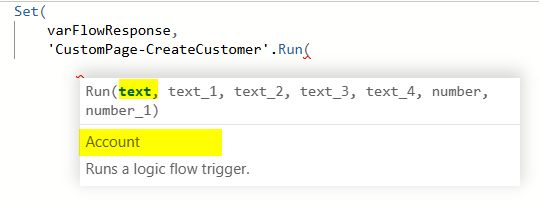
Then the second one is for the ProjectName and so on. Ideally you named your inputs logically so you know exactly what needs to be added. This is where your knowledge of where each value should come from is important.
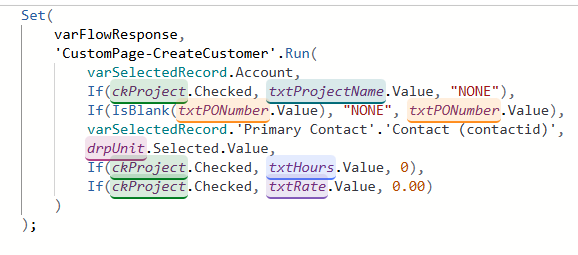
Each of your inputs needs something passed to it, so for mine I need to do some if statements to make sure if the user didn’t fill out some fields from the custom page, I am still getting something to push in to my flow. I then close off the formula with my double parenthesis )) and job done.
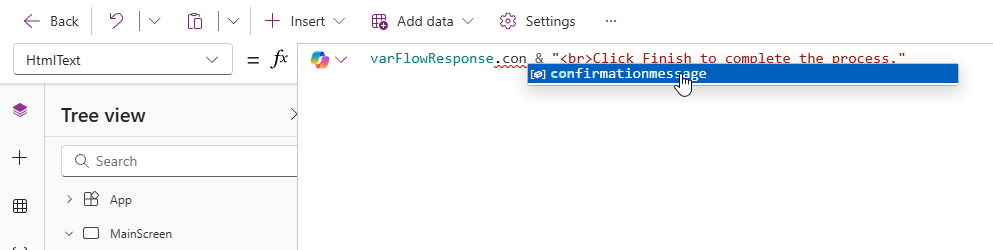
Now, because I am setting the variable to get the response from when the flow ran, I can use that to get any of the outputs I set in the flow. So I have the Confirmation Message as one of the outputs. I can type the variable name then a dot and then pick one of the outputs like you see below. I can then show a message once the flow has finished via the Confirmation Message output. Cool!
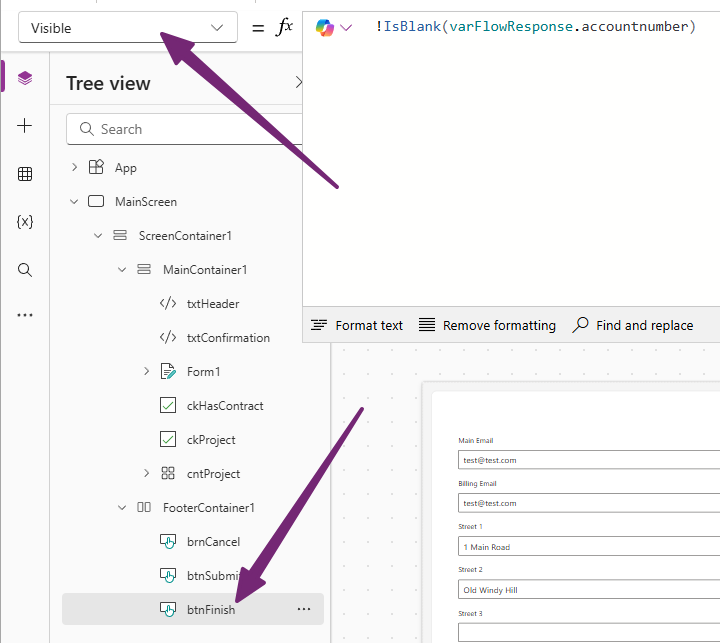
I can also use it to determine if other things are visible, so I will hide my submit button when the Account Number output is empty, but show the finish button if it is not empty by using !IsBlank(varFlowResponse.accountnumber). So definitely helps to do extra things within the custom page itself after the flow has run.
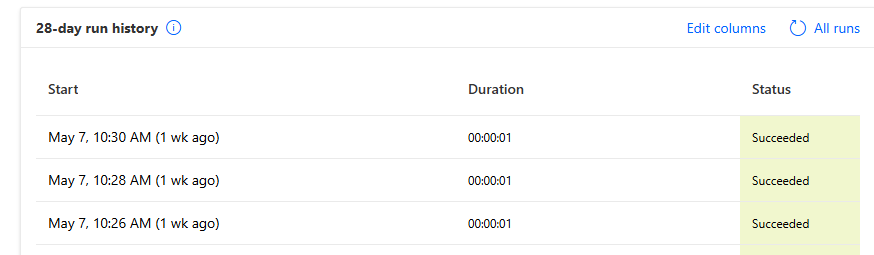
The flow runs just like it does with any other kind of flow which means you can trigger it from the custom page, then see the flow runs in Power Automate helping you to troubleshoot any failures from the flow. Just remember if you change the flow to go back to the Power Automate section in your custom page and refresh so it’s using the latest version.


Leave a Reply