Categories: Custom Pages
If any of my blogs or videos have ever helped you, I’d love to ask a favour.
I’m taking on a challenge: walking 50 KM in under 10 hours in honour of two incredible women who are both bravely facing chemotherapy right now.
🩷 I’m fundraising for Cancer Research UK 🩷
If you can help, every donation, big or small, helps bring us closer to a cure
*** NOTE: ALL INFORMATION IS ACCURATE AT DATE OF PUBLISHING ***

As you start adding custom pages to your model-driven apps in Dataverse (D365), it’s good to provide as much information and assistance to your users to give additional help where needed. A lot of times a tooltip can be used where extra text gets displayed when a user hovers their mouse over a control. Although that can be sufficient, we can also add an information button making it more obvious that there is additional information available to a user. This option isn’t immediately available in custom pages, but using the modern controls means we can easily start utilising this display component.

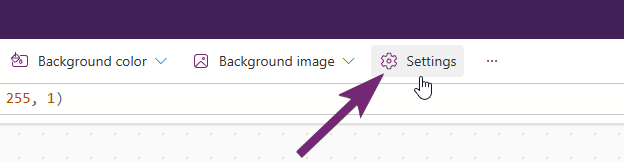
First, if you wan to know more about modern controls, check out this post from the brilliant Matthew Devaney. His posts have helped me out a ton over the years in reference to Canvas Apps, and are definitely relatable and relevant for Custom Pages (some slight differences between the two, but very similar). To turn on the modern controls, click the Settings button from the top of your custom page.
Click to view in detail

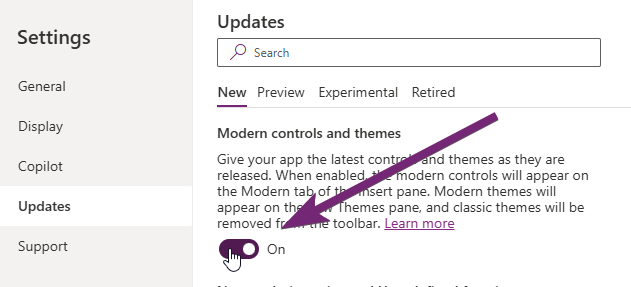
Then head in to the Updates section from the menu, then scroll till you find Modern controls and themes and turn it on.
Click to view in detail

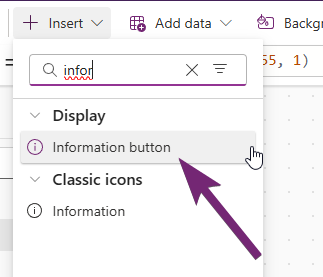
After turning on the modern controls, you can still get to the ‘classic’ controls but will see a bunch of new items too. Search for the information button to add it to your custom page.
Click to view in detail

The Content is the text that will be displayed when a user clicks on the button. You can add just plain text, or can combine with values from another field, collection, variable, or other expression you’ve built.

Click to view in detail

There are two options for colours that might be of interest. You can change the icon colour itself by setting a specific named colour or hex. By default the icon will be blue, or a colour based on the theme of your custom page.
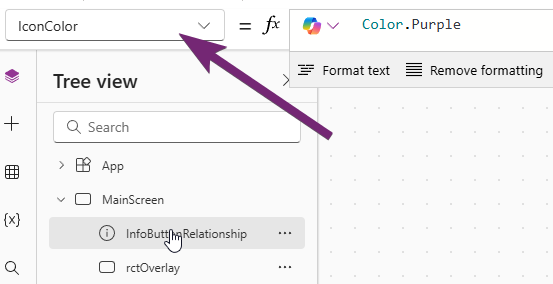
Click to view in detail

This is what the IconColor changes to where the colour set is the outline border of the button, and the colour of the i.
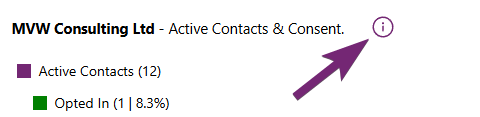
Click to view in detail

Then you can adjust the colour that shows when the icon button is clicked by adjusting the BasePaletteColor control. Here I am using a colour stored in a variable.
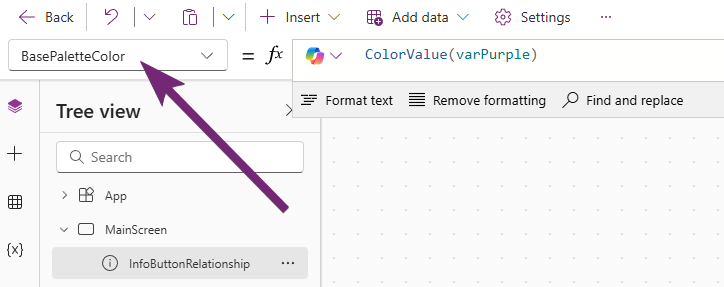
Click to view in detail

So here we can see that the icon has been clicked on, showing the text and showing the solid colour of the button. I would suggest if you change one of these colours that you change the other to match and keep them in sync.
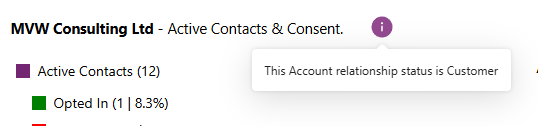
Click to view in detail

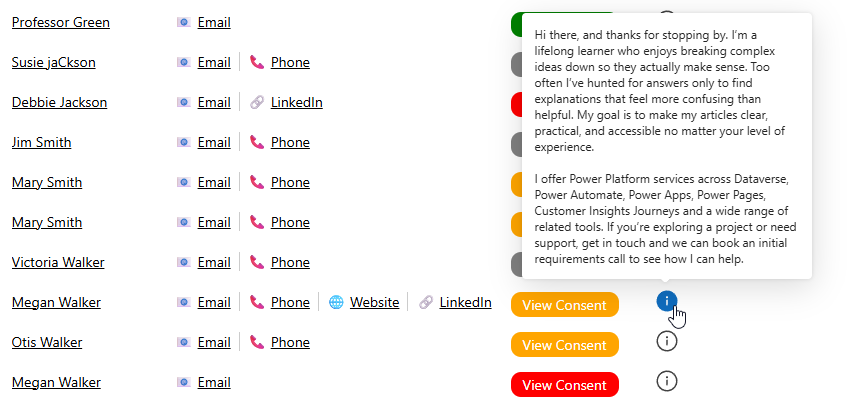
Although you can set pretty long text which will be displayed without any issues, there doesn’t seem to be a way to change the width of the pop up box that shows. This can mean text ends up wrapping on to additional lines depending on the content you want to display. Just something to keep in mind!
Click to view in detail


Check out the latest post:
Adding Custom Pages To A Model Driven App Navigation


Considering Custom Pages?

Thinking about using Custom Pages but unsure where they fit best?

I help organisations design model-driven experiences that are intuitive, scalable, and built for real users, not just technical possibility.


If any of my blogs or videos have ever helped you, I’d love to ask a favour.
I’m taking on a challenge: walking 50 KM in under 10 hours in honour of two incredible women who are both bravely facing chemotherapy right now.
🩷 I’m fundraising for Cancer Research UK 🩷
If you can help, every donation, big or small, helps bring us closer to a cure
This is just 1 of 584 articles. You can browse through all of them by going to the main blog page, or navigate through different categories to find more content you are interested in. You can also subscribe and get new blog posts emailed to you directly.


One thought on “Add Information Buttons To Provide Additional Details For Custom Page Users

  1. Really useful tip—this is one of those small UX improvements that can make a surprisingly big difference in adoption.

    I especially like the point about making help visible rather than relying only on tooltips. Tooltips assume users will hover and explore, but in reality many users either miss them or don’t realize extra context exists. An information button creates a much clearer affordance—basically saying “there’s something here that can help you.”

    One thing I’ve found in similar implementations is that these buttons become even more valuable when paired with context-aware content. Instead of static text, pulling in dynamic values (like record status, user role, or process stage) can turn a simple info icon into a lightweight guidance system that adapts to the user’s situation.

    Your note about styling is also important. Keeping IconColor and BasePaletteColor aligned sounds minor, but consistency plays a big role in perceived quality. If different info buttons behave or look slightly different across pages, users can lose trust in the interface.

    The limitation around popup width is interesting too—and probably something to design around rather than fight. It might actually encourage better microcopy: shorter, more focused guidance instead of long explanations. For more complex help, this could be a good trigger point to link out to a help pane or documentation page instead of overloading the popup.

    Overall, this feels like a great example of how modern controls aren’t just about aesthetics—they enable better UX patterns that were harder (or impossible) before in custom page

Leave a Reply

Your email address will not be published. Required fields are marked *