
*** NOTE: ALL INFORMATION IS ACCURATE AT DATE OF PUBLISHING ***
It was a little ‘feature’ introduced in the February 2026 release for Customer Insights – Journeys, and one that has probably gone by un-noticed by many users, but is slowly starting to pop up as a surprise to people. If you don’t use a segment for 30 days, it will be made expired. You haven’t lost it, but lord it can cause confusion! This post will walk through the logic from Microsoft, and how you can get it back and start using it again. Definitely one for you to be aware of if you are using Customer Insights – Journeys!
First, it’s not all that obvious which Segments are expired. Depending on views you are using to look at your list of Segments, if you have the Status Reason or Status fields in the views, you would see them listed as Inactive.

Going in to one, all of a sudden you see this horrible Expired indicator and that your record is read only (meaning you can’t do anything with it).
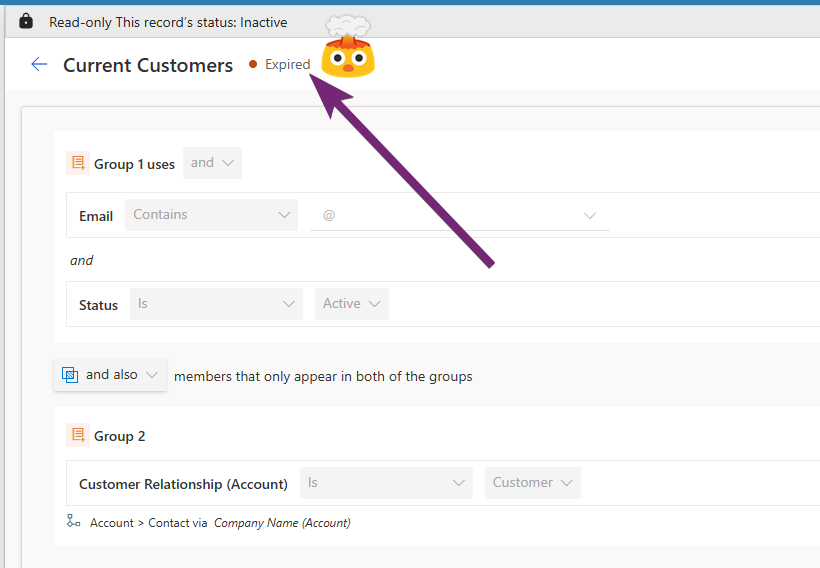
First, why is this happening? Well you can read more about it here in the official documentation from Microsoft, but this is the important part.
Segments no longer used in any active journey: Segment moves to a 24‑hour refresh cycle. If it remains unused for 30 days, it transitions to the Expired state, where it’s no longer evaluated and doesn’t count toward segment limits, helping optimize performance.
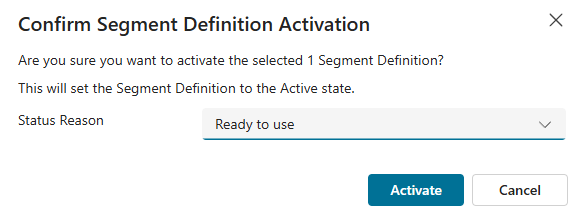
So how do we get it back so we can use it? Open up the Segment and click the Activate option from the top right. Most people (understandably so) are going to select the Status Reason of Ready to use, then click Activate.
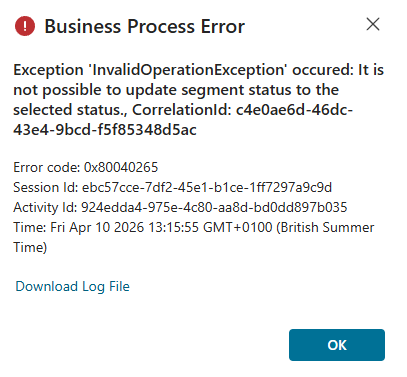
And then you get a horrifying error!
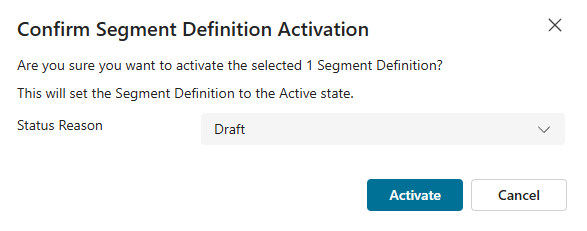
It’s OK, instead just make sure you select the Status Reason of Draft instead. There are lots of things that need to go on in the background and trying to take it directly to Ready to use just doesn’t work. In an ideal world you wouldn’t even be able to pick that option, but it is what it is right?
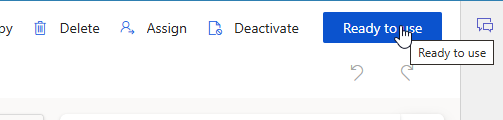
Once you have activated it, you can now click the Ready to use button to get it Live again.
UPDATE: 15th APRIL 2026
After fiddling about, I found a way to get the Expired segments back to Ready to use in bulk. When we go to the list of segments, we are actually looking at the records from the msdynmkt_virtualsegment table. The record that is expired is from the msdynmkt_segmentdefinition table, so that is what needs updating. You can force a view to see all of those records using something like this, or just open a view of segments and remove everything from msdynmkt_virtualsegment to the end of the URL and then just add in msdynmkt_segmentdefinition instead:
YOUR-D365-URL/main.aspx?appid=YOUR-CIJ-APP-ID&pagetype=entitylist&etn=msdynmkt_segmentdefinition
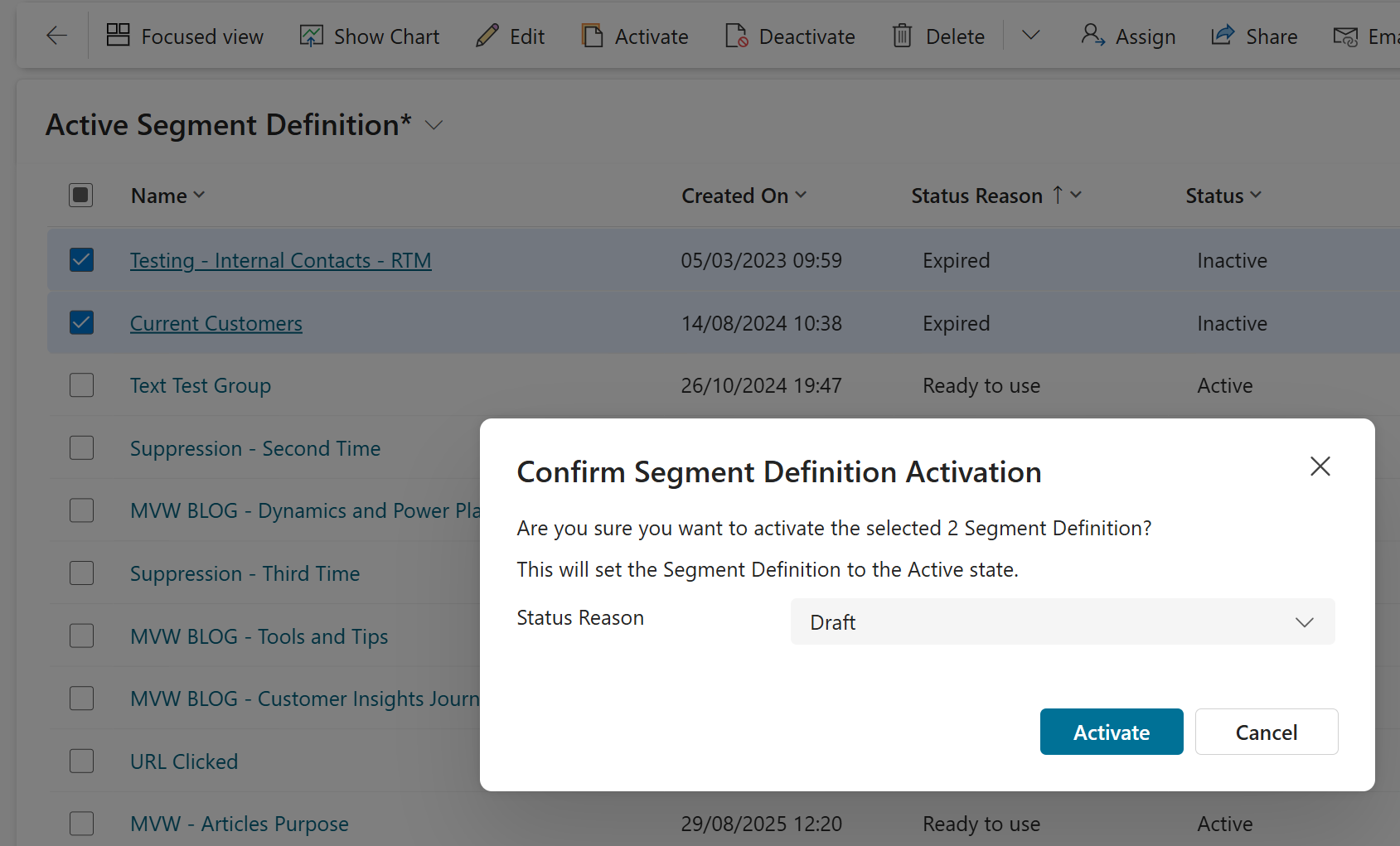
This will give you the usual ribbon with the buttons you need to get these fixed. Select your Expired ones and then click Activate. DO NOT be tempted to set the Status Reason to Ready to use first, pick Draft. You’ll get an error otherwise (see further up this blog). Change to Draft, then select them again, Activate and pick Ready to use. That should sort them out for you so they are no longer expired.
Check out the latest post:
How To Clear LookUp Fields Using A Custom Page
Unsure about your Customer Insights set up?
Customer journeys are powerful, but only if the platform, data model, and compliance framework are aligned.
I work with teams using Customer Insights Journeys to make sure it is set up correctly, data is compliant, and journeys deliver without surprises.
This is just 1 of 582 articles. You can browse through all of them by going to the main blog page, or navigate through different categories to find more content you are interested in. You can also subscribe and get new blog posts emailed to you directly.


Hi Megan! Thank you for this clarification.
Several of my customers are going crazy over this new feature, thinking it’s unacceptable and they have several (hundred) segments that definitely are used several times a year but not once a month causing a lot of extra work. I agree with them that 30 days are way to narrow time frame for a segment to be deactivated. What’s your take? Won’t be easy reaching MS-product group to make them change this to e.g. 90 days instead… and thoughts on a workaround?
Thank you for all your great posts
Best regards
Anna
Hi Anna, I couldn’t agree more. 30 days isn’t even always a month! Not sure why 30 days was selected. I could see 60 or 90 for sure. Let’s see what happens. I believe there will be a lot of push back from people on this one. The feature no one was asking for.
Let’s help out and put votes to this MS idea already posted: https://experience.dynamics.com/ideas/idea/?ideaid=0a9682e6-f637-f111-9a90-7c1e5296d3a8
They definitely already have the information that 30 days isn’t enough and hopefully we see a change to that soon. What that change will look like remains to be seen, but I know there has been a lot of feedback and negativity around the change so fingers crossed we get an update to the number of days soon.
Hi Megan,
Even if you use a segment in a one time journey, it is not recognized as used. My customer is using the segment daily, but it is not recognized as used. Any idea why?
Best Regards,
Eline
Hi Eline, I don’t know why that would be happening, I would definitely open up a support ticket to report that so that Microsoft can know and understand where people are having challenges!
we observed the same behaviour. One Time journeys used the Segment a few days ago and nevertheless the segment expired. This seems buggy.
Yes, I would imagine a bug that some of the segments are being made inactive as expired way faster than the 30 days! Raised and being reviewed by the awesome team at Microsoft.
Thanks Megan, I am finding segments that I have used in the past 30 days are getting moved to expired too. Have you heard of this from other people too? It’s very annoying!
We can see already with all of these comments that something is not quite right, so hopefully bug fix will be on the day!
Hey Emily,
I have encountered the same and raised a support ticket with MS mentioning that it’s not just the 30-days ones – even segments last used as recent as 24 hours ago were deactivated, and they have acknowledged the bug (BUG 6291886) and ETA for the fix is 15 May.
[quote]
Main causes:
The issue is occurring because the “Last Used in Journey” field is not being updated correctly. The engineering team has identified it as a bug.
Segments actively used in ongoing journeys are not impacted.
[/quote]
In the meantime, they were suggesting for me to go into CID (not CIJ) and do a bulk change of status from Inactive to Active. But I reckon we will still have to manually push them individually from “Draft” to “Ready to Use”. (I can’t verify this as we found out that customers pre Sep 2023 only has CIJ and not CID, and that’s another thing to sort out on my end…)
Hope that at least gives you the “I’m not alone” assurance 😀
Hi Erick! Thanks for sharing your experience and knowledge on the issue. It seems different people at Microsoft (mainly based on the different departments) are sharing different time frames. I would hope to see a hotfix roll out within a week or so, but could take several weeks to get through to all of the regions which could end up taking us to the 15th May. Their suggestion of going in to CID is not realistic. Out of about 20 clients I have using CIJ, only one is using CID… so yeah, not really something to use JUST to get the status changed.
HOWEVER! I have found a way to get them published again in bulk from CIJ. Will update in the blog also. If you get to the list of segment definitions rather than what we see which is the virtual segment record, you can update the status of the records in bulk. Go to this kind of link:
YOUR-D365-URL/main.aspx?appid=YOUR-CIJ-APP-ID&pagetype=entitylist&etn=msdynmkt_segmentdefinition
Then add in at least the Status Reason column so you can see which ones are Expired. Then select multiple, and click the Activate button from the ribbon. DO NOT try and change to Ready to use, pick Draft instead or you will get an error. Then after changing to Draft, select those ones again and THEN change to Ready to use.
Thanks so much, Megan!
It came as a big surprise to us as well, and we also raised a support ticket since it affected recently used segments.
We have a lot of complex segments made up of other segment blocks that we use 4–6 times a year. This is going to create quite a bit of extra work if we need to “refresh” the segments every time before running our campaigns 🙁
As Anna Ekstrand mentioned, it would be much better if the 30-day period could be extended to 90 days. In case that’s something you’re able to whisper into a few influential ears 🙂
Best regards,
Tanya
Hi Tanya, currently whispering very loudly. Hopefully we can get this resolved and increased. Fingers crossed!
Awesome – thank you Megan!
Hi, several of you noticed that even if you use your segment in one-time journey, it “doesn’t count”. It seems that there is a bug in MS implementation, and you can see that Segment has new attribute “Last used in Journey” which should be filled-in for your segments, but it is not (and I noticed, that for some segments are even having the value removed).
MS is aware of the issue, with statement “Our Product Team is currently working on a fix, which is expected to be available in Production (all regions) in approximately 4 weeks.”
Regards
Ivo
Hi Ivo, yes they are definitely working quickly to get the bug part resolved. I would hope most organisations would see the hotfix within the next week or so, but like you shared, it can take several weeks for it to get to all geographical regions.
Life saver!!
You are welcome!