
This one seems really straight forward right? If you have been working with Custom Pages and Patching back to records, you know you can use the Blank() function to set something as null or empty. A recent requirement for a client where a lookup field on a record needed to be cleared out when a button was pressed was really simple, should take no time at all! Imagine my surprise when I just could not get it to work. After a bit of head scratching and Googling, I found the answer, but thought I would share with others to help you avoid the same pains!
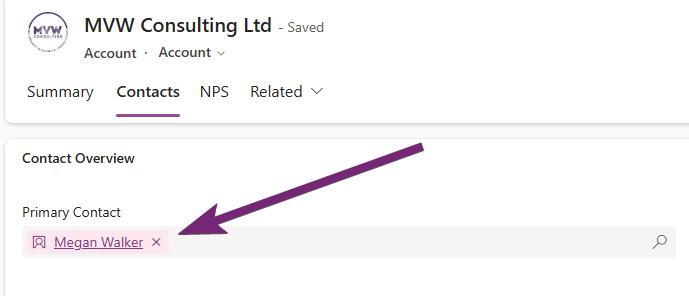
First, by LookUp field, I am referring to something like this. If we take a commonly used standard field of Primary Contact on an Account. In my example, I have a custom page that can be used from an Account record to indicate they have left their organisation. If they are the Primary Contact for their Account, we will let the user know then remove them upon making the Contact Inactive.
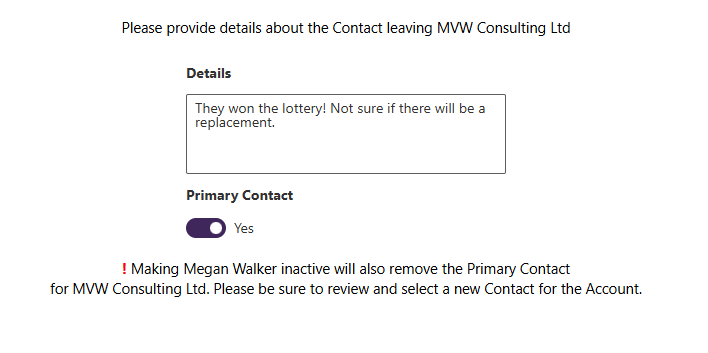
I have a simple custom page with a field to ask for details to help understand why they are being made inactive, and a toggle that shows Yes if they are also the Primary Contact.
Although not relevant to clearing out the LookUp field, I thought it might be useful for some to understand some of the expressions. For the OnStart of the Custom Page, I am setting a variable for the Contact (varSelectedRecord) and a variable for the Account they are linked to (varAccount).
Set(
    varRecordId,
    If(
        IsBlank(Param("recordId")),
        GUID("7871009b-f3ea-ea11-a815-0022481aef30"),
        GUID(Param("recordId"))
    )
);
Set(
    varSelectedRecord,
    LookUp(
        Contacts,
        'Contact (contactid)' = varRecordId
    )
);
Set(
    varAccount,
    If(IsType(varSelectedRecord.'Company Name',Accounts),
    AsType(varSelectedRecord.'Company Name', Accounts)
)
);
That way, for the text that shows if they are the Primary Contact, I can use this on the Visible logic of my text box. That way it only shows if the Contact record I am on is the Contact in the Primary Contact field of the Account.
varSelectedRecord.contactid = varAccount.'Primary Contact'.contactid
On the Update button, the OnSelect will look something like this. I am taking advantage of the Status Reason field by adding a new option of ‘Left Organisation’. That way when someone uses the custom page, it not only shows the Contact is Inactive but we can clearly see why it has been made inactive. Then if the Contact is the Primary Contact, we make that field Blank (or empty) on the related Account.
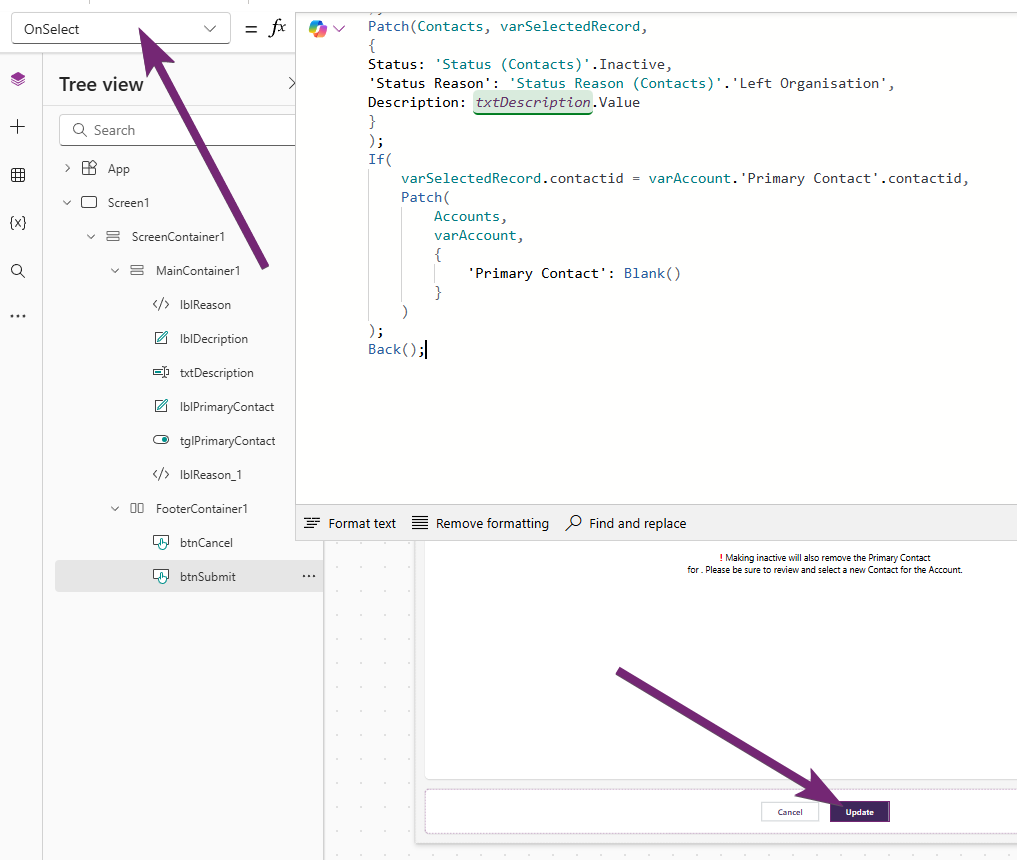
Patch(Contacts, varSelectedRecord,
{
Status: 'Status (Contacts)'.Inactive,
'Status Reason': 'Status Reason (Contacts)'.'Left Organisation',
Description: txtDescription.Value
}
);
If(
    varSelectedRecord.contactid = varAccount.'Primary Contact'.contactid,
    Patch(
        Accounts,
        varAccount,
        {
            'Primary Contact': Blank()
        }
    )
);
Back();
Easy right? And we would be forgiven for thinking that should be it. HOWEVER, one quick test and a check on the Account and you would see that the Primary Contact field is not empty. No errors are seen on the Custom Page and you are just left puzzled.
After what felt like years (was a couple of hours 😉) I found this post from Hardit Bhatia that made reference to a setting, then this documentation page from Microsoft on Error handling in Power Apps. Hardit’s post was from 2020 and the name and placement of the feature is slightly different (and was on Canvas Apps), but pretty much the same thing. The wording is a bit bizarre in the documentation but I know that if I follow step 3, I can then get the Patch statement to work and set a blank value in the look up field for Primary Contact on an Account.
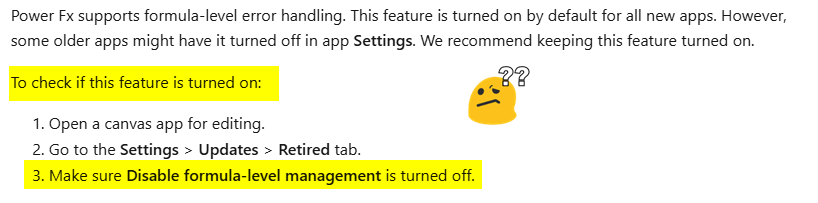
So go here in the Settings on the Custom page and make sure you have this option Off.
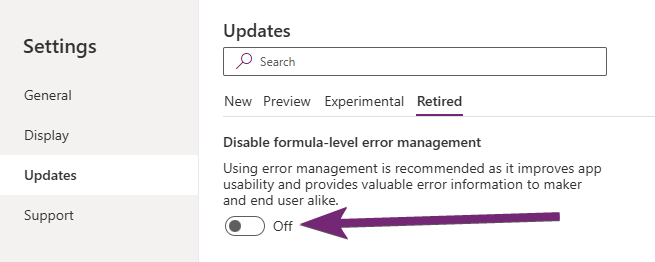
After changing that and saving the Custom Page, then trying to do the Update again, it clears out the Primary Contact as intended.
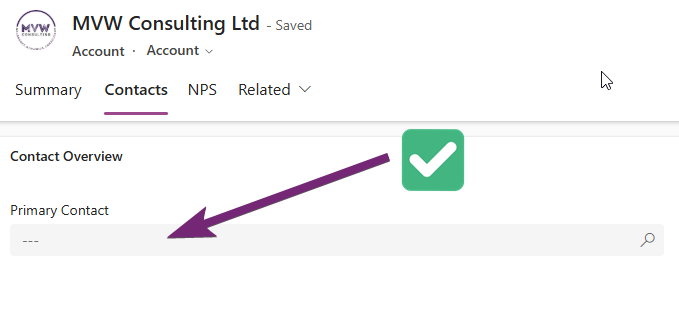
Bonus that because I am using a custom Status Reason, I can clearly see it indicated at the top of the Contact. Hooray!




Leave a Reply