
We have the ability to add unmapped fields to marketing forms, providing the ability to capture extra information from a Contact or Lead without needing to add a new field to those tables each time. It makes it easy for marketers to take ownership when wanting to capture new information. However, how on earth can you then easily find people who have filled out those fields in a segment? This post will show you how to create a segment using unmapped fields so wonder no more!
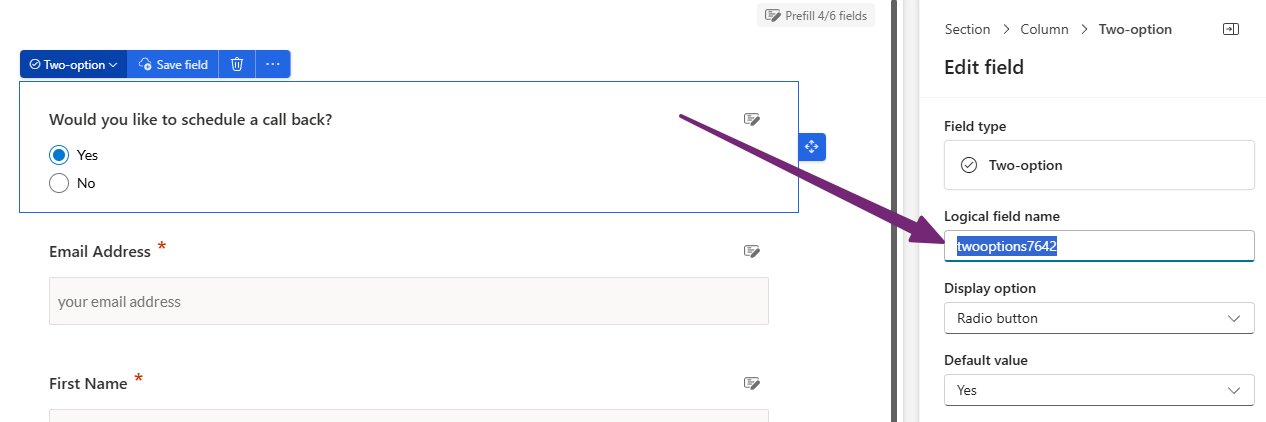
First, this is what we are referring to. You can add an unmapped field to your form for text, checkboxes, option sets, radio buttons etc. When adding an unmapped field, there is a field for logical field name. To make it easier on yourself, rename it each time you add a new field to something that makes sense. Also make sure all users doing this adopt the same naming convention. For example, you might want to start with cus for custom, or um for unmapped. Then use an underscore then something descriptive. In my example below I could rename the logical field name to cus_callback. No set rule, but make sure you are all doing the same thing!
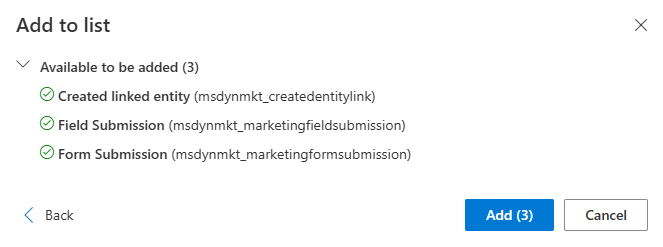
Right, now you know about the unmapped fields and the logical field name, we need to add some new tables to the segment related tables area. Look for and add these three tables. Now, if you haven’t added new tables before, you might not know the fun quirk 🤡 after adding them. They will show that they are syncing and sometimes the tables seem to disappear. This is a one time only fun things, and after adding a field from the table and saving the segment, they seem to be OK and will show up for you moving forward. So just something to be aware of!
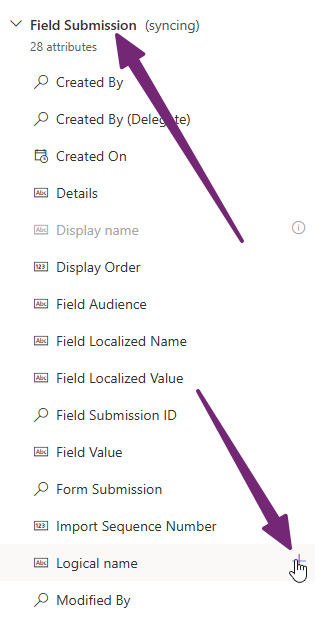
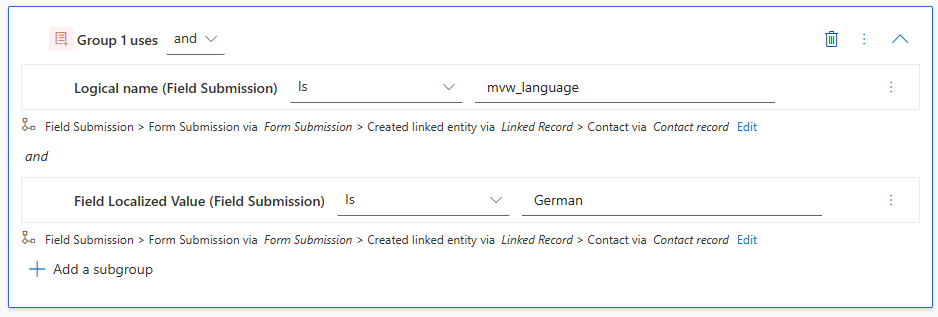
Once you’ve got the tables there, you will need to go to the Field Submission table you added, then add the Logical name attribute to the segment.
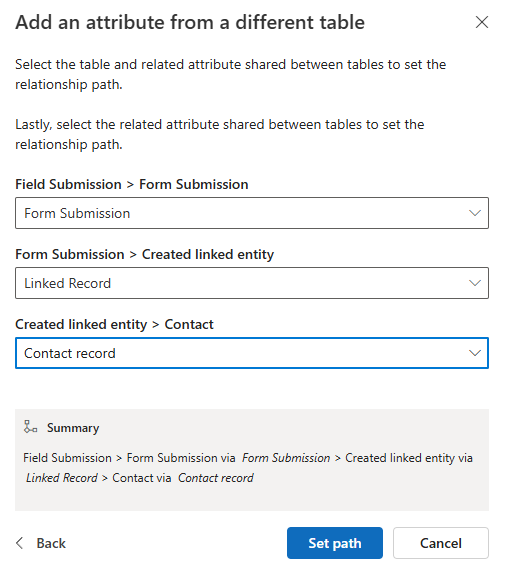
This screen will pop up. This is why it is important you’ve added all of the necessary tables I highlighted. The path should go from Field Submission through to the related Form Submission, then through the Created linked entity record to the Contact. The created linked entity record is a middle record that links a form submission to either a Contact or a Lead. So you can use the same approach if your segment is to find Leads.
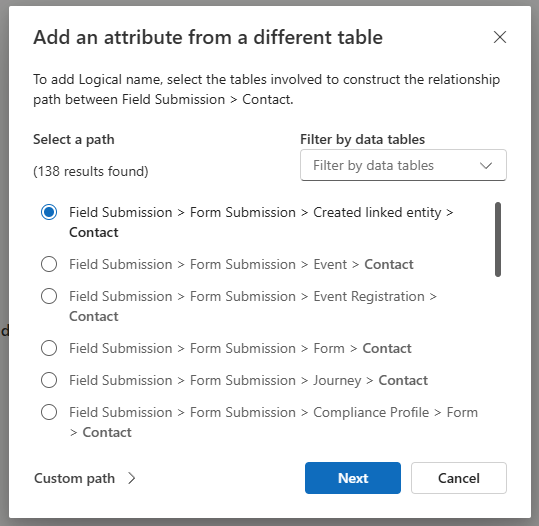
Once you’ve picked the relationship path then define which field is the link between each table. Set them as you see below (or pick Lead record instead if you are doing a segment for Leads).
Once you have the Logical name on there, use the logical name of the unmapped field you want to search on (go back to the first screenshot in this blog if you are still unsure). If you just have the Logical name it will find all Contacts with a form submission that included that unmapped field. If you want to filter down further, you can add the Field Localized Value to find people that submitted a specific value for that field.
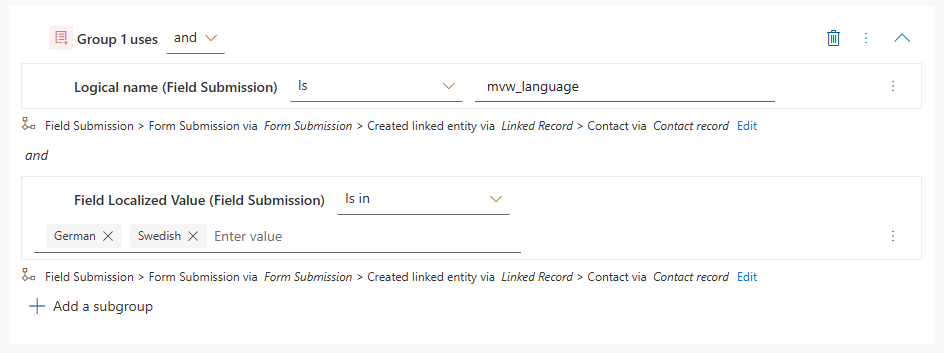
You can still use different logic like you can with other filtering so I can do Is in to find people where they added that their language was either German or Swedish.
Hope this helps you find people based on those unmapped fields on your marketing forms!






Leave a Reply