
Using Galleries in your custom page is a quick and easy way to show a list of records to a user. If the user wants to open one of the records to view more information (and maybe even edit that record), it’s a good idea to give them a way to do that directly from the custom page. Otherwise, it’s going to be a frustrating user experience to have to close the custom page each time, or manually open another tab to go and search for the record they want to open. Instead, we can provide a quick link for users to click on to open D365 records from your custom page in a new tab without needing to navigate away from it. This post will show how using an environment variable combined with the launch command can give a better user experience.
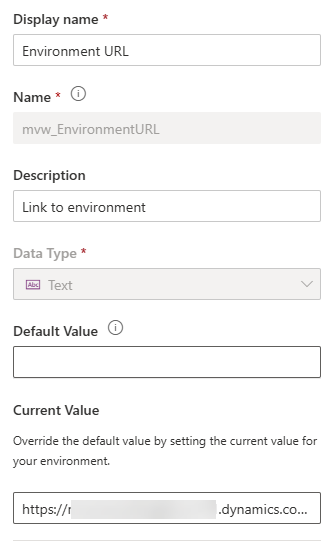
First, if you are not sure what an environment variable is, go check out the Microsoft documentation first. They can be used to store values we can use as variables in flows (Power Automate), Canvas Apps, and in Custom pages. They allow you to move solutions across to other environments without the need to hard code stuff, making it a smoother process and keeping inline with basic application lifecycle management (ALM). Here we have a simple environment variable that can be used to store the main URL for your Dataverse (D365) environment. Make note of the name (schema name) as we will need that for the custom page logic.
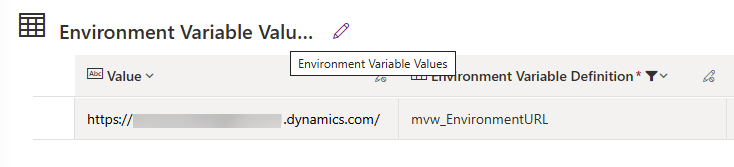
The information is stored in a few places, but it is the Environment Variable Values table that will give us access to the URL value we just stored.
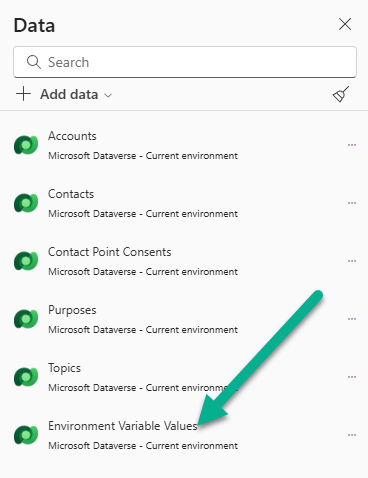
In your Custom page, add the Environment Variable Values table.
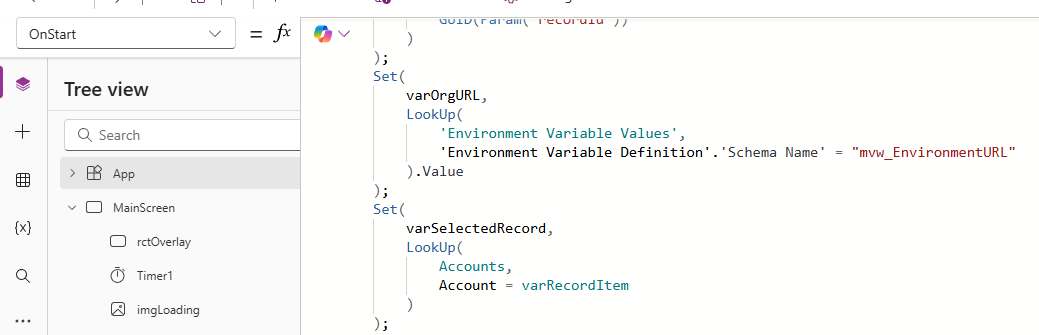
In the app OnStart logic, we need to then get the value that is stored in the Environment Variable with the schema name of ‘mvw_EnvironmentURL’ for my example.
Set(
    varOrgURL,
    LookUp(
        'Environment Variable Values',
        'Environment Variable Definition'.'Schema Name' = "mvw_EnvironmentURL"
    ).Value
);
This means that when the Custom page is opened, the value (URL) for the environment variable will be found and stored so we can use it elsewhere in the custom page.
Within the custom page itself, if you have a gallery you can use an HtmlText component to display the name of the record. In my example below, it is the Full Name field for the Contacts in my gallery. Using the HtmlText component means we can provide some styling so that the mouse cursor changes to a hand when hovering over, identifying that it is a clickable link, and we can underline the value too.
"<span style='cursor:pointer; text-decoration: underline'>"
& ThisItem.'Full Name' &
"</span>"

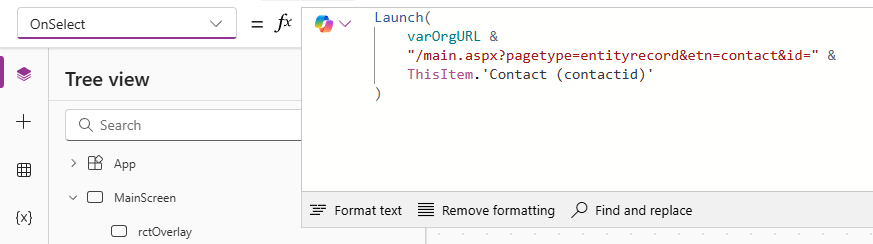
In the OnSelect for the HtmlText component, this is where we can build the link to click on to open up the Contact record. You may have used Navigate previously (more on using it in this post here). Navigate stays inside your model-driven app, so if we use it here, the user will immediately be taken out of the custom page and to the record. We want to keep the custom page open, and instead, leave to open a new tab for the Contact record that was clicked on.
Launch(
    varOrgURL &
    "/main.aspx?pagetype=entityrecord&etn=contact&id=" &
    ThisItem.'Contact (contactid)'
)
The URL below is built up by combining the URL variable we set from the Environment Variable in the app OnStart, then adding in /main.aspx?pagetype=entityrecord&etn=contact&id=. This states that we want to open up a record which is a Contact, and then states the id equals which we can pass through using the contact id from ThisItem clicked on in the gallery.
After saving and publishing the custom page (and related model-driven app), we can see that hovering over the Contact Name for one of the records in the gallery gives us the little hand icon for the mouse. Clicking on it then opens up the Contact record in a new tab. Perfect!
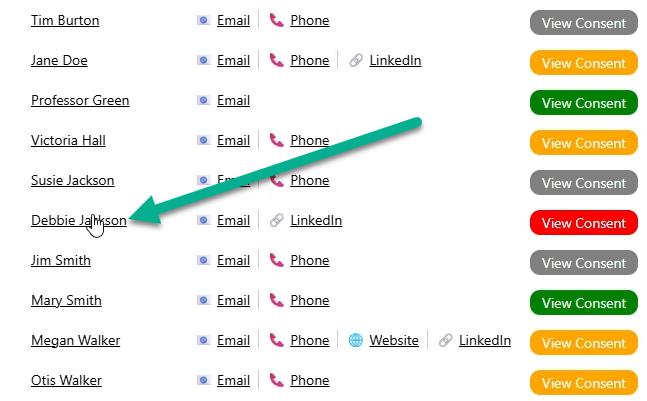
Here it is in action, where clicking the name of the Contact opens the record up for us, while still leaving the custom page open in the original tab.



Leave a Reply