Creating email signatures for emails sent from Dynamics 365 is really straightforward for each individual user. It’s something each person has the ability to do for themselves. However, what if you are using queues for sending out emails? Perhaps you have a Customer Service or Support Team queue. How do you go about having a signature appended to those emails automatically? Let’s look at how to achieve this.
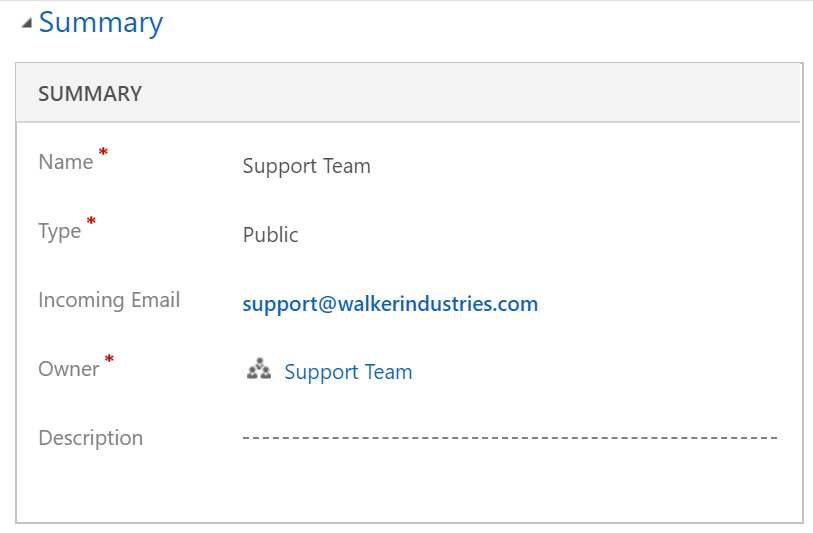
First, the queue needs to be owned by a Team, rather than a User. If you are using multiple queues, you will want to have a Team per queue. For a queues email signature, it uses the default signature of the owning team. So for this scenario you will have a one to one ratio, queue to team. So, create your team. Then, create your queue, and set the owner as the team you just created.
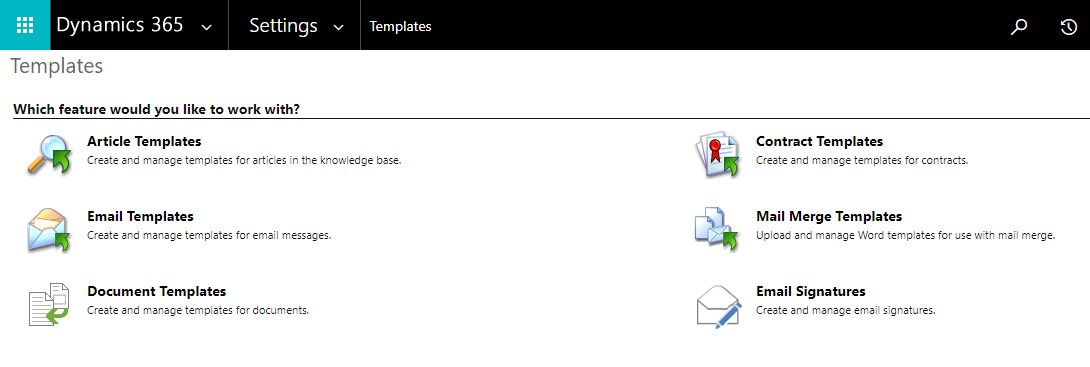
Next, go to Settings, Templates, then Email Signatures.
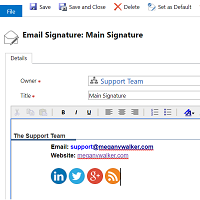
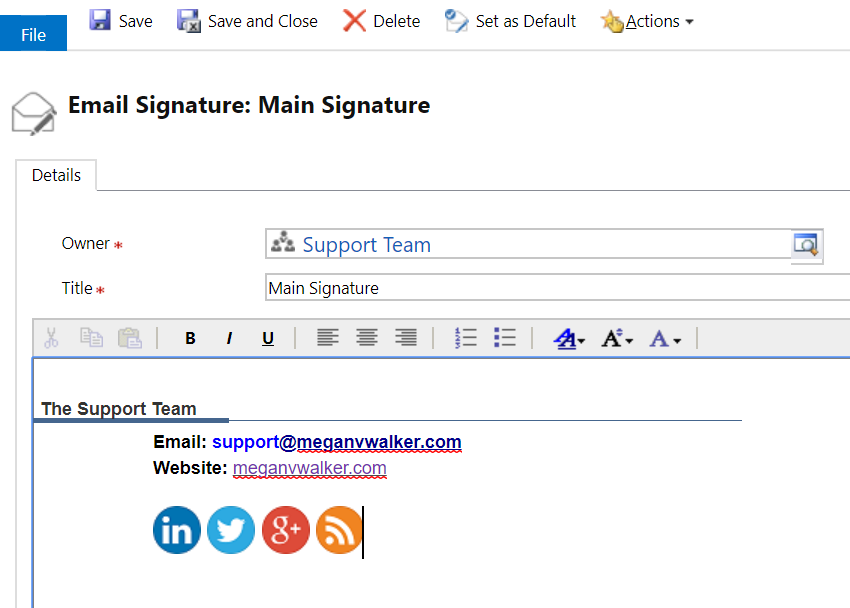
 Set the owner as the team you have set as the owner for your queue. Add in the signature, then save it. From the top menu, click on Set as Default.
Create a new email, then change the From field and select the queue you created.
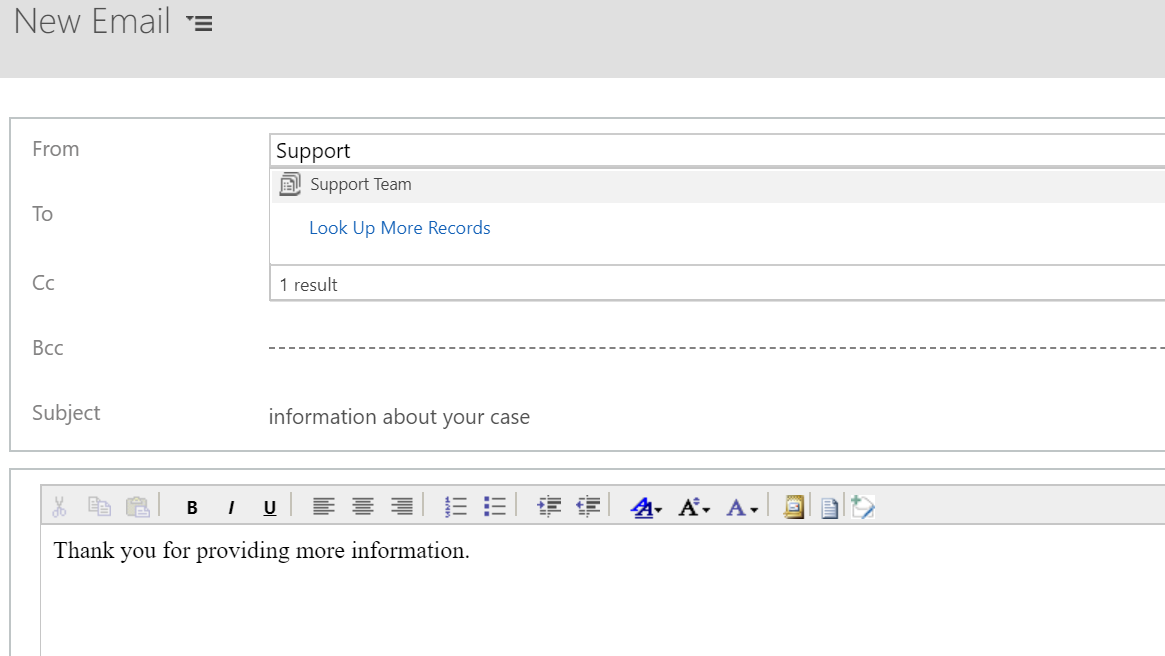
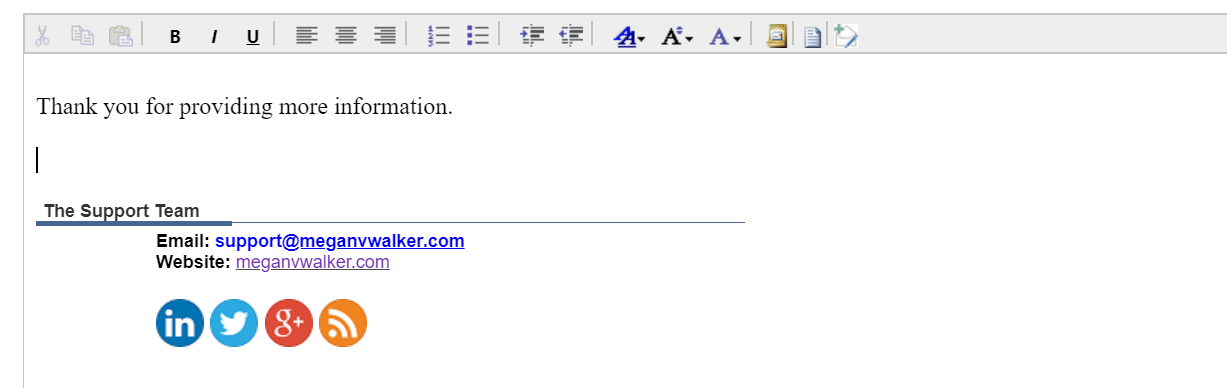
You will notice that the new email signature you created is automatically added to the bottom of the email. Quick and easy!




2 responses
Hey Megan.
Thank you for this great guide!
Quick question – is the signature automatically applied also when one of our representatives pick an email out of a queue?
In other words, when they reply an email, will the signature be automatically added ?
Hi Roland, you are welcome! Only once they have changed the FROM field to the Queue, that’s when the signature will be added.