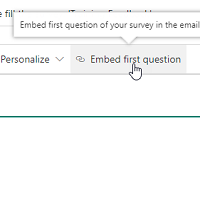
Creating surveys using Forms Pro is easy. It’s getting people to complete and submit their responses that’s often the hard part! One way is to show the initial part of the survey in the emails you send out and add in the first question. We can now do this when sending out the survey invitations directly from Forms Pro (not via FLOW at this point in time). Let’s look at how to do this.
When sending out your email you will see an option to ‘Embed first question’. If it’s greyed out and you hover your mouse over it you will see a directive tool tip. It states ‘Ensure in your survey that the first question is a Rating or Net Promoter Score (NPS) question, shuffling questions is not enabled, or branching rules are not defined. This makes sense as shuffling questions means it won’t always be the same question used as the first one, and your branching rules could be changing the layout of the survey even from the first question.
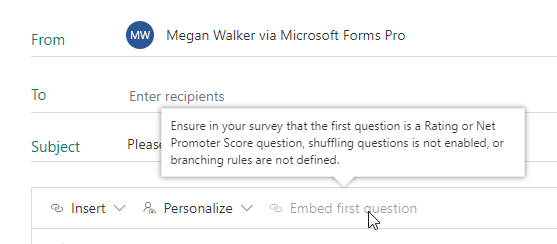
So, let’s add an NPS question to the top of a survey as the first question. As stated, a rating question could be added which allows you to either ask for stars or numbers to rate something or someone.

Now if we go back to send an email, the Embed first question option is enabled.
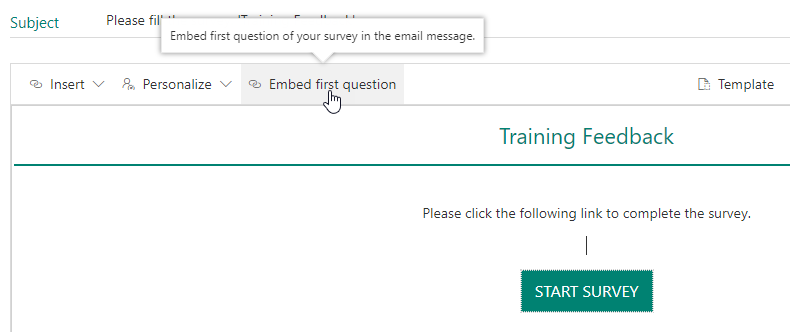
If we click on it, the first question will be added to the email. If you were using a specific template, keep in mind that this will be removed with only the question remaining. You can add text back in including personalisation of the email (First Name, Last Name) but you won’t be able to save that as a template. Once finished, send the email.
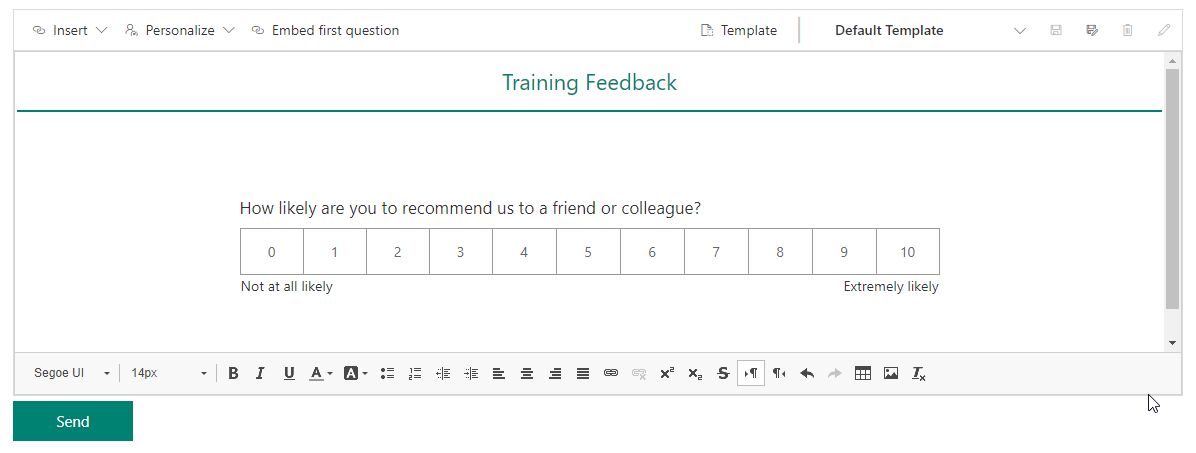
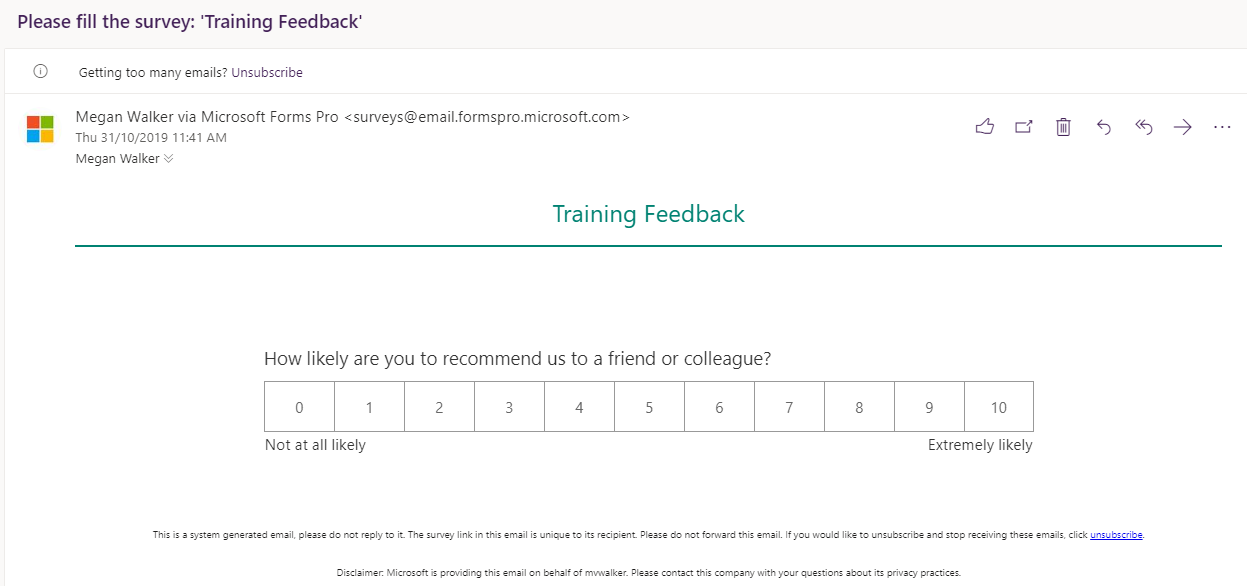
This is how the email will be received. The recipient will click on an option for the NPS (or Rating) question. This will then take them directly in to the browser to fill out the rest of the survey.
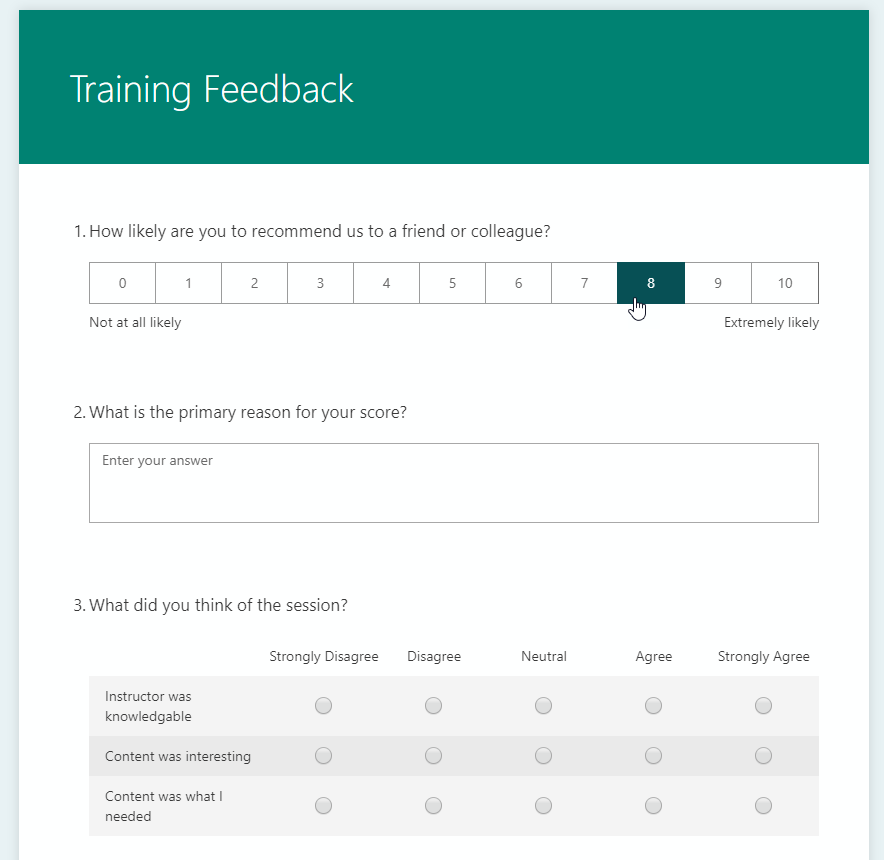
The option clicked on within the email will be populated in to the survey. They can then continue with the other questions and submit the survey in the usual way.
Want to just watch how to do this? Check out the video below:




6 responses
Nice!
I am waiting for the time when we can do this also via FLOW. 😀
Agreed, me too ????
yes, doing this by flow would be so much better. is there an item in Forms pro user voice?
Hi Zeeshan, I agree with you 100%. For right now, there is no way to do that via Power Automate in a Flow. I haven’t checked User Voice, but if you have and there isn’t anything, good idea to submit!
I have added it Forms Pro Feedback User voice. Here’s the link https://microsoftforms.uservoice.com/users/941946988
Awesome, I have voted on it and made a comment.