There are several ways to send out a Forms Pro Survey and request feedback. You can send invites to a Dynamics 365 Customer Engagement View, or send to a contact when a case is closed. Another way is to import a CSV fill full of recipients. To get started, navigate to the Send Survey tab on your survey, click on the Email option, then click on the Import recipients button on the top right of the survey.
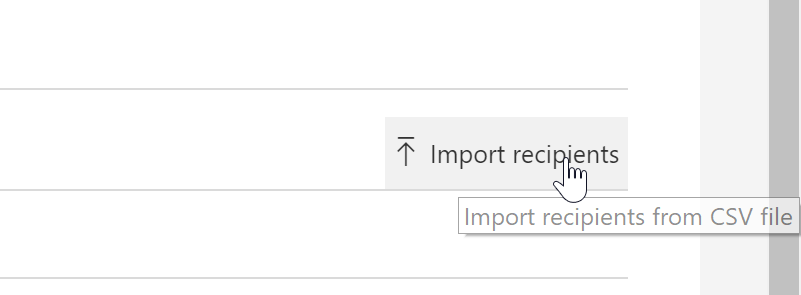
A side bad will open on the right with some details for you to read through letting you know the correct format your CSV file needs to be in. There is a link to ‘Download a CSV template’ but it’s really simple to create your own. Three headers, Email address (which is mandatory), first name and last name. You can only import up to 100 recipients at a time so if you have more than that, you will need to split them up in to multiple CSV files and import them one at a time.
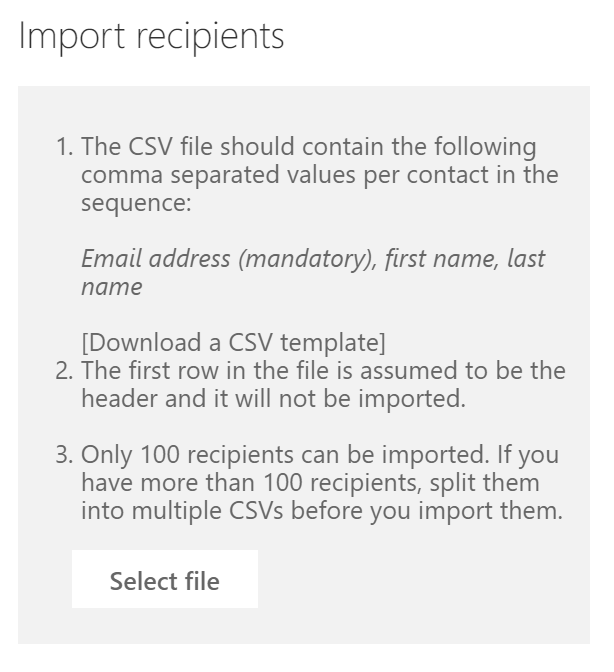
If your recipients email address might already be in your environment, tick the box so that the correct contact will be updated and the survey invite will be linked accordingly.
All of the recipients in your CSV file will be added to the To field. Each person will get a completely seperate email.

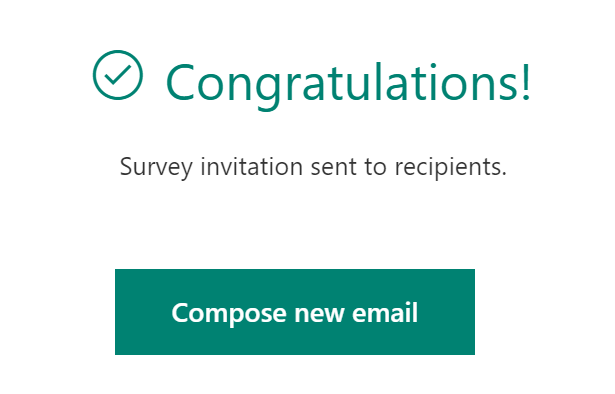
Once you click send, you’ll get a message showing the invitations have been sent.
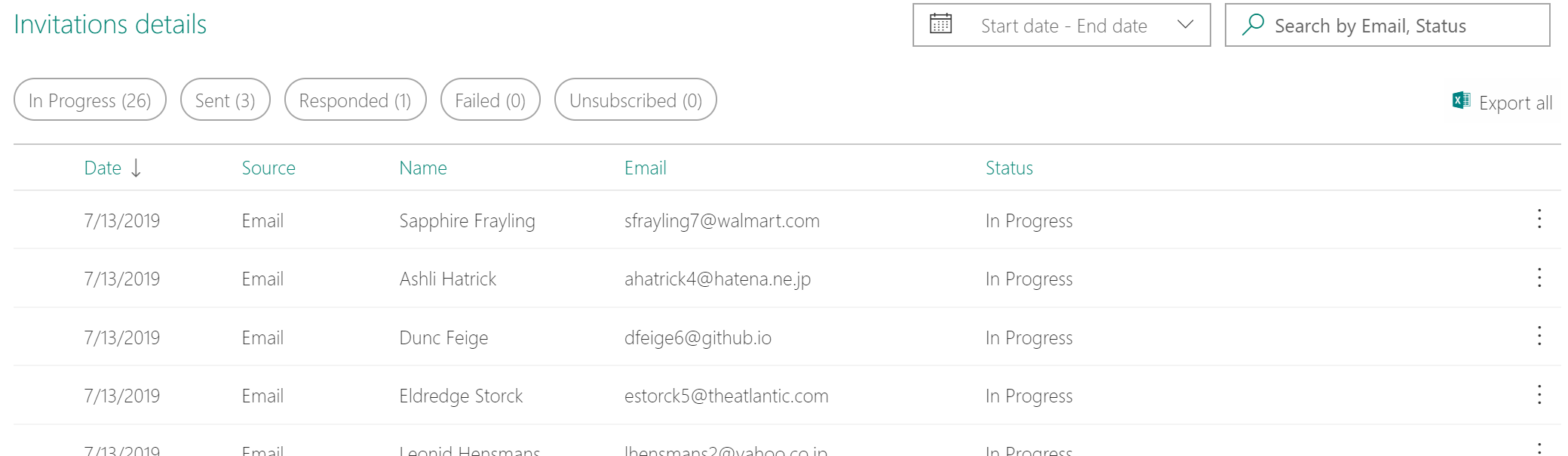
You can then see the invitations listed under the invitations details area on the Email tab.
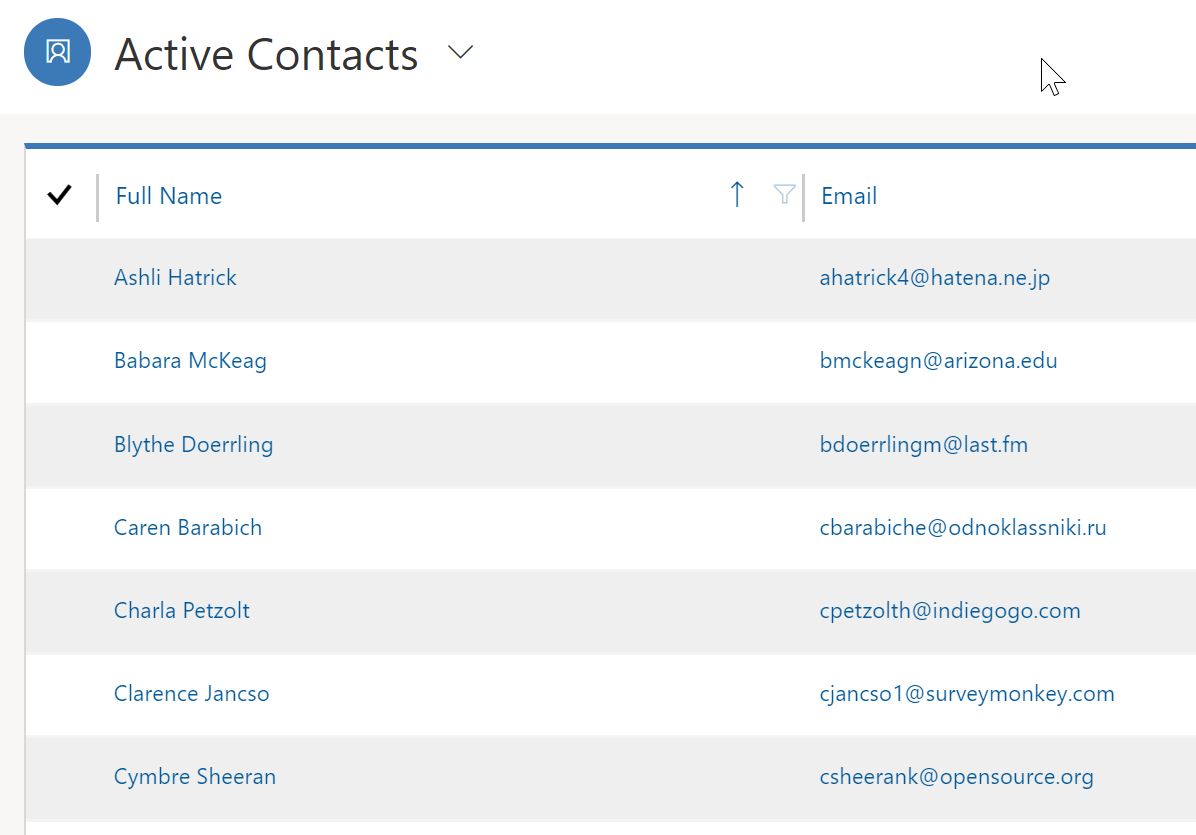
Unless the Contact was already in your D365 CE environment (based on a match on the email address), a new Contact will be created for each line of your CSV file.
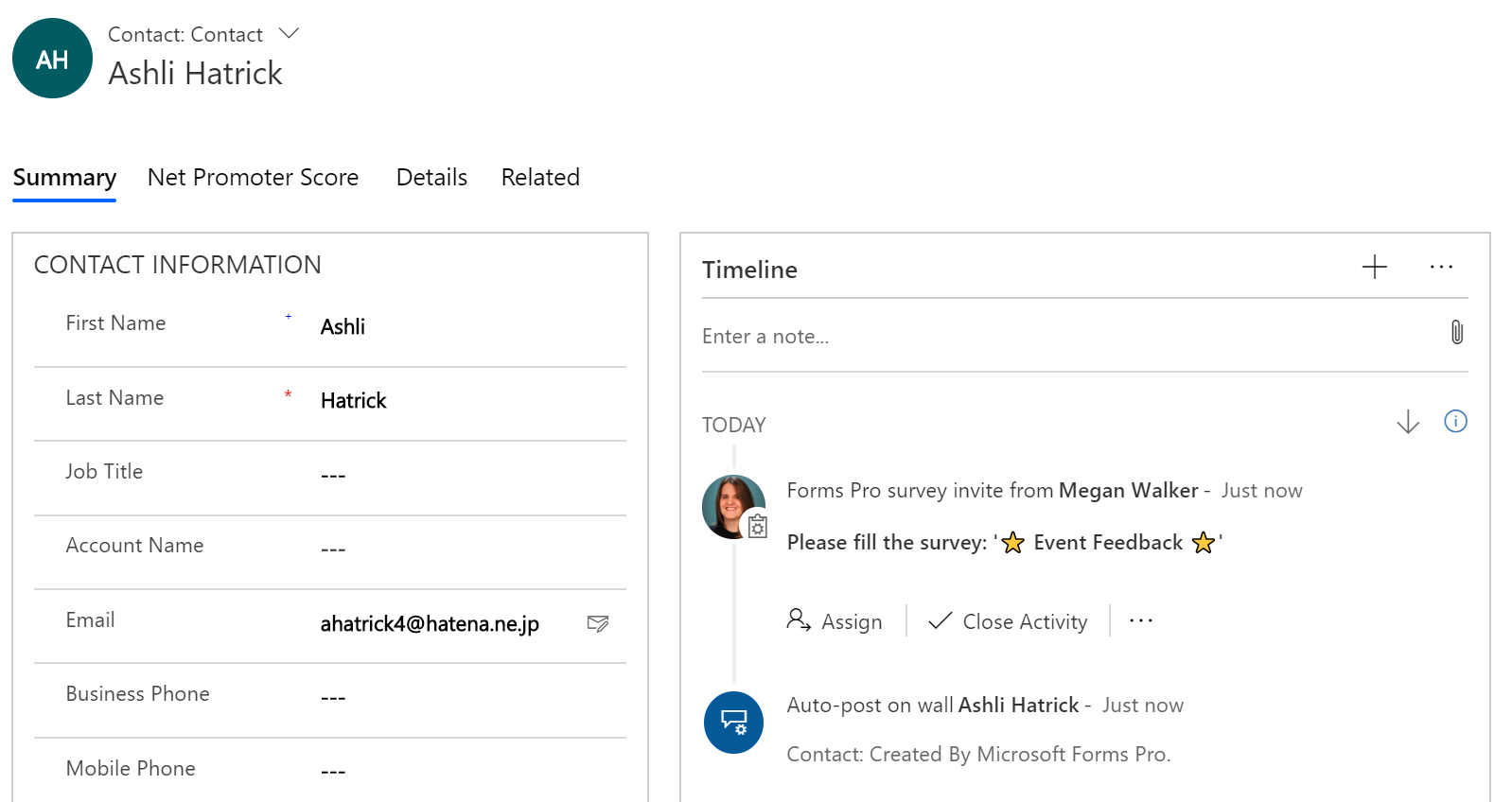
Opening up one of the Contacts will show that the Contact was created by Microsoft Forms Pro, and the Forms Pro survey invite that was sent will also be shown in the Timeline.
Want to just watch how to do this? Check out the video below:




8 responses
[…] Send Forms Pro Survey Invites Via CSV File – Megan V. Walker […]
Hi,
Is it possible to set the Survey end date in Forms pro from Microsoft flow ? I am able to set the end date from the settings page of the Survey. But i wanted to set the expiration date for the Survey maximum of 1 week from the date of survey sent.
Please provide your suggestion.
Hi Dinesh, this will be coming as a feature soon, likely before the end of the year. Have you signed up for my updates webinar this Wednesday? https://meganvwalker.com/forms-pro-webinar-new-updates-november – I will be covering then.
Hi,
Thank you so much for the update.
Sorry, I didn’t signup for the webinar as I am not available at the specified time. Is it possible for me to see the webinar videos later?
No problem. If you register, you will get an automated email back after the webinar with a link to access it.
That sounds good. I have registered now for the webinar. Once again thank you.
Hi,
Thank you so much for your tutorials and guides on Microsoft Forms Pro.
I made several attempts to upload my contacts (about 9,800 contacts) without success. After uploading the file, I get “Your file was successfully imported. FormsProSample.csv” however I can’t see the contacts in my “To” field. Do you have any idea what could be the problem?
Also, is it possible to change the sender’s email address?
Regards,
Francis
Hi Francis, if you are uploading that many, you will not see them all listed in the To field. Did you send your emails? Did they go out? You cannot change the sender email address, no.