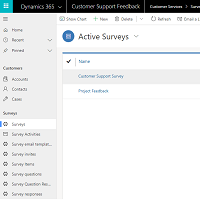
If you’ve been using Microsoft Forms Pro, you will know that you can review the question responses associated with each survey directly within the site. But where are those answers actually going? How can you find them, and to be more exact, where can you find them within the Common Data Service? Let’s take a look and get to the details!
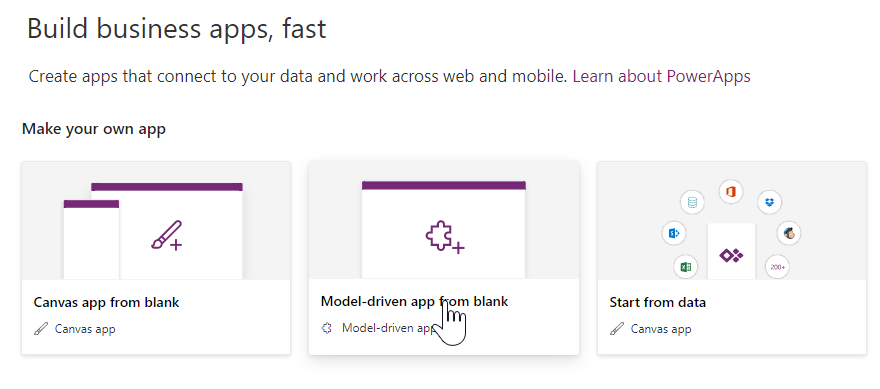
First of all, go to https://make.powerapps.com. If you want to add the survey entities to an existing app, find it in the list, and then select the Edit option. Otherwise, if you want to create a new one click on the option to create a Model-driven app from blank.
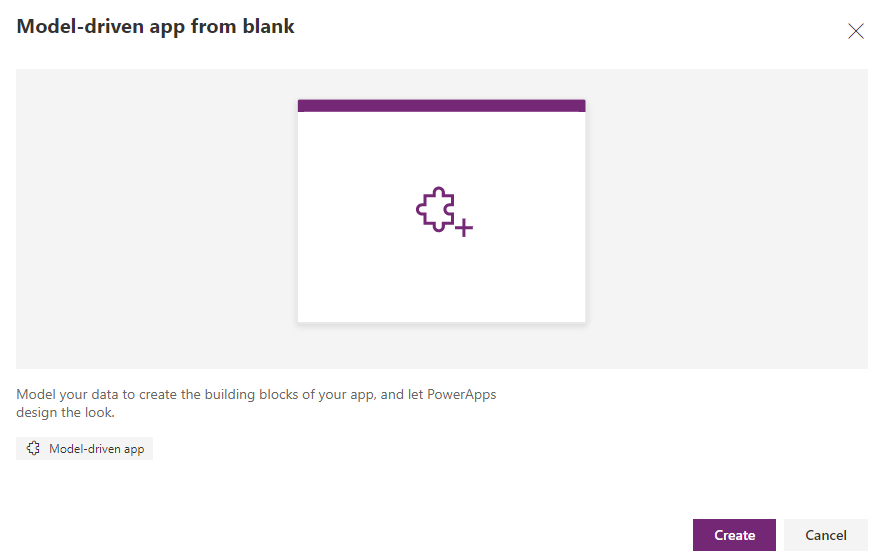
The following screen will be displayed. Click the Create button to continue.
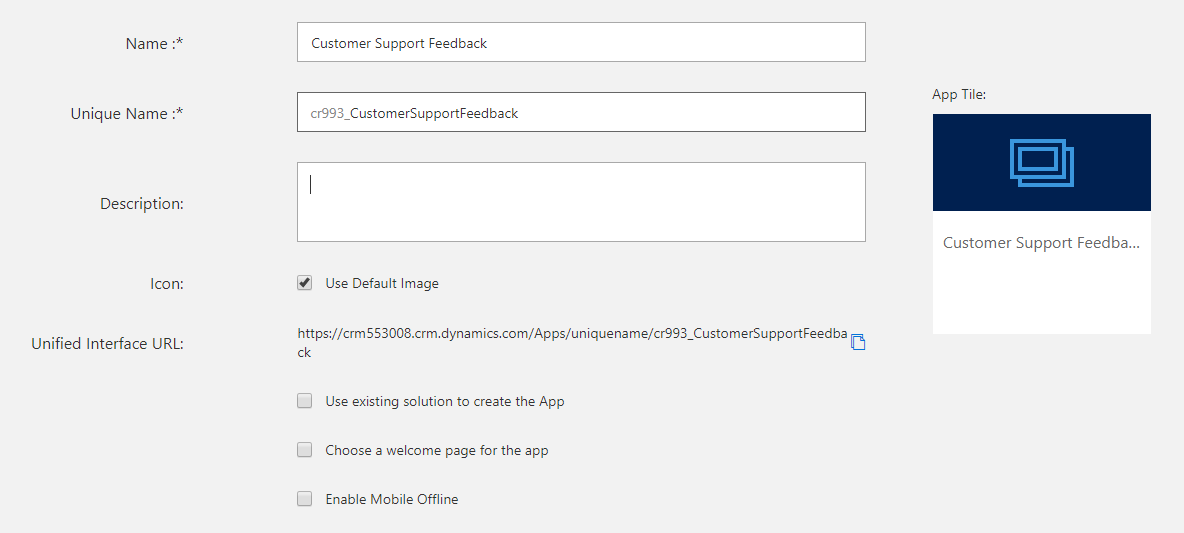
Next is where we will give the app a name. You can add a description if needed, and select an icon (or just use the default one as seen below). You also have the option to start from an existing app which will make a copy and allow you to edit it.
Once you have saved all of the details a screen like you see below will open. Click on the Entities option from the right in the artifacts section and find all of the entities you want to add to the app, and just tick the box for each one. For the Forms Pro survey entities, type msfp in the search box to find them all.

Once you’ve added all the entities, save the app. Then click the pencil next to the Site map area to set the navigation for the app.
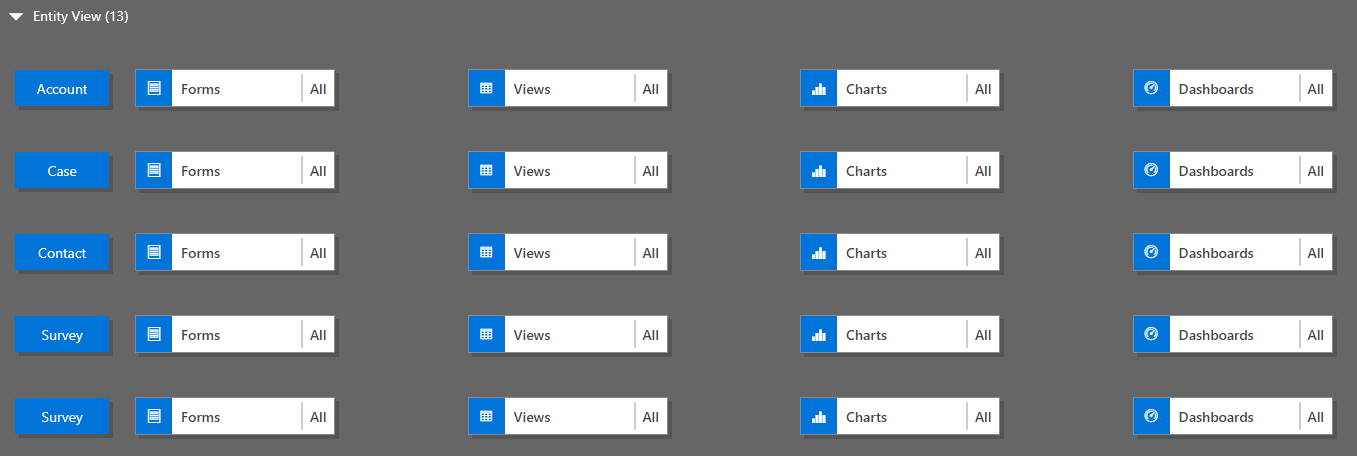
You can probably stick with just one area, and then create some groups with different sub areas. For this example, we have a Customers Group and a Surveys Group with the related entities underneath those.
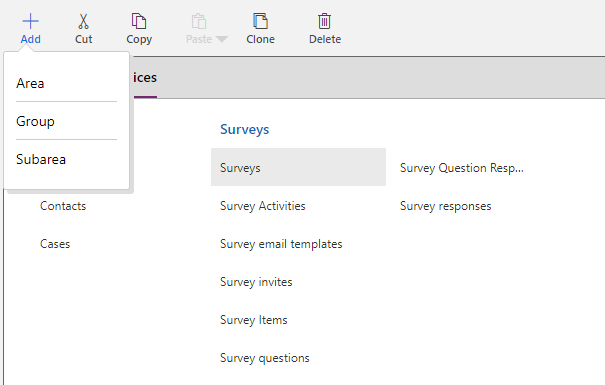
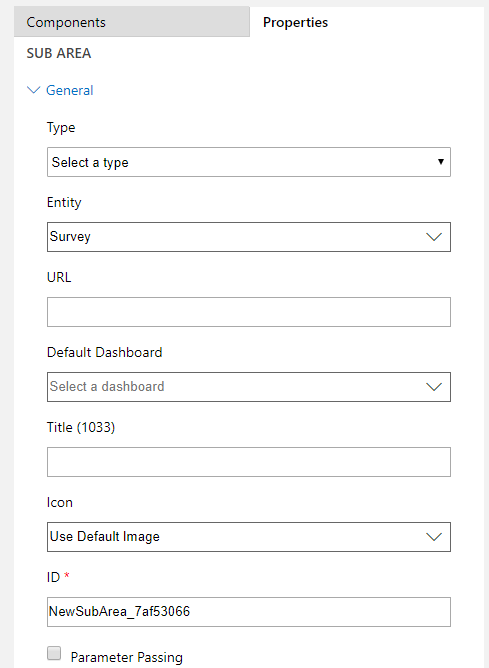
Adding an entity is easy, just use the drop down list to find it. Unfortunately you can’t search by msfp again, so need to look for the names of the entities. It’s possible you will have two Survey entities. One will be for Voice of the Customer, and the other one for Forms Pro. So it might be that you pick one, publish and then check to make sure it was the right one.
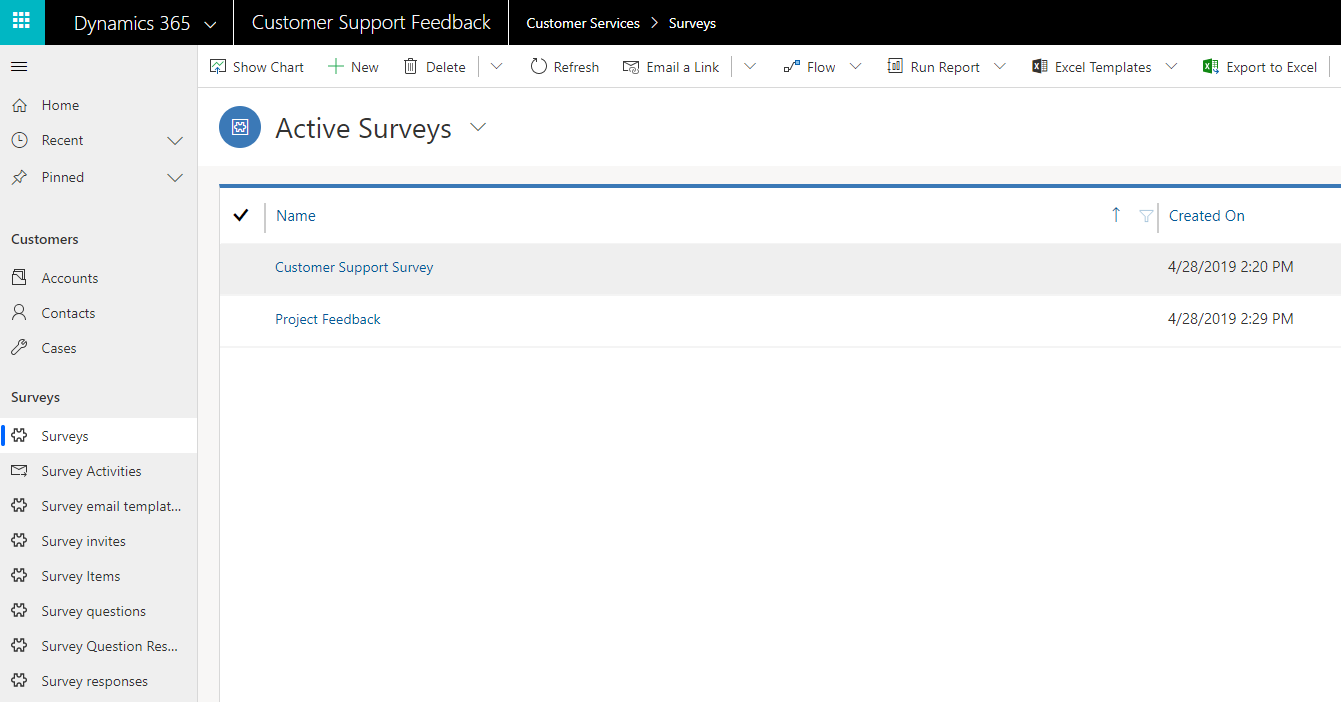
Once you have finished, save and close the site map, then save and publish the app. Click the Play option to open the app.

Once the app is open you will be able to see all of the entities you’ve added to the site map and get stuck in and start reviewing the survey info being collected!
Want to just watch how to do this? Check out the video below:




18 responses
Thanks for this article, I was wondering how to do exactly this!
You are welcome Laura! It’s not immediately obvious, so took a little digging to get to everything. Lots more on Forms Pro still to come!
Hi Megan,
How do we know which instance the Survey data is associated with – is that something that can be configured? Thinking about how you would test in sandbox.
Peter.
Hi Peter, I am going to do a post next week about this very thing. When you are logged in to Forms Pro, you do have the option to select the environment that you are creating your surveys for. You can then Copy your survey to another environment if needed. Look out for that post soon!
Was wondering about this today and I knew you would have the magic 🙂
Awesome time saver my friend..THANK YOU!
Ahh, I like this mutual appreciation. You help me, then I help you, and round in a circle we go. 🙂
Hi Megan, this entities dont appear on my organization, can you help me?
Hi Carlos, have you upgraded to Forms Pro? When you log in to Forms Pro, do you see it show Forms Pro in green on the top left, or does it still say Forms?
Hi Megan,
I’m also not able to see the form pro entity in Dynamics. I have Forms Pro.
Any suggestions please.
Hello Megan, thanks for your blogs about microsoft form pro.
I have managed to create a Survey and a Flow to send this survey to accounts in my D365 environment.
The accounts recieve the email with the survey and responses come back to forms pro site.
However, what I dont fully understand yet, is how can this be stored in Dynamics? How can I see that the survey is sent to the account?
How to work with the form pro survey entitites in D365 and forms pro site?
If you want to link the survey response to the account, you will need to set it in the regarding field in your flow. See the example here: https://meganvwalker.com/add-personalisation-to-form-pro-survey/ – and in the screenshot that shows the Forms Pro connector action where the regarding field has the incident, add in your account id for the account you are linking it to. Then when the survey response comes back in, it should be in the regarding field on that activity record.
Nowadays (at least in my newest instance that I opened yesterday!) these entities are named “Forms pro something something” so you can easily spot the difference between the old VoC entities. Could the names change so quickly? The entities were populated when using Flow to capture survey responses thanks to your tutorials, Megan!
yes! they are adding updates each month, so things are changing very quickly which is good, but sometimes hard to know about immediately. Glad the tutorials are helpful!
Hi Megan, thanks a lot for your blog, it helps a lot!
I have problem with filling the entities in Dynamics 365. With power automate i can create a record (eg. answers to surveys questions) but it only takes one answer. I find the configuration of power automate very hard! i would like to put the name of the survey, all the questions and all the answers into the dynamics 365 entities, so i can create my KPI’s
Can you write a post on that? Pleaaaaase 🙂
Andrea
Hi Andrea. Thanks or the comment, glad the blog helps! Not sure I understand. If a survey is completed, that response goes in to the Common Data Service automatically. That means, you will be able to find the response linked to your Contact in Dynamics 365. So if you send out an email using Power Automate or from within Forms Pro with a survey invite, and you complete it, you should be able to see that in the Timeline on the Contact record. If you just filled out a survey from a link and it’s anonymous, you would need to go to the Survey Responses entity (making sure you have added that to your D365 App) and you will find it there.
[…] your first flow in Part Two, make sure you fill out one of the surveys, then go to the response in your CDS app. There is a Context Data field which should have been populated with some data. Simply copy this, […]
Hey Megan! Fantastic blog and the best source of info I’ve seen on Forms Pro/Customer Voice.
This blog is particularly helpful to something I am trying to achieve (Manually sending a survey from Dynamics 365 via CV + viewing results in D365). The documentation mentions a installing a pre-built app to achieve this but no detail on how or where!
https://docs.microsoft.com/en-us/dynamics365/customer-voice/send-survey-from-dynamics-365
Have you played with this at all?
Hi Oli, I am checking on this one. I saw it and have tested it before anything was made public, so I got the app in a slightly different way. I will check and let you know what I find out!